- 01
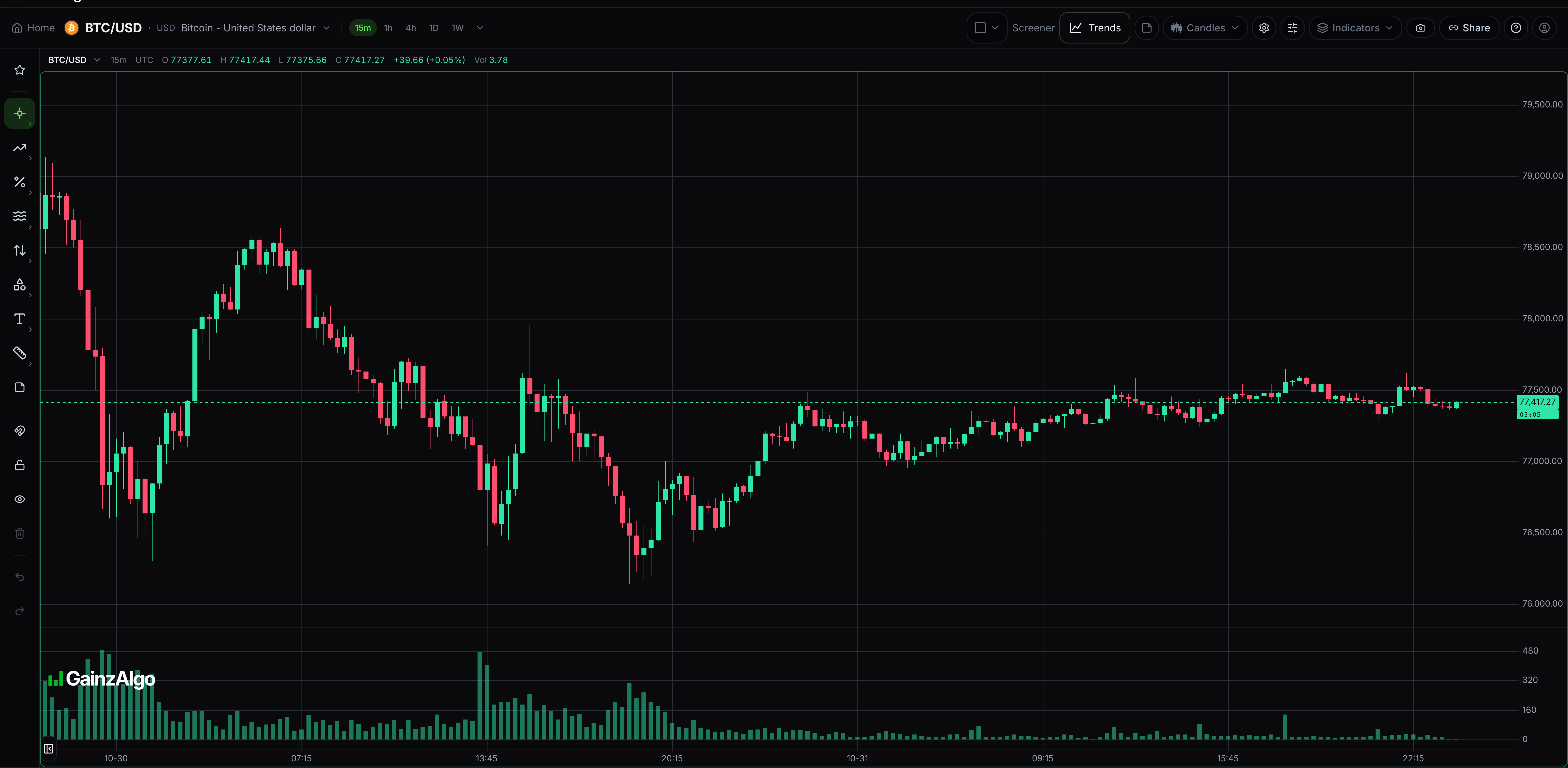
Candles
Filled bodies show where each candle opened and closed. Wicks show its highest and lowest prices.
Open the chart-type menu and choose Candles.
- 02
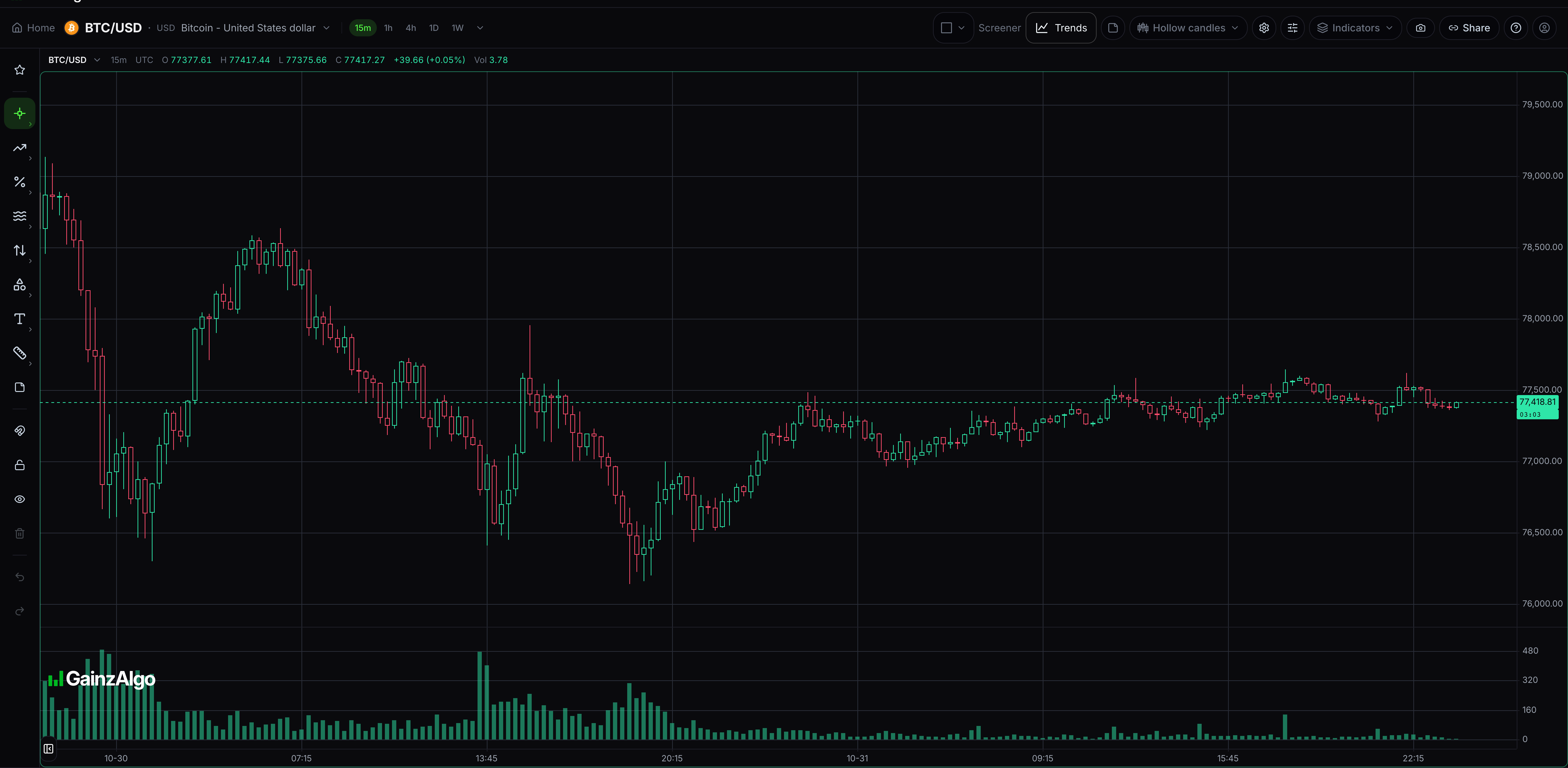
Hollow candles
Outlined bodies make candle edges stand out.
Open the chart-type menu and choose Hollow candles.
- 03
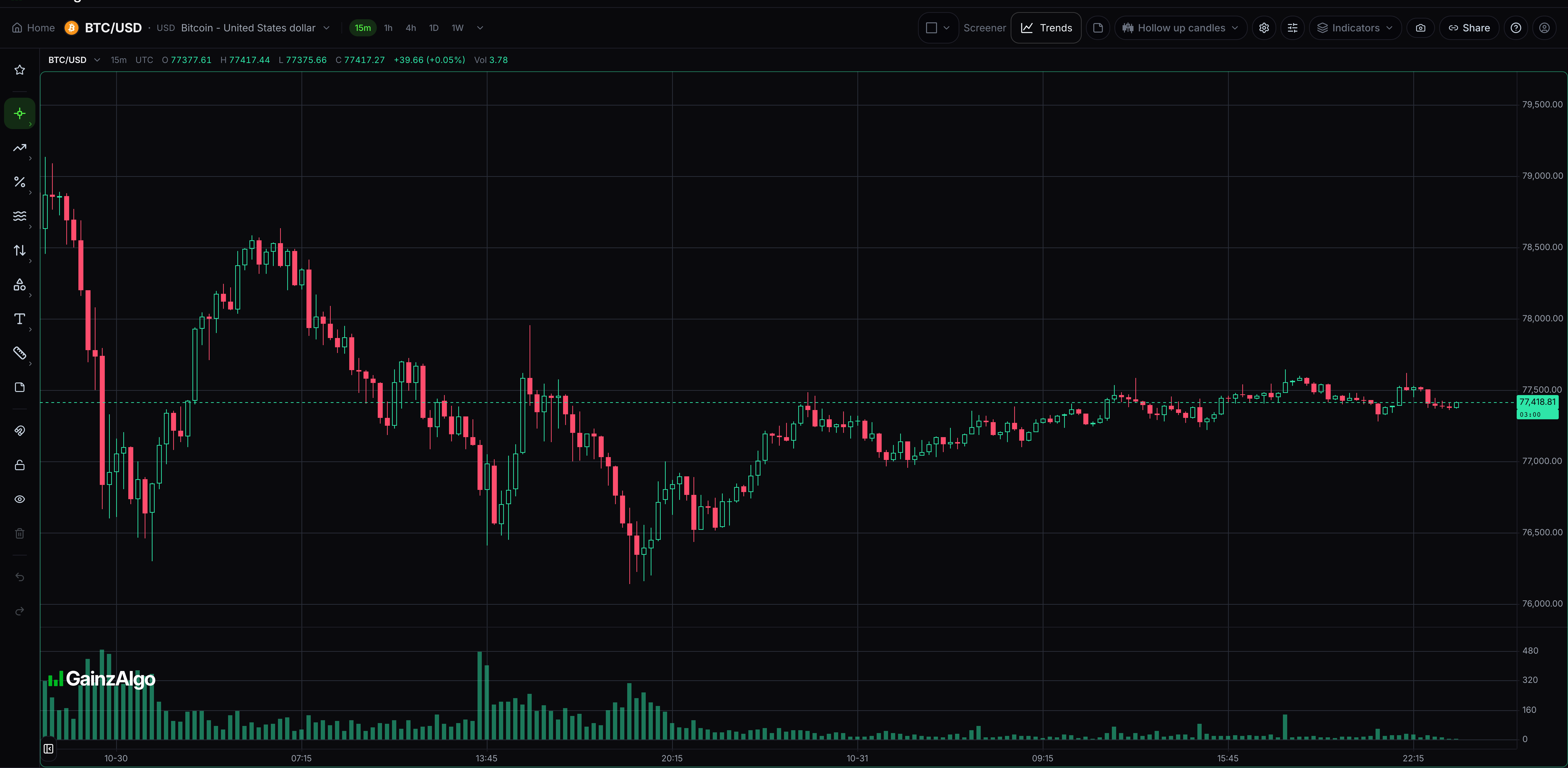
Hollow up candles
Rising candle bodies are outlined and falling bodies are filled.
Open the chart-type menu and choose Hollow up candles.
- 04
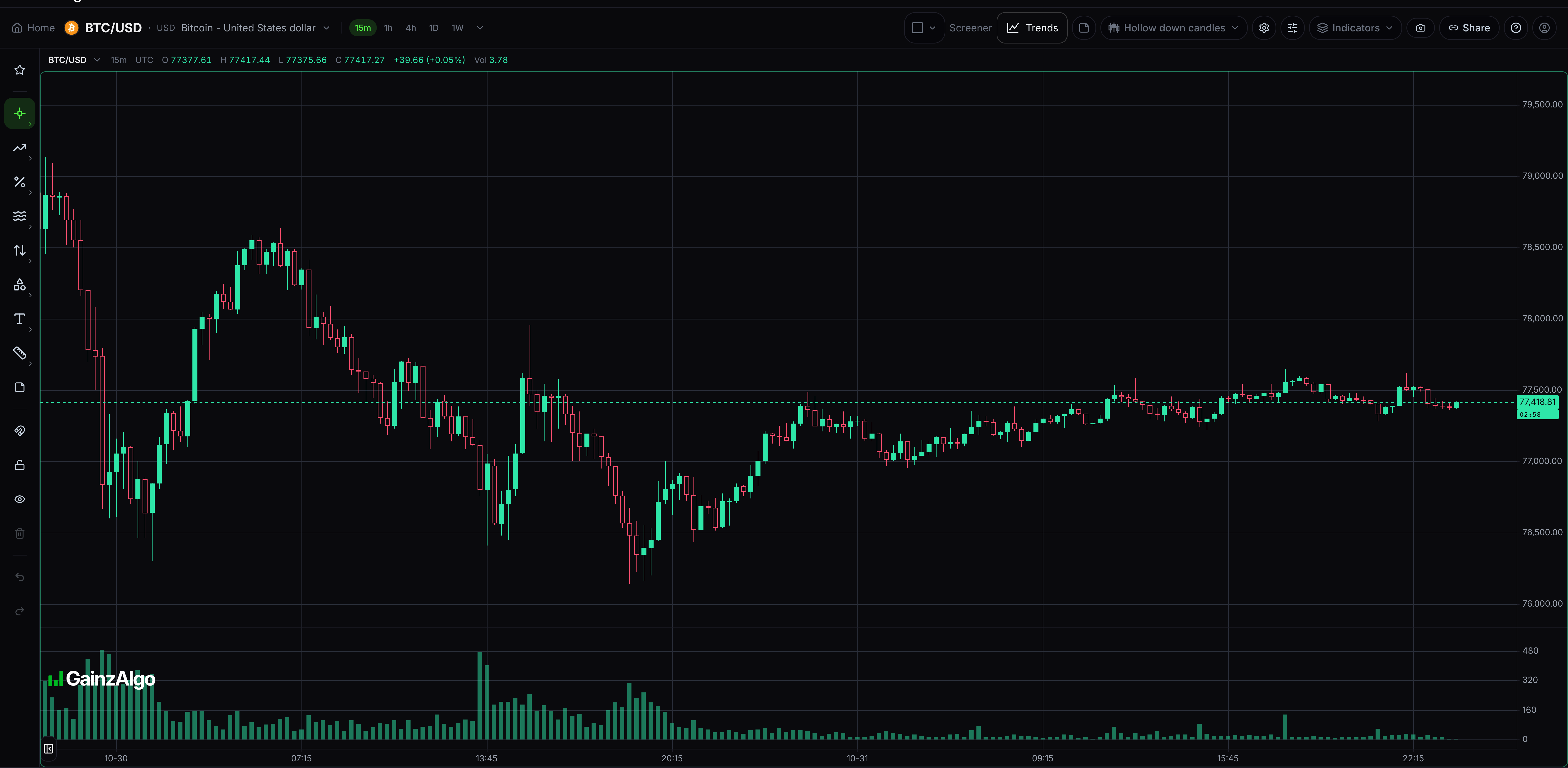
Hollow down candles
Falling candle bodies are outlined and rising bodies are filled.
Open the chart-type menu and choose Hollow down candles.
- 05
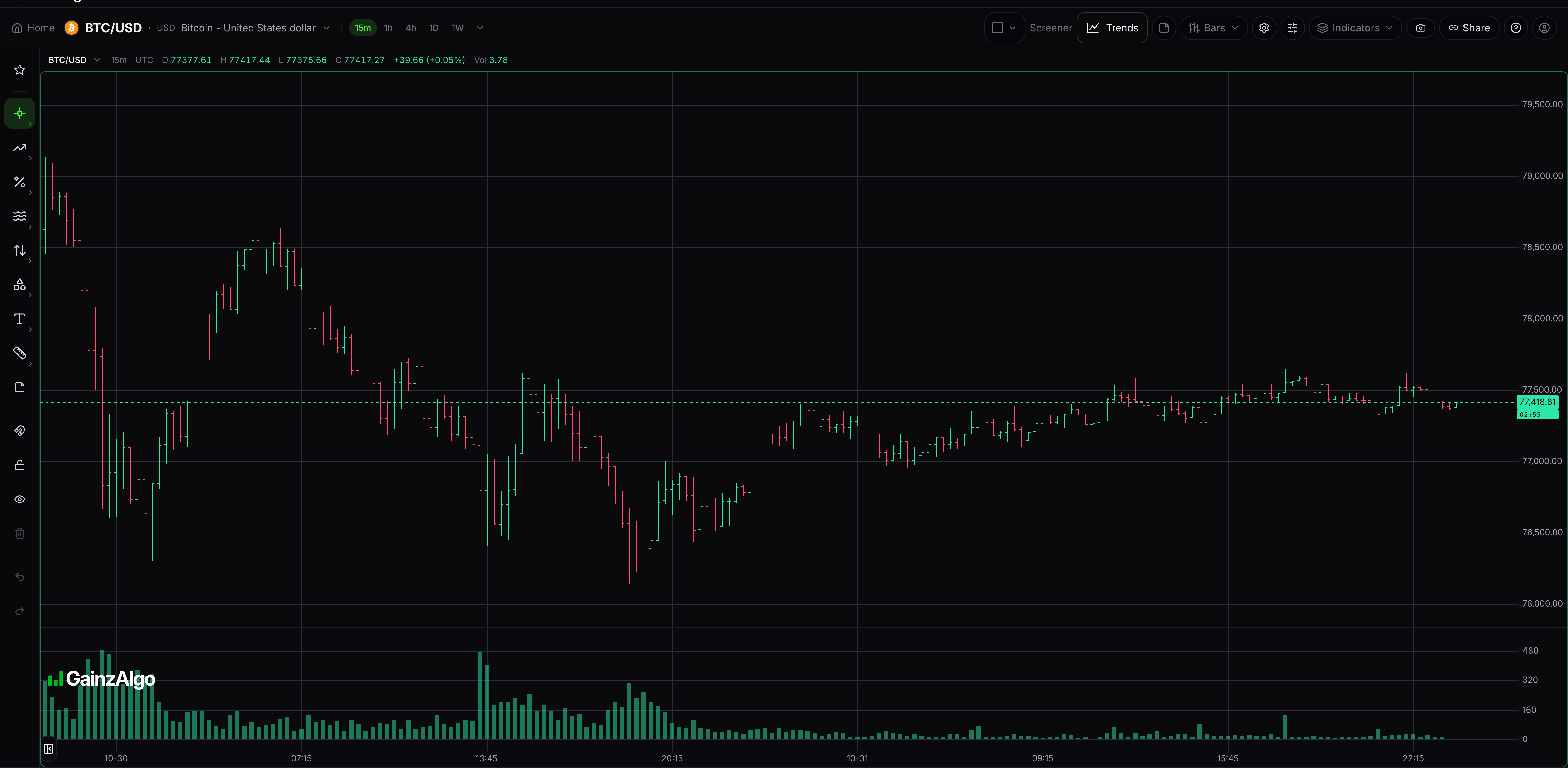
Bars
A thin bar shows the high and low, with small ticks for open and close.
Open the chart-type menu and choose Bars.
- 06
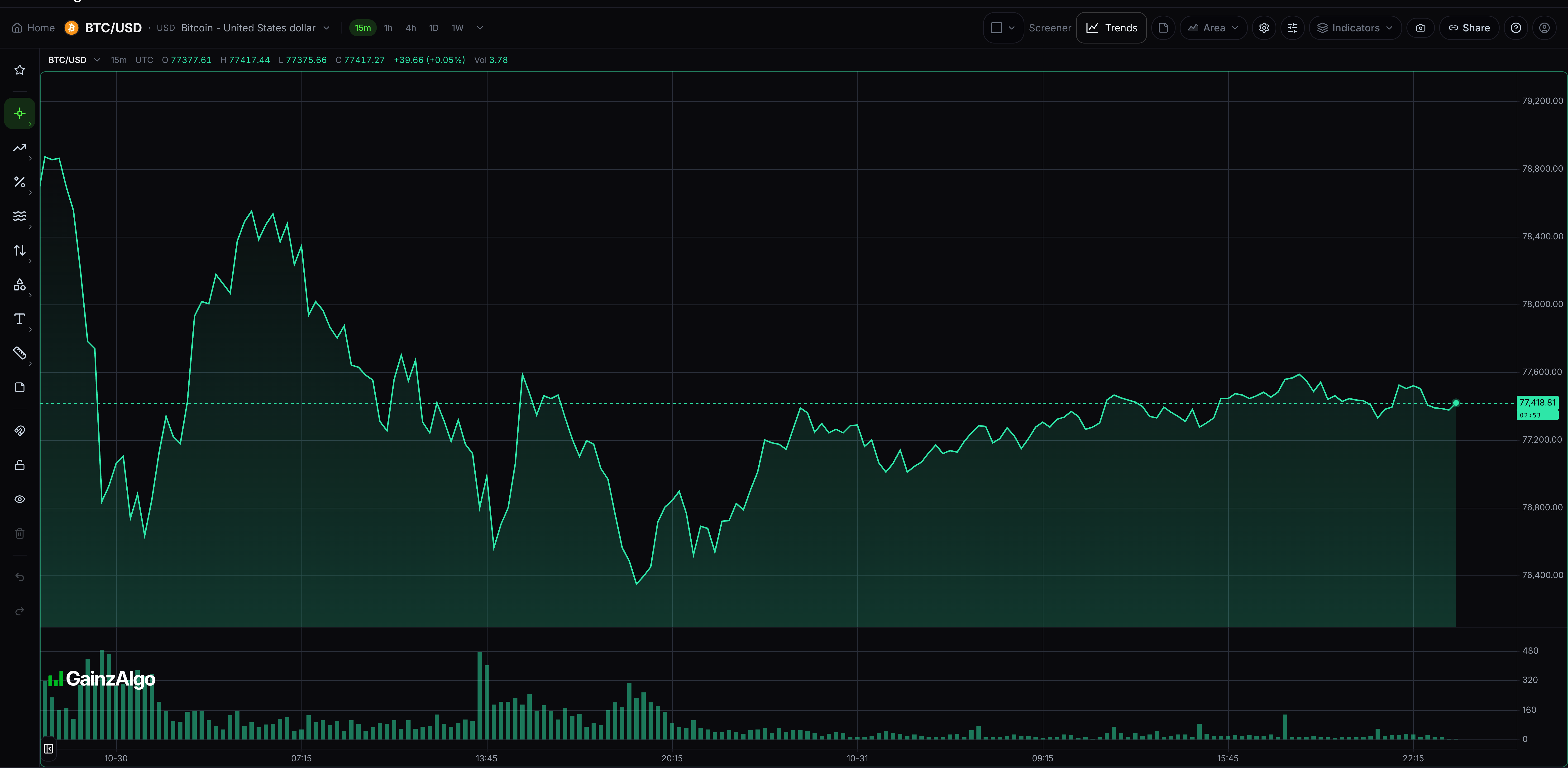
Area
A filled line joins closing prices. It does not show each candle’s high and low.
Open the chart-type menu and choose Area.
- 07
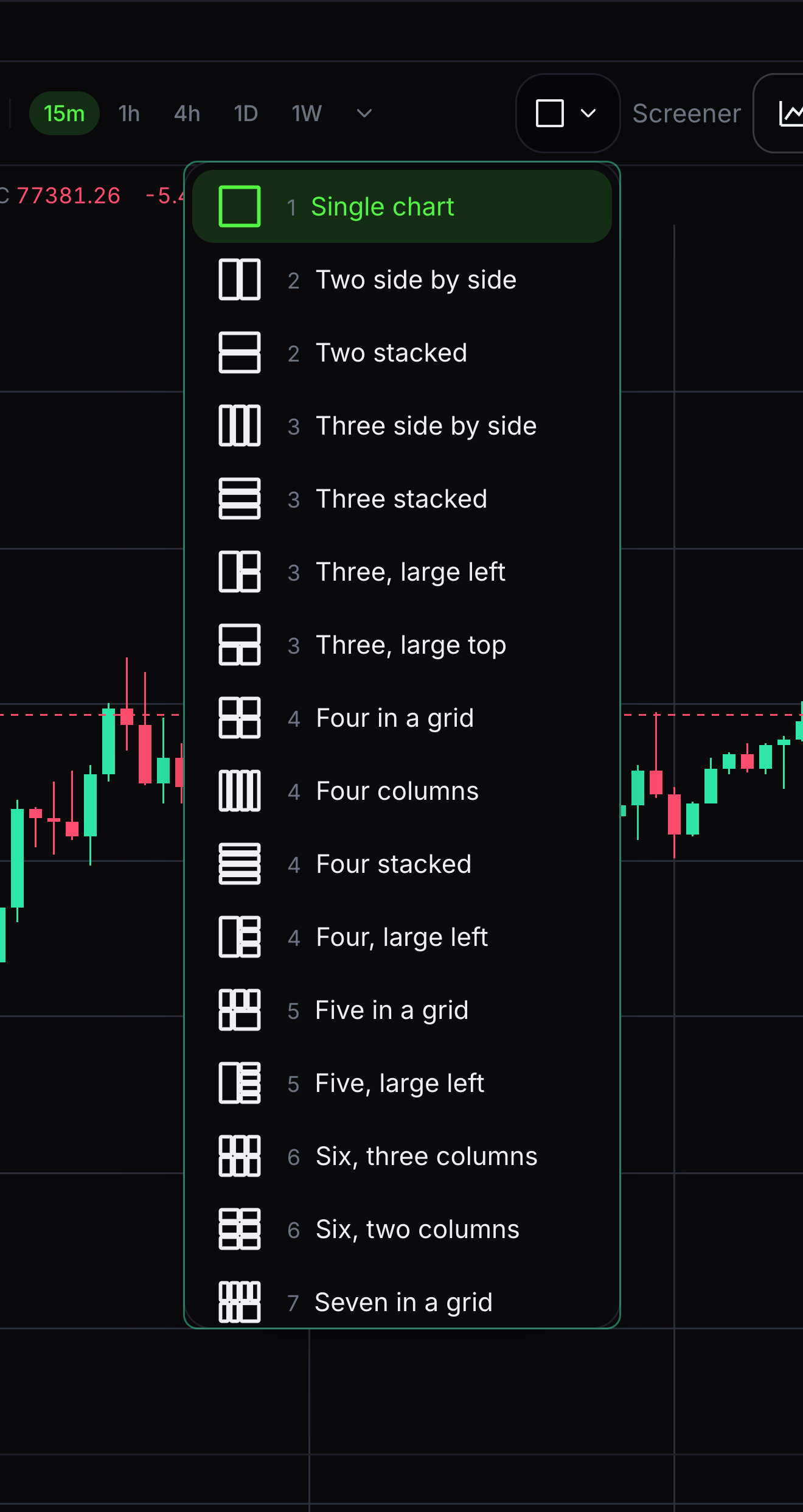
Choose a layout
A layout arranges several chart panes on the screen.
Open the layout picker and choose an arrangement, from one chart to a larger grid.
- 08
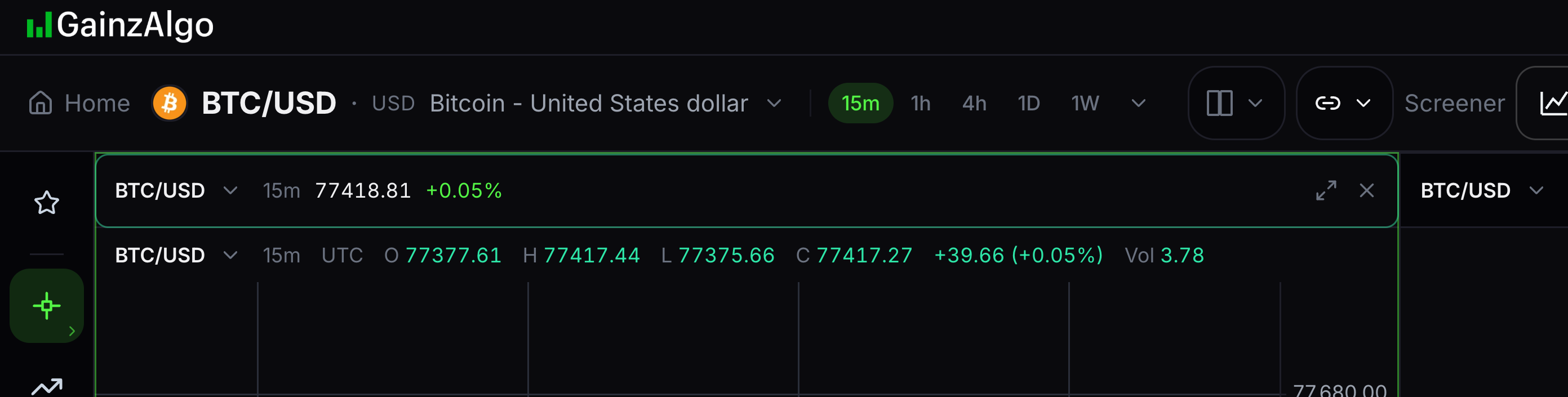
Change one pane
The active pane is the chart you are changing.
Select a pane, then choose its symbol or timeframe. Use a wider screen if the layout controls are outside your phone’s view.
- 09
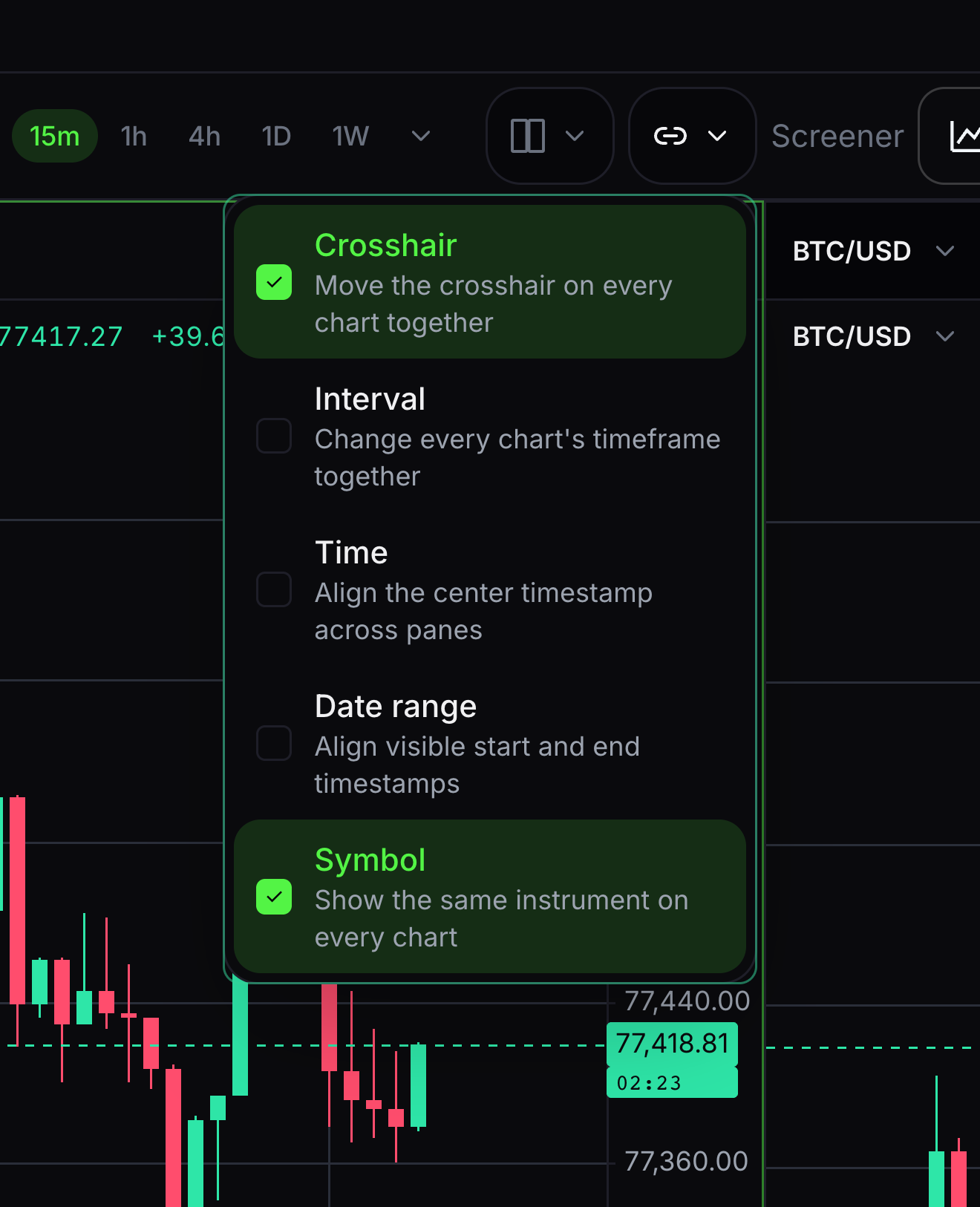
Synchronize panes
Sync makes panes share selected controls.
Open Sync and choose Crosshair, Interval or Symbol. Interval is the candle timeframe. A crosshair is the pair of guide lines that follow your pointer.


Keep learning
Was this helpful?