- 01
Top bar
The top bar brings together navigation, market selection and chart controls.
Use the controls below to choose what to view and how the chart looks. A timeframe is the amount of time covered by one candle.
- Home. Return to the GainzAlgo home page.
- Symbol search. Find and open a market, such as BTC/USD.
- Quick timeframes. Switch to one of the candle periods shown in the bar.
- Timeframe menu. Open the full list of candle periods.
- Layout picker. Choose how many chart panes to display and how to arrange them.
- Screener. Find markets using signal filters.
- Trends. See the market direction across timeframes.
- Notes. Open your notes about candles and trading ideas.
- Chart type. Choose candles, bars or an area chart.
- Chart settings. Adjust the chart’s appearance, scales and other display options.
- Indicator settings. Adjust the selected indicator’s signals and display.
- Indicators. Choose the indicator to show on the chart.
- Screenshot. Save an image of your chart.
- Share. Copy a link to share the chart.
- Help / tour. Start the guided introduction to the chart.
- Account. See your signed-in email and sign out, or open sign-in controls.

- 02
Drawing tools
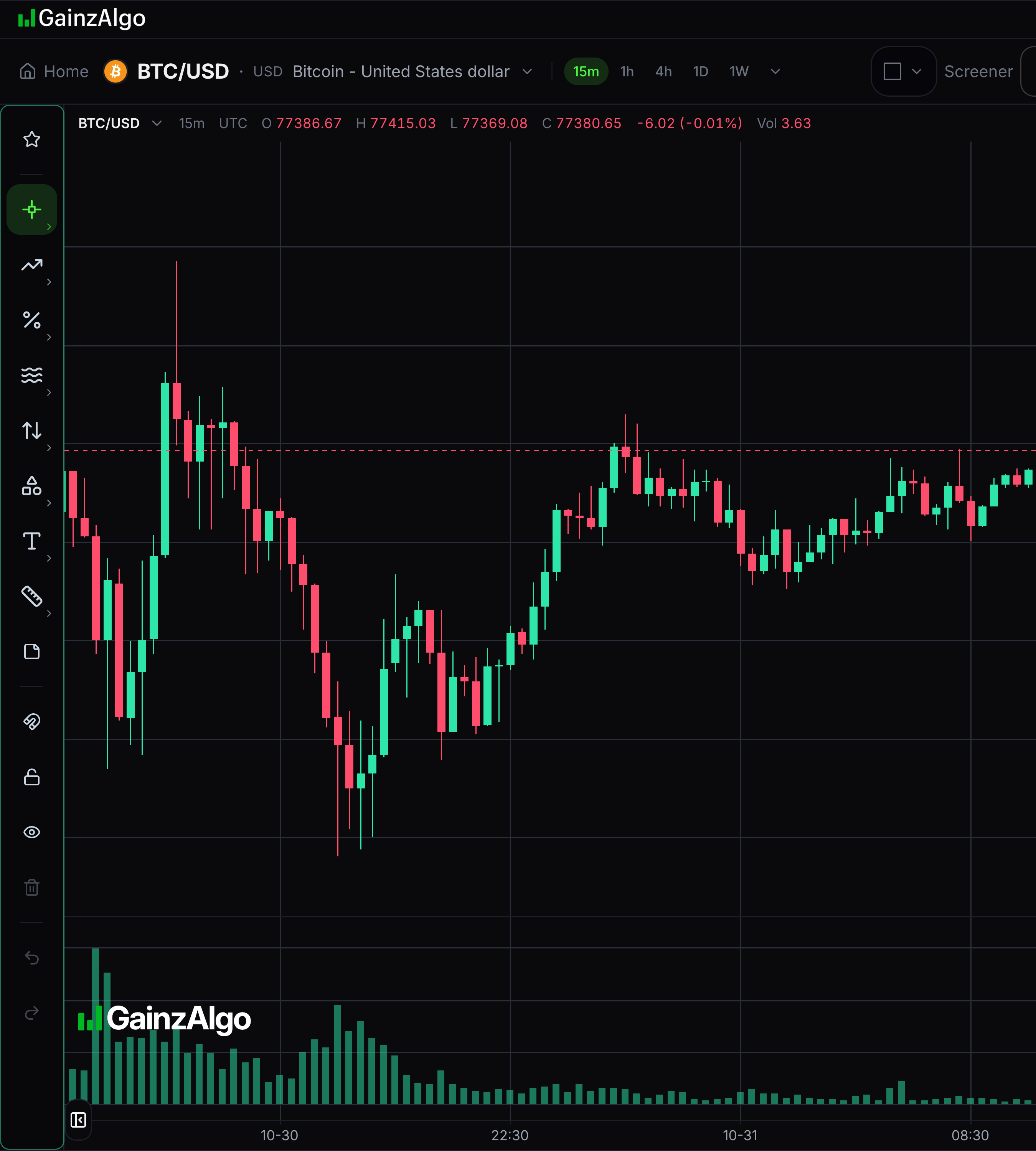
Drawing tools let you mark prices and areas yourself.
Open a group on the left rail and choose a tool. On a phone, use the Drawing tools button.
- 03
Status line
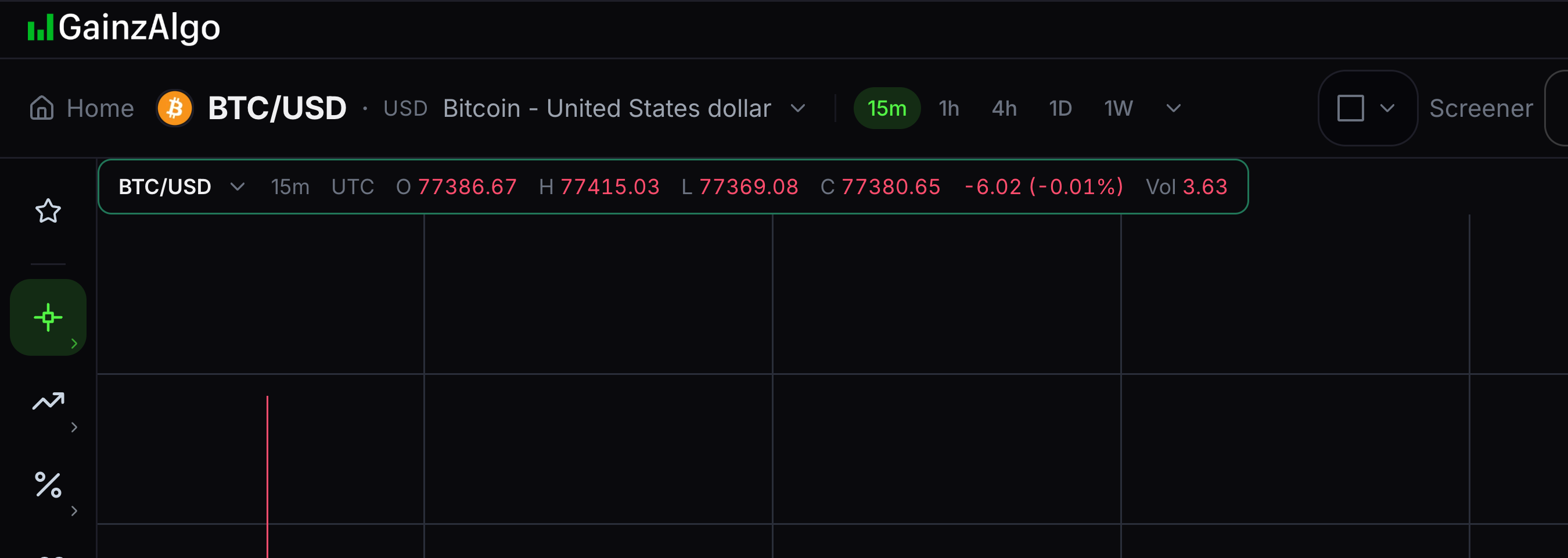
The status line gives details about the candle under your pointer.
Read OHLC: open, high, low and close. These are the first, highest, lowest and final prices for that candle.
- 04
Price scale
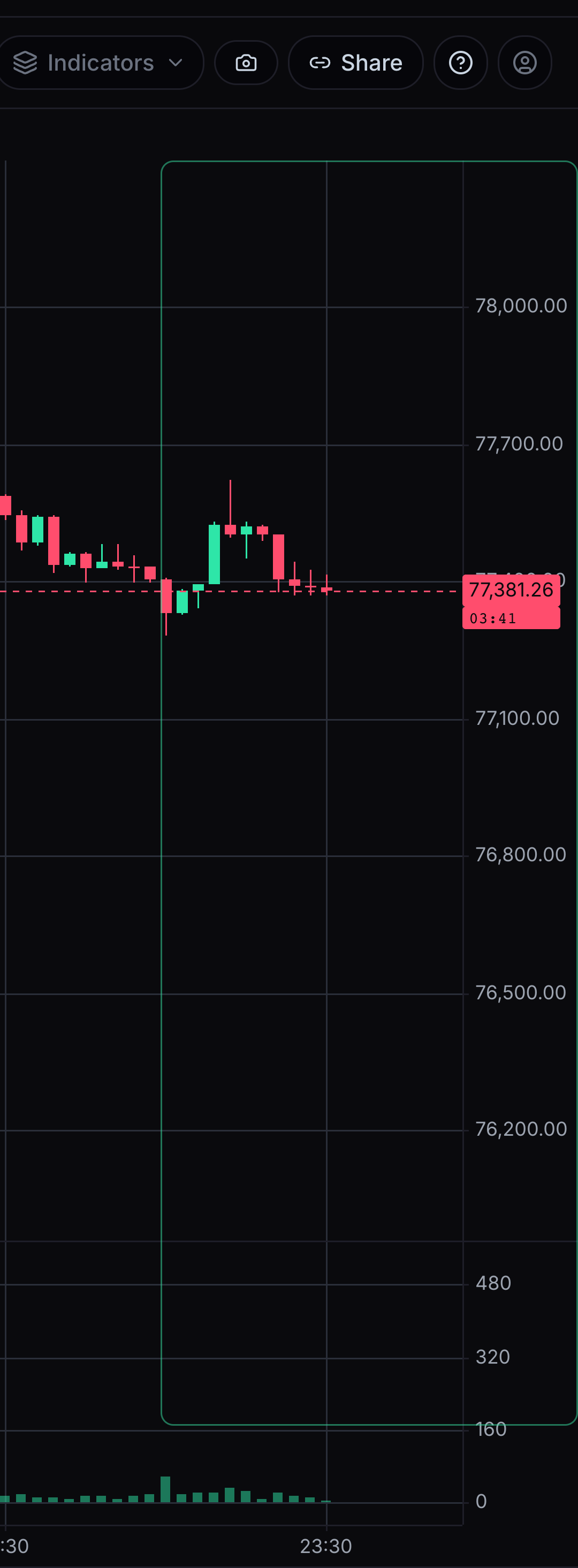
The vertical numbers show price.
Move the pointer over the chart and line it up with the price scale.
- 05
Time axis
The time axis is the dates and times row along the bottom. It tells you when each candle happened.
Line up a candle with the dates and times below it. This row shows when trading happened; the volume bars show how much was traded.

- 06
Volume pane
The volume pane contains bars showing how much was traded during each candle.
Compare the volume bars below the price chart. Taller bars mean more was traded in that period. The time axis below them tells you when each candle happened.



Keep learning
Was this helpful?