- 01
Home
Home takes you back to the main website.
Return to the GainzAlgo home page.
- 02
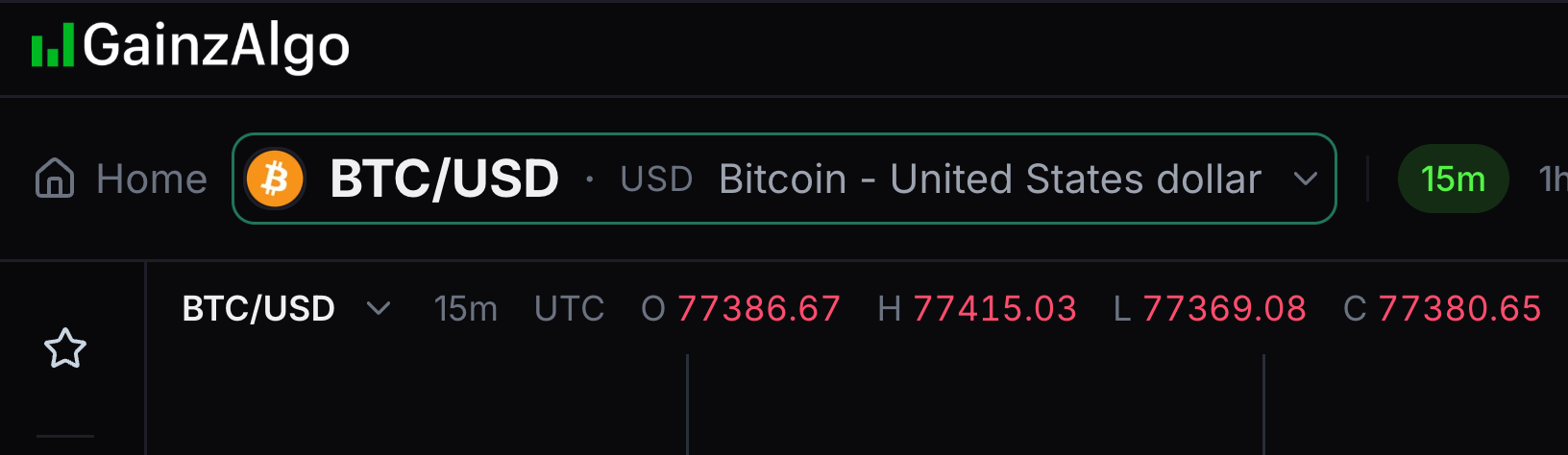
Symbol search
Symbol search chooses the market displayed in this pane.
Search for a company, symbol or market and choose a result.
- 03
Quick timeframes
The quick interval buttons set how much time each candle covers.
Choose a visible interval such as 15m. Each candle then covers that much time.
- 04
Timeframe menu
The timeframe arrow opens all available intervals.
Open the arrow beside the quick intervals to see the full list. On a phone, open the three-dot Chart options menu and scroll to Timeframe.
- 05
Layout picker
The layout picker arranges the chart panes.
Choose how many chart panes to show side by side.
- 06
Screener
Screener finds instruments matching your signal filters.
Open the Screener to filter signals across instruments. On a narrow phone screen, use a wider or landscape view for this control.
- 07
Trends
Trends summarises direction across timeframes.
Open Trends to compare the current market across timeframes. On a narrow phone screen, use a wider or landscape view for this control.
- 08
Notes
Notes collects your saved chart observations.
Open the notes panel to browse observations saved on your charts. On a narrow phone screen, use a wider or landscape view for this control.
- 09
Chart type
Chart type changes how the price series is displayed.
Choose candles, bars, a line or another supported price display.
- 10
Chart settings (gear)
The gear opens settings for the chart’s appearance.
Open the gear to change candles, the status line, scales, canvas and drawings.
- 11
Indicator settings
Indicator settings adjusts the signal marker display.
Open the sliders button to adjust signal labels, colours and risk-to-reward settings.
- 12
Indicators
Indicators chooses which strategy tier appears on the chart.
Open Indicators, search for a tier and select it. A lock identifies tiers you do not own.
- 13
Screenshot (camera)
The camera saves the visible chart as an image.
Select the camera to download a PNG of the chart with its header and drawings. On a narrow phone screen, use a wider or landscape view for this control.
- 14
Share
Share copies a link to your chart setup.
Copy a chart link with its timeframe, indicator, drawings and settings.
- 15
Help / tour
The question mark starts the guided chart tour.
Select the question mark to start the guided tour. On a narrow phone screen, use a wider or landscape view for this control.
- 16
Account menu
The account menu gives access to your account actions.
Open your account menu to find account actions or sign out.
- 17
Mobile Chart options
Chart options collects controls into a scrollable phone menu.
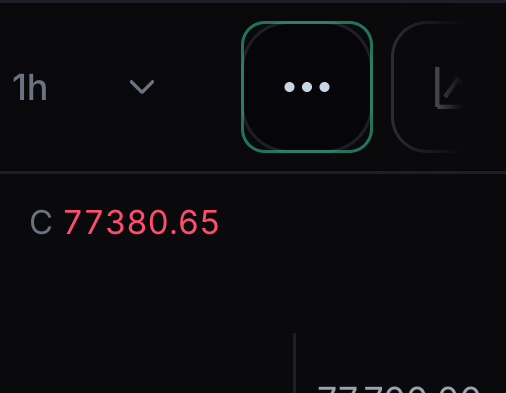
On a phone, tap the three dots beside the symbol and timeframe controls. Scroll inside Chart options for indicators, replay, intervals, chart types, layout, settings, Share and Account.
- 18
Mobile replay
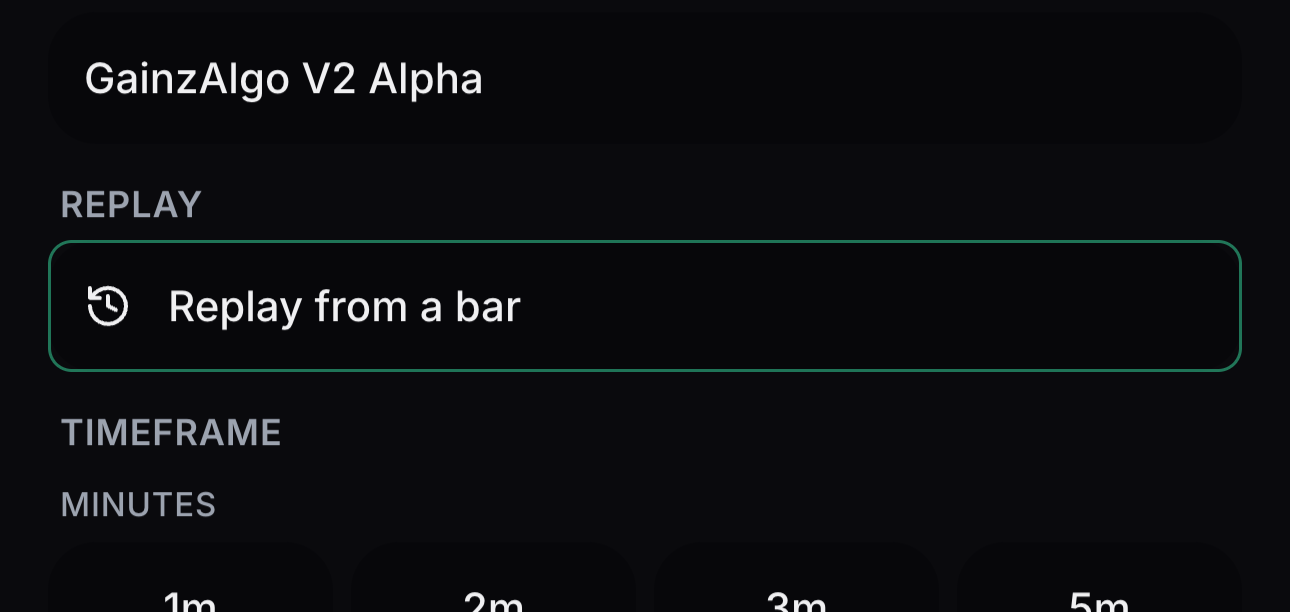
Replay lets you step through earlier candles.
Open Chart options and select Replay from a bar, then choose where playback starts.


Keep learning
Was this helpful?