- 01
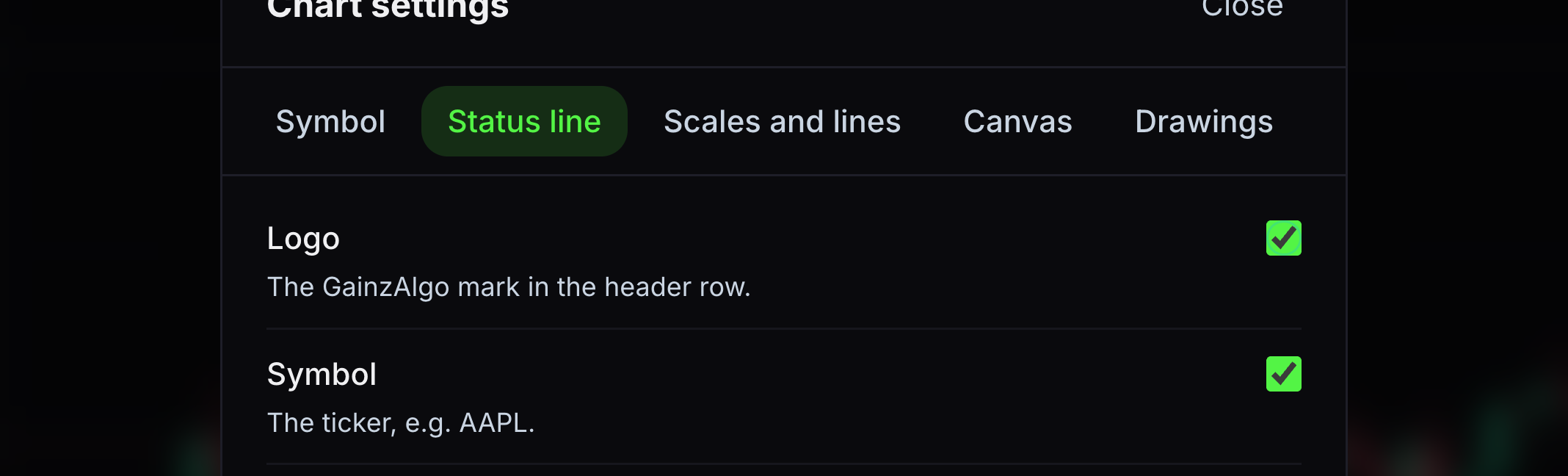
Logo
This shows the GainzAlgo mark in the header.
On desktop, turn this item on or off. On a narrow phone, this switch is unavailable because the chart header already shows the mark.
- 02
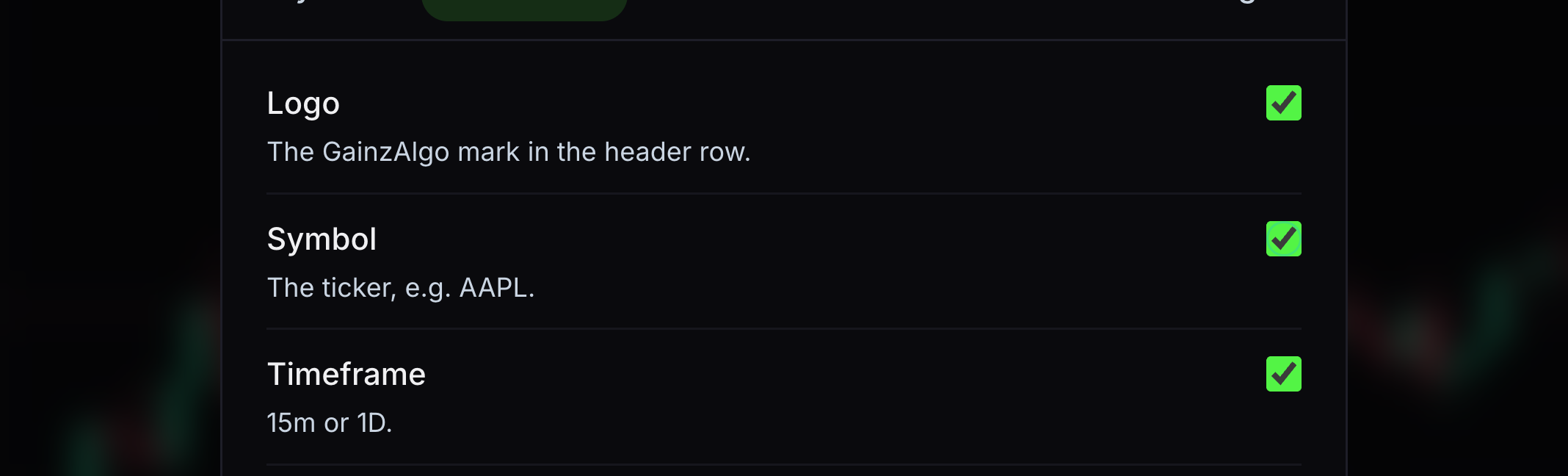
Symbol
This shows the instrument’s ticker.
On desktop, turn this item on or off. On a narrow phone, this switch is unavailable because the chart header already shows the ticker.
- 03
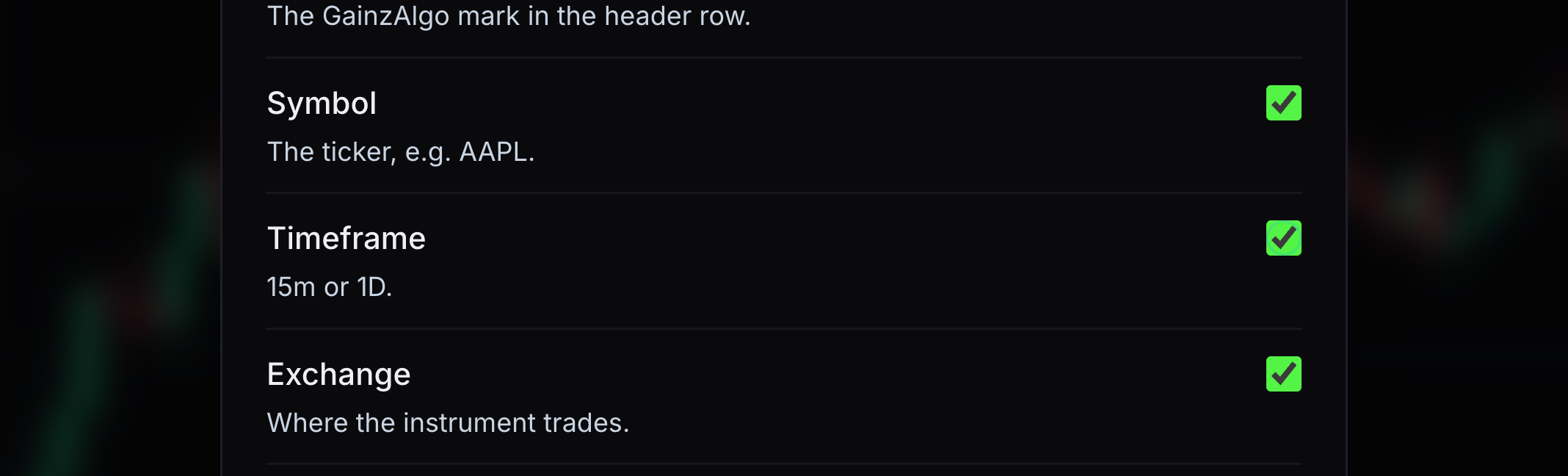
Timeframe
This shows how much time each candle represents.
Turn this item on or off.
- 04
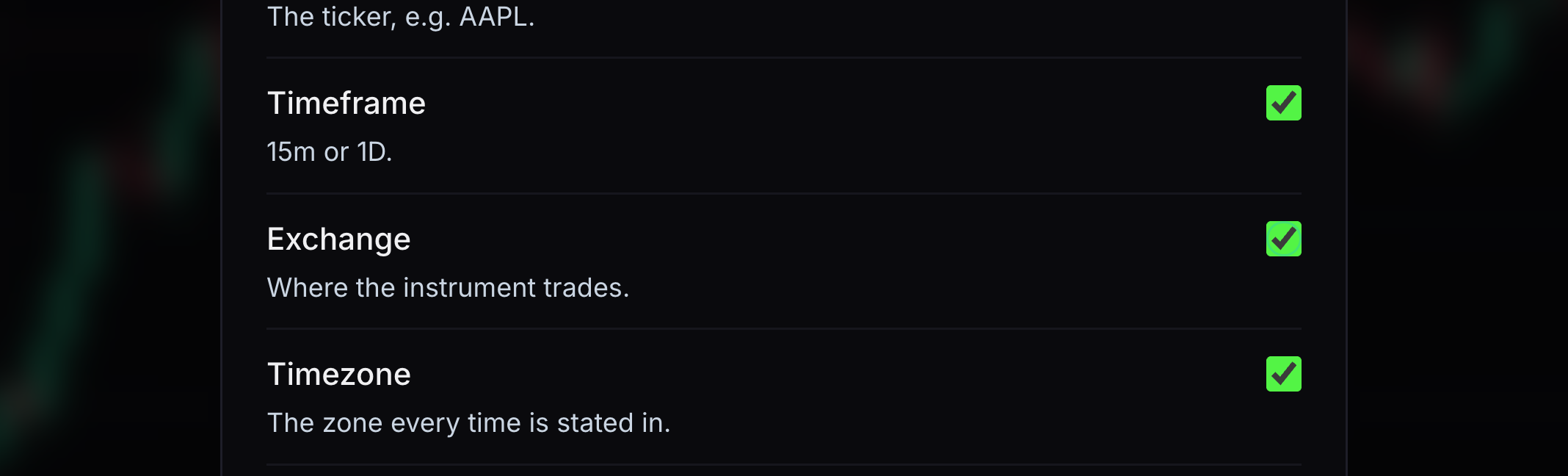
Exchange
This names the market where the instrument trades.
On desktop, turn this item on or off. On a narrow phone, this switch is unavailable because the chart header already shows the exchange.
- 05
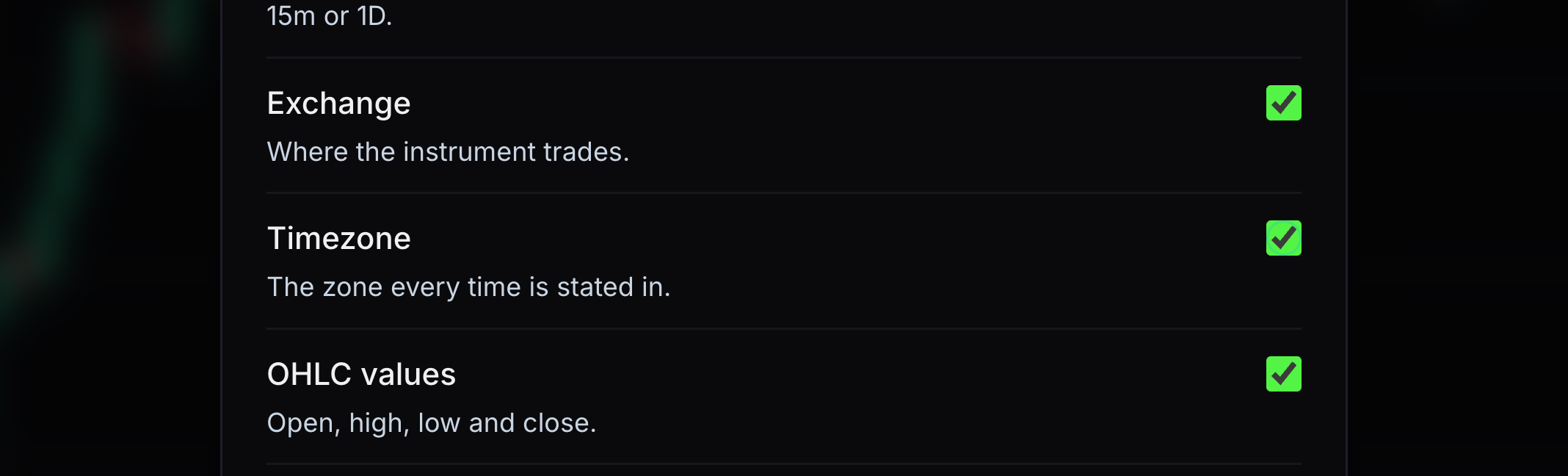
Timezone
This names the timezone used for chart times.
On desktop, turn this item on or off. On a narrow phone, this switch is unavailable because the time axis uses the selected timezone.
- 06
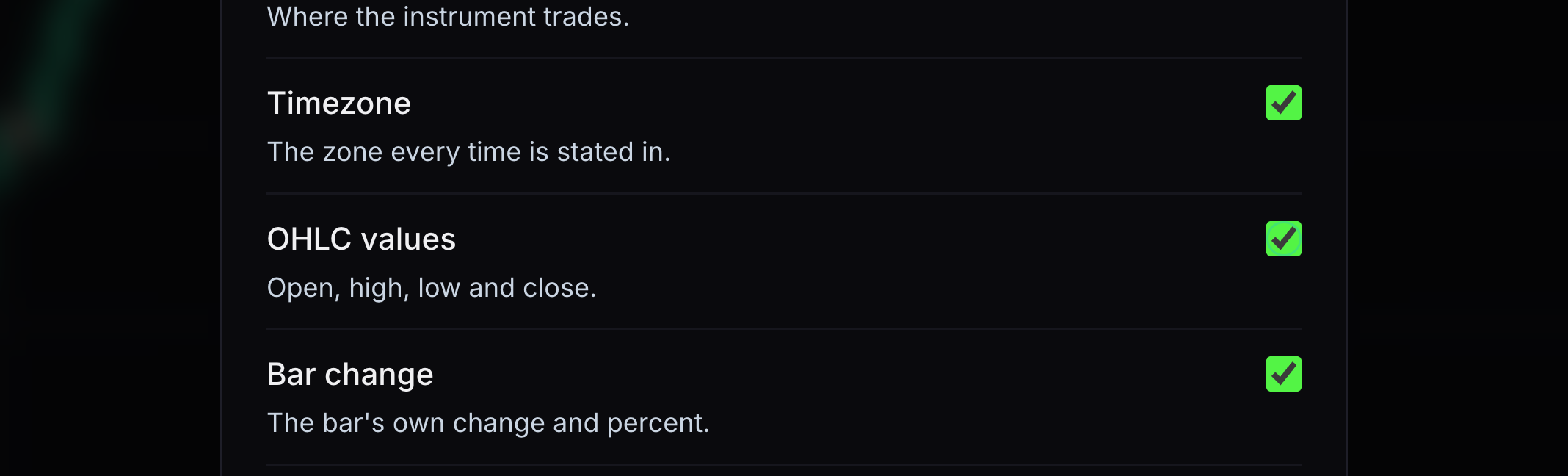
OHLC values
OHLC means open, high, low and close: the first, highest, lowest and final prices of a candle.
Turn this item on or off.
- 07
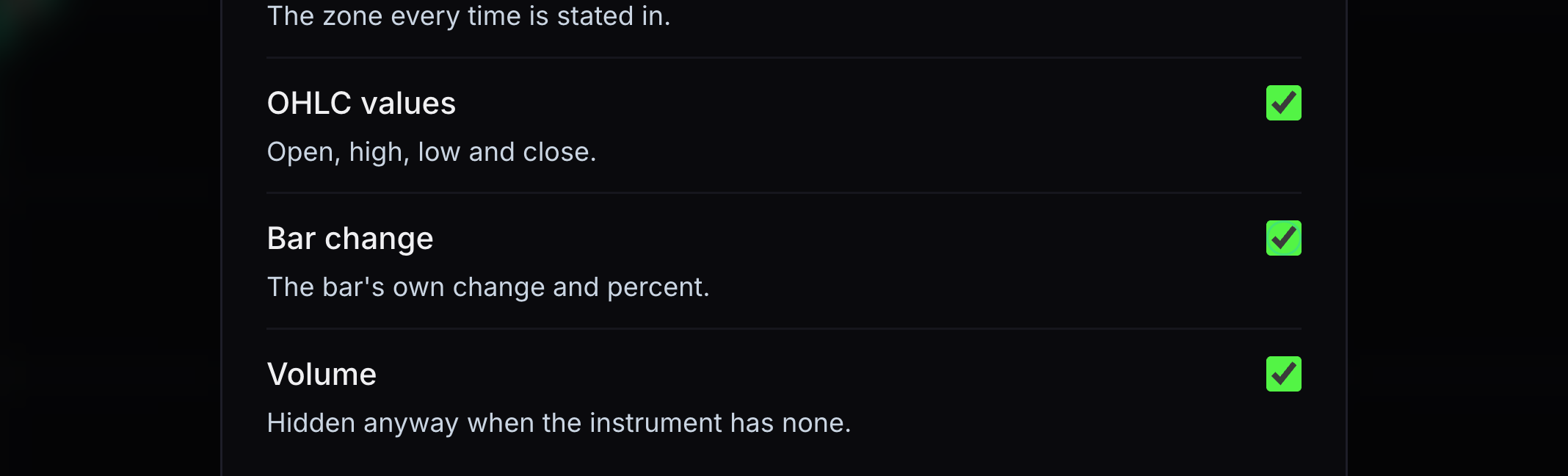
Bar change
This shows how much the selected candle changed in price and percent.
Turn this item on or off.
- 08
Volume
This shows trading volume for the selected candle when volume is available.
On desktop, turn this item on or off. On a narrow phone, this switch is unavailable because the volume pane shows trading volume.
- 09
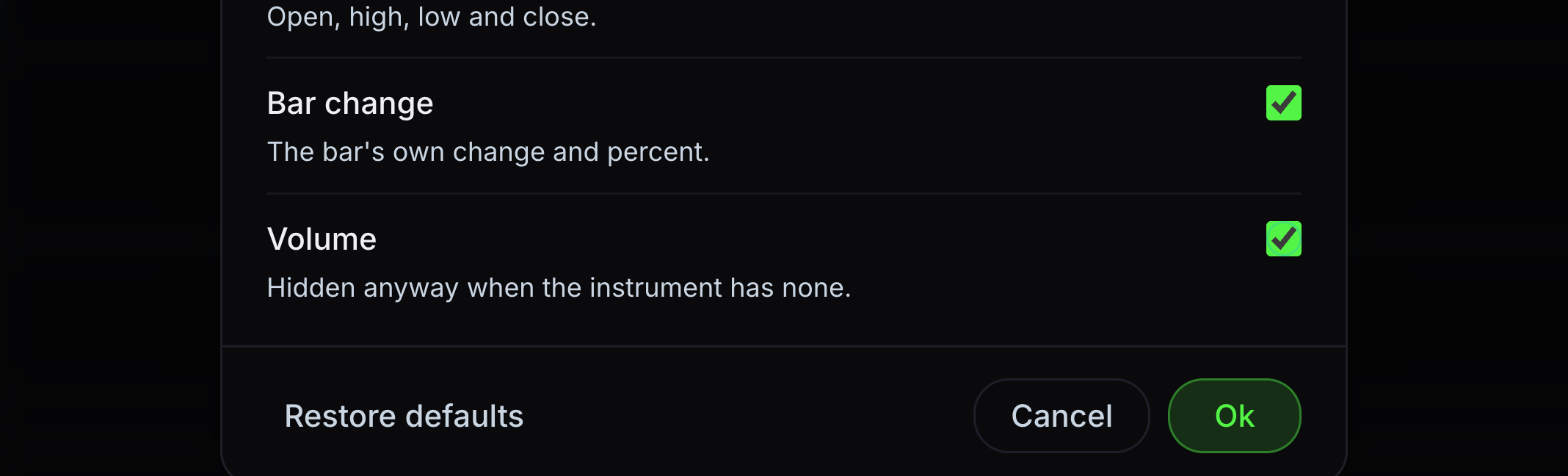
Save or restore settings
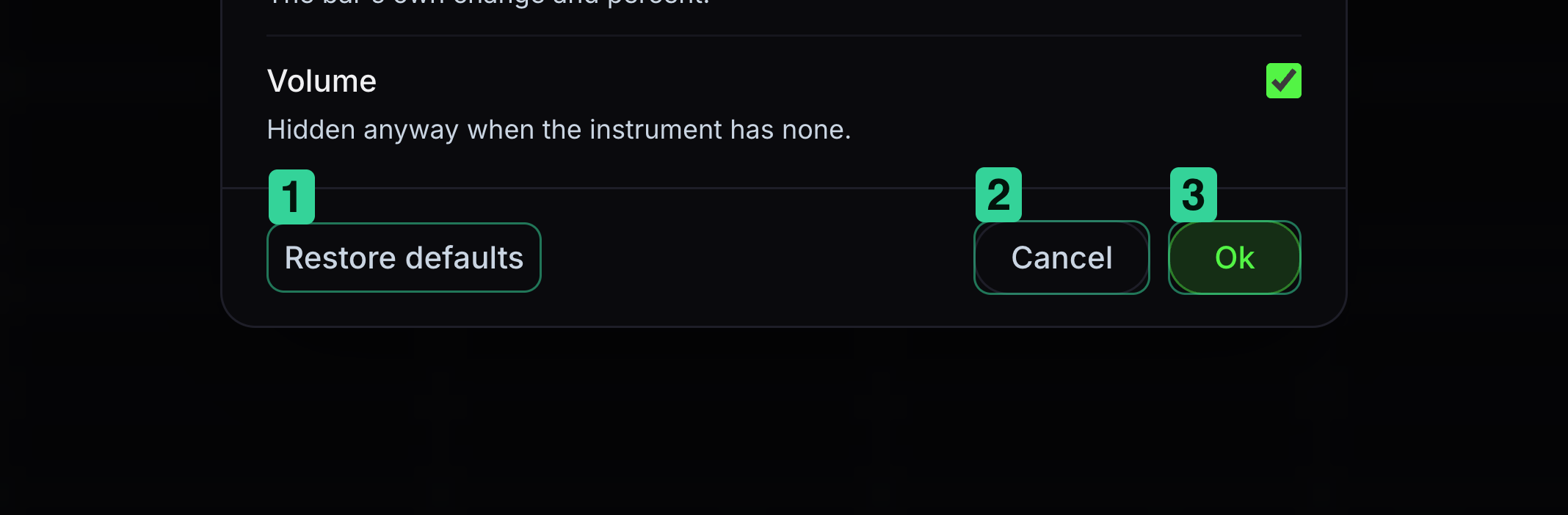
Ok saves your changes. Restore defaults puts the original values back in the dialog.
1 Restore defaults resets the choices in the dialog. 2 Cancel leaves without saving. 3 Ok keeps your choices.


Keep learning
Was this helpful?