- 01
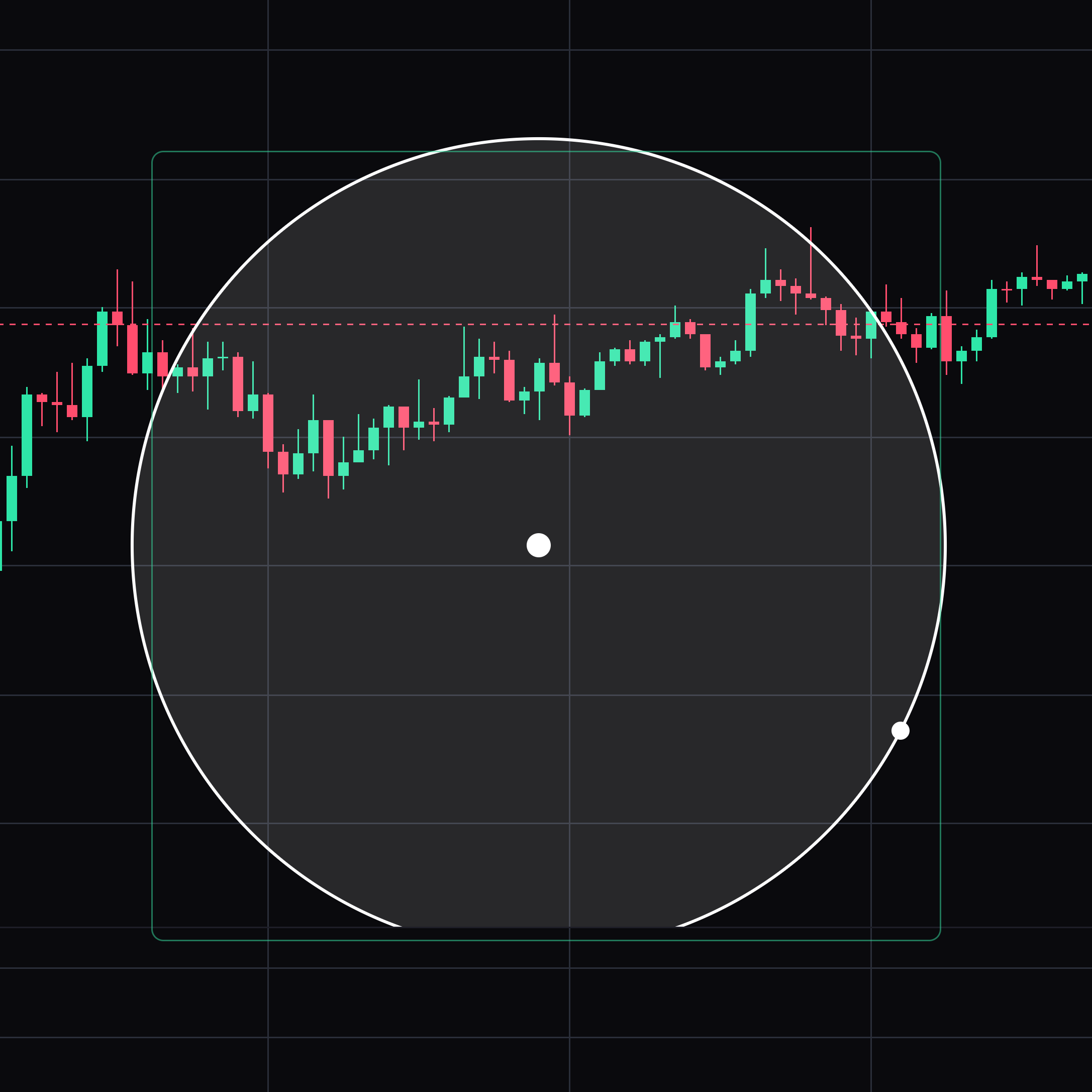
Circle
Draw a circle from a centre and circumference anchor.
Click the centre, then a point on the circumference. Select the drawing to move it or drag its points. Press Delete to remove the selected drawing.
- 02
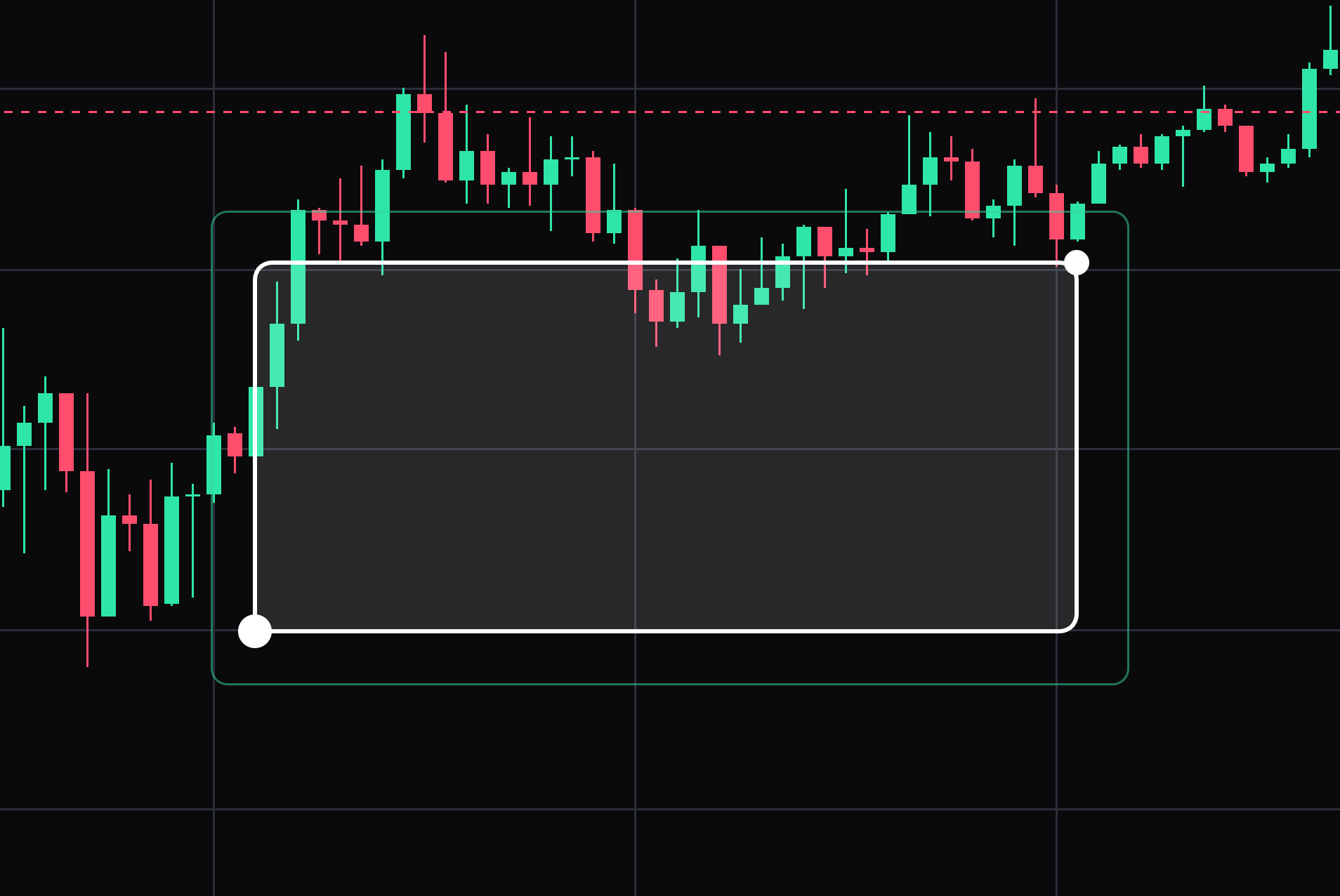
Rounded rectangle
Mark an area using a box with rounded corners.
Click opposite corners. Select the drawing to move it or drag its points. Press Delete to remove the selected drawing.
- 03
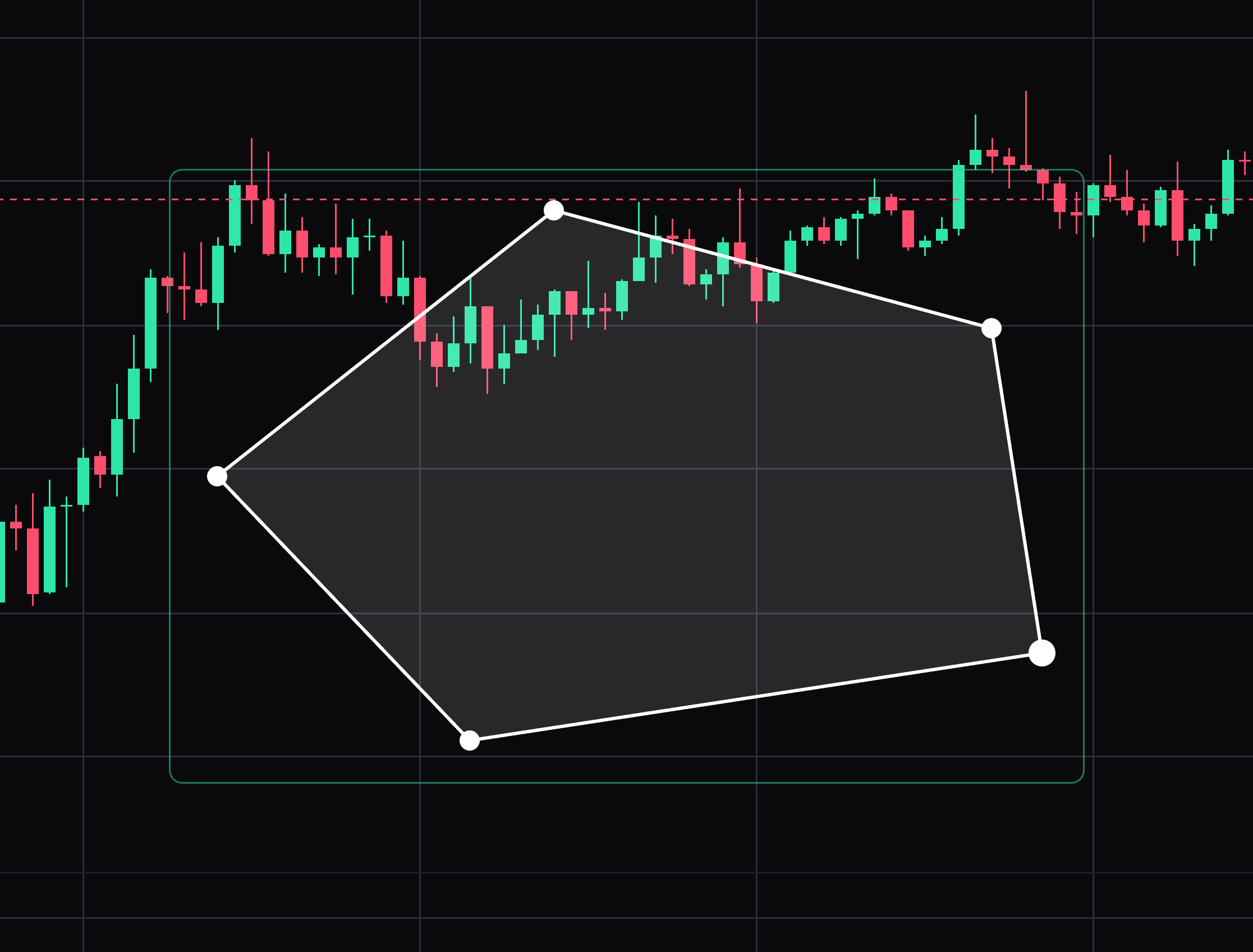
Polygon (5 points)
Outline an area with five corners.
Click five vertices around the shape. Select the drawing to move it or drag its points. Press Delete to remove the selected drawing.
- 04
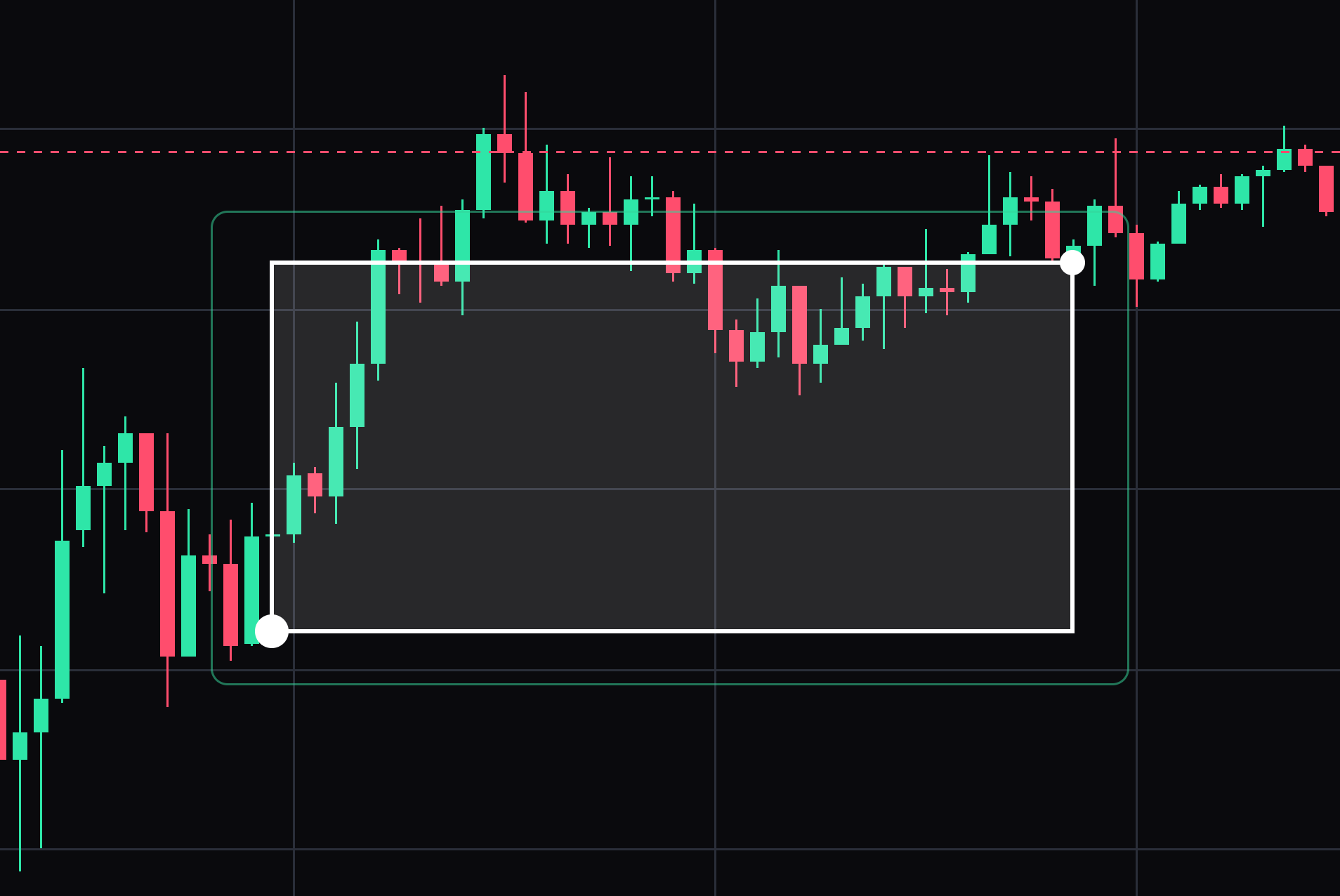
Highlighted price zone
Highlight a chosen price/time region.
Click opposite corners of the zone. Select the drawing to move it or drag its points. Press Delete to remove the selected drawing.
- 05
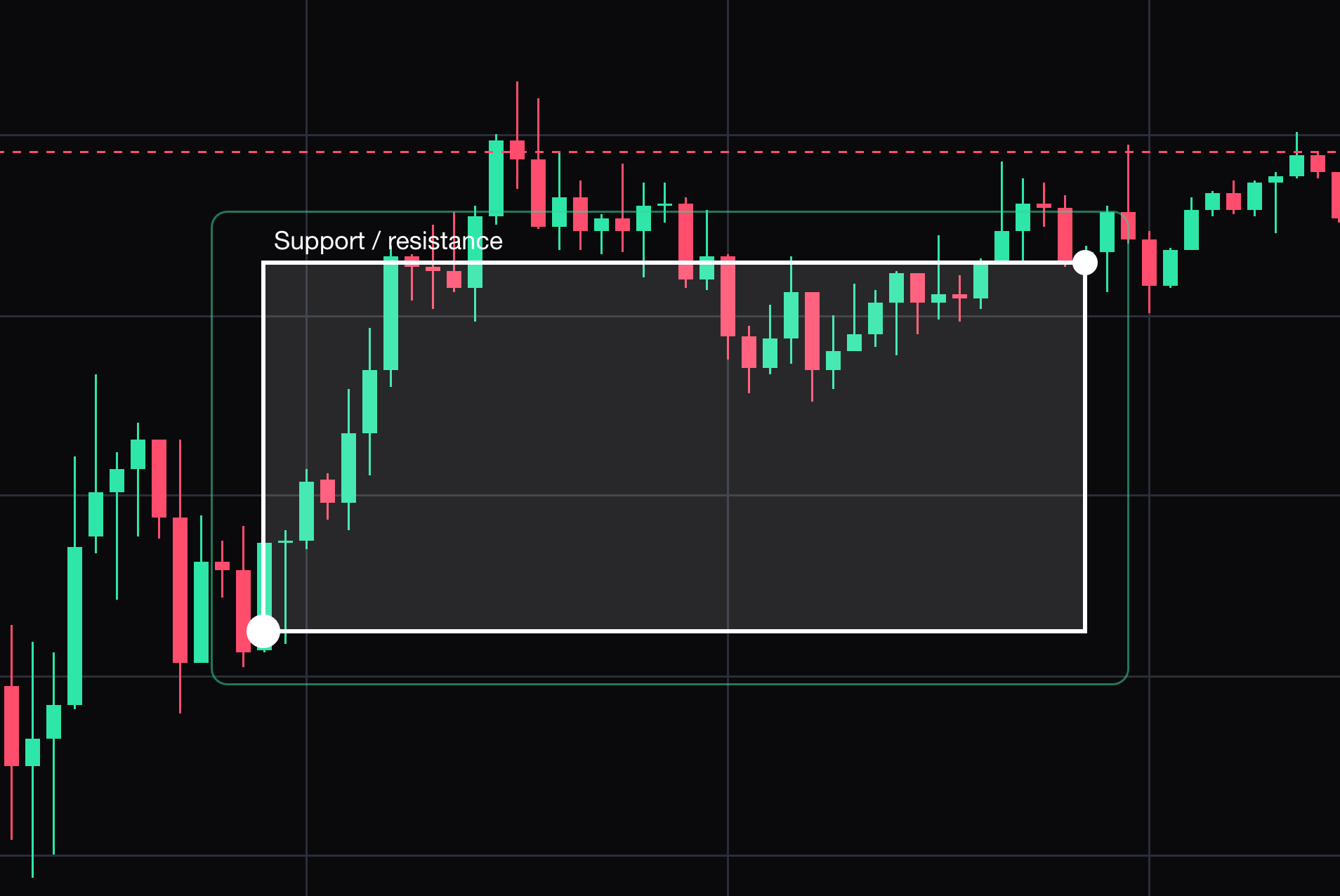
Support / resistance zone
Label a manually chosen support or resistance region; it does not detect levels automatically.
Click opposite corners of the zone. Select the drawing to move it or drag its points. Press Delete to remove the selected drawing.
- 06
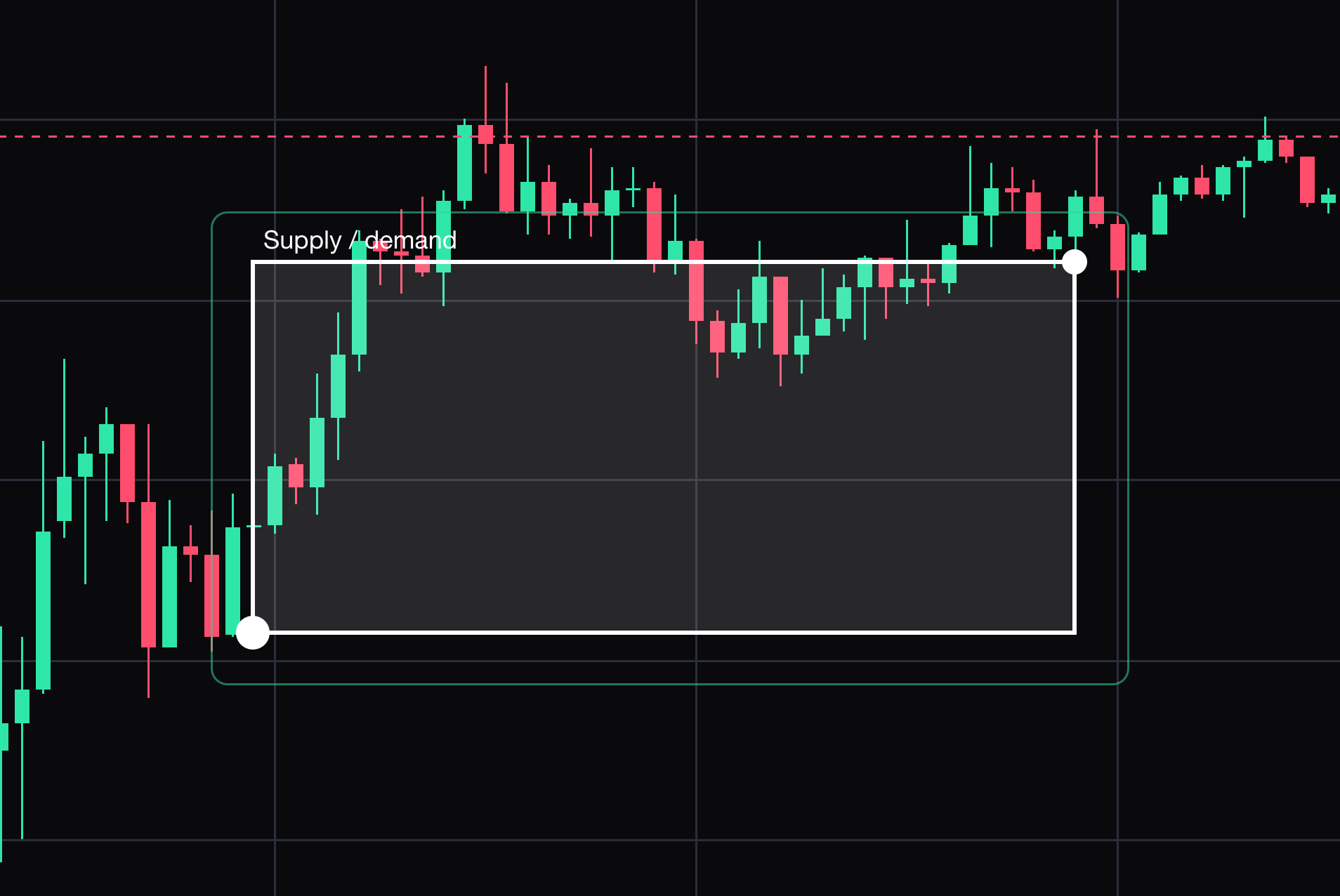
Supply / demand zone
Label a manually chosen supply or demand region; the anchors define the area.
Click opposite corners of the zone. Select the drawing to move it or drag its points. Press Delete to remove the selected drawing.
- 07
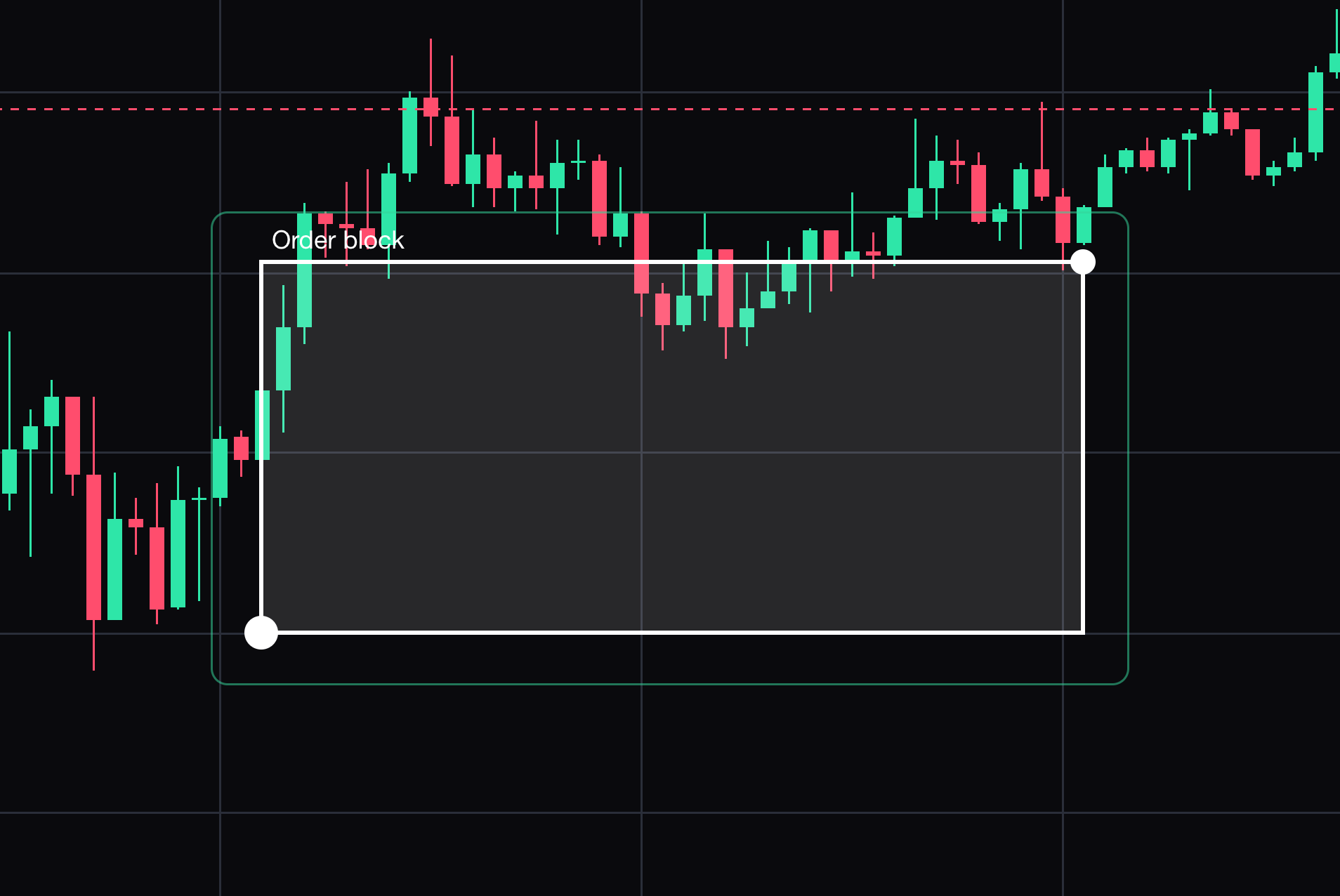
Order block
Mark the region you identify as an order block; it is a manual annotation.
Click opposite corners of the block. Select the drawing to move it or drag its points. Press Delete to remove the selected drawing.
- 08
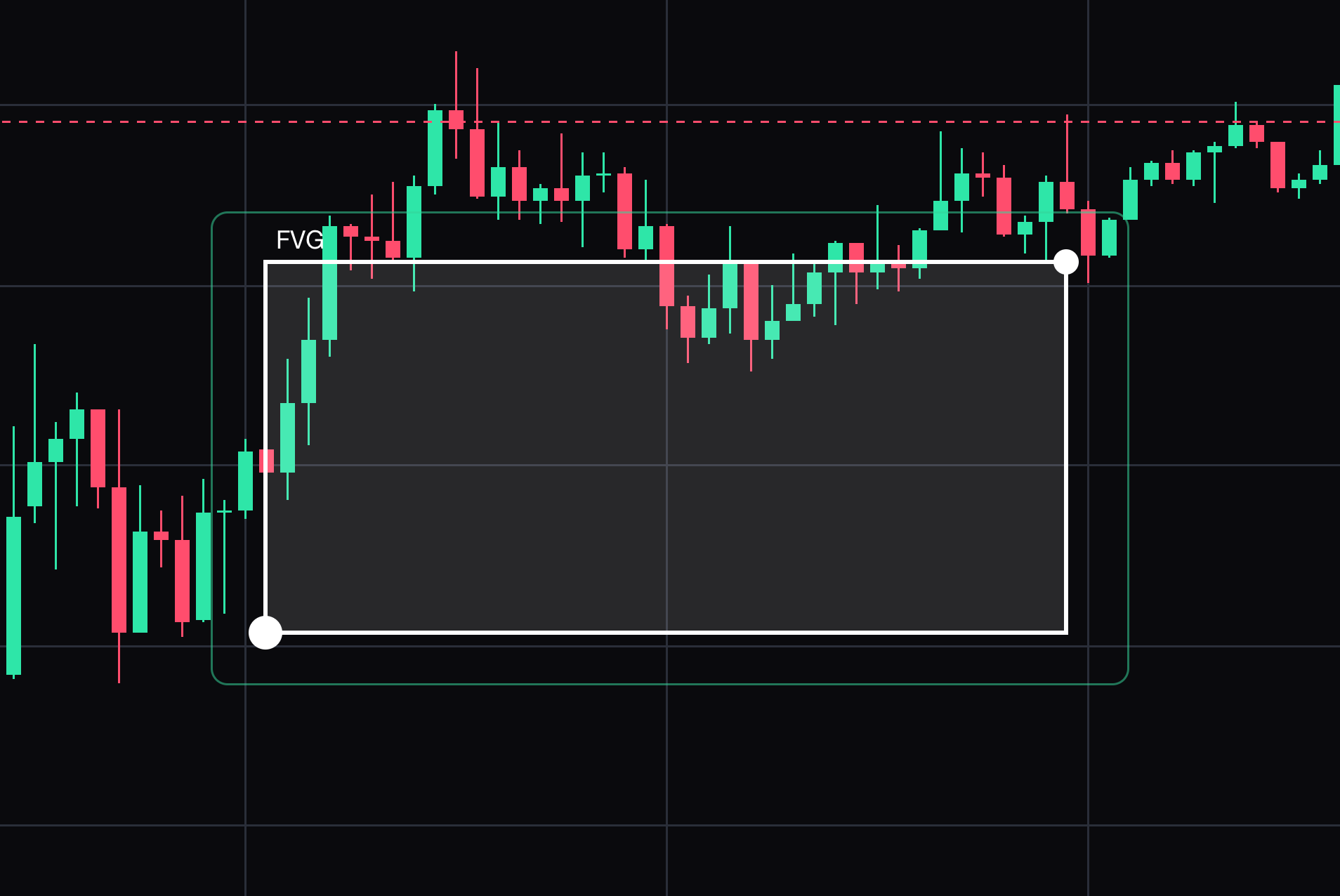
Fair value gap
Highlight the gap region you select; it is not an automatic gap detector.
Click opposite corners of the gap. Select the drawing to move it or drag its points. Press Delete to remove the selected drawing.
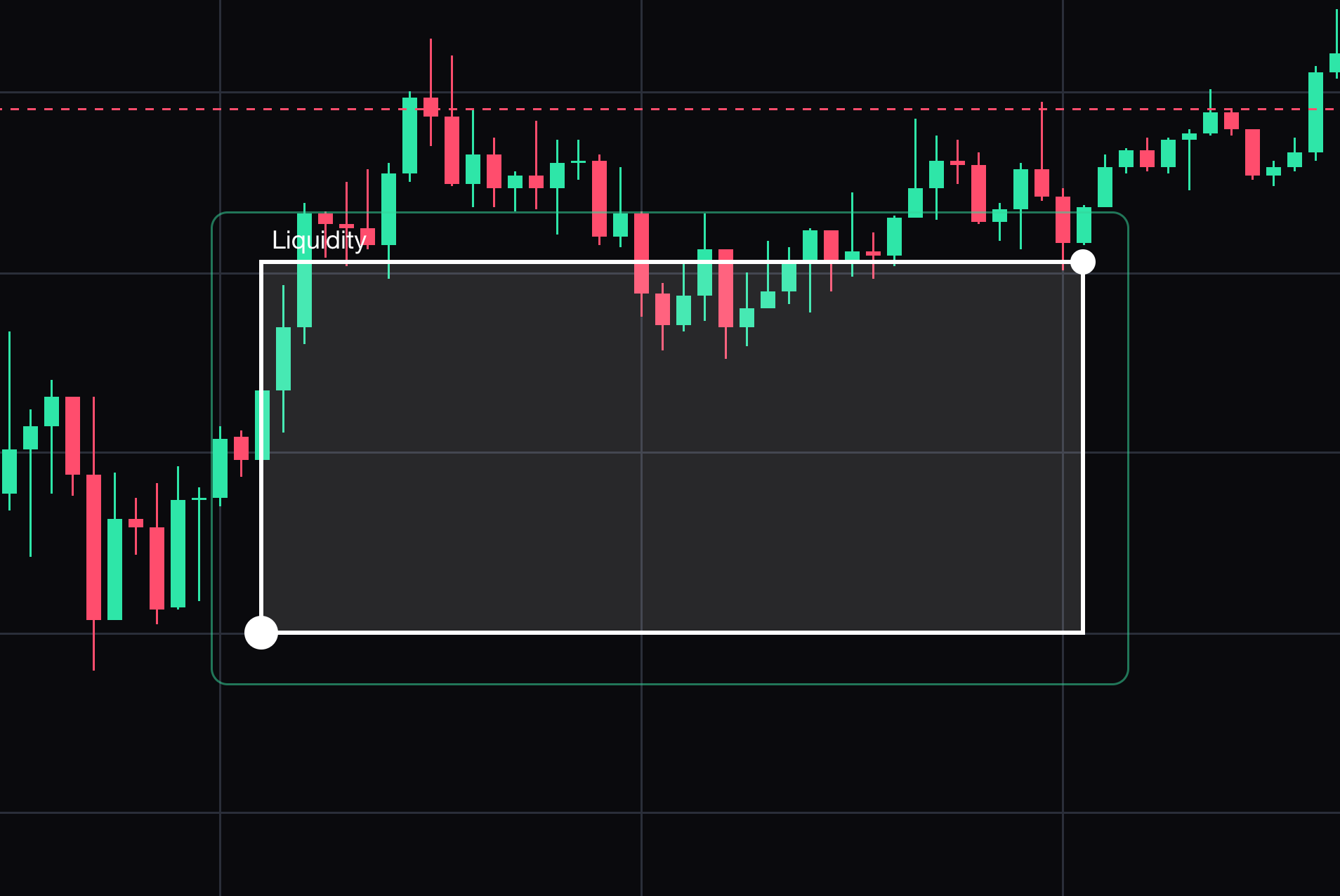
- 09
Liquidity zone
Label a manually selected liquidity region.
Click opposite corners of the liquidity area. Select the drawing to move it or drag its points. Press Delete to remove the selected drawing.
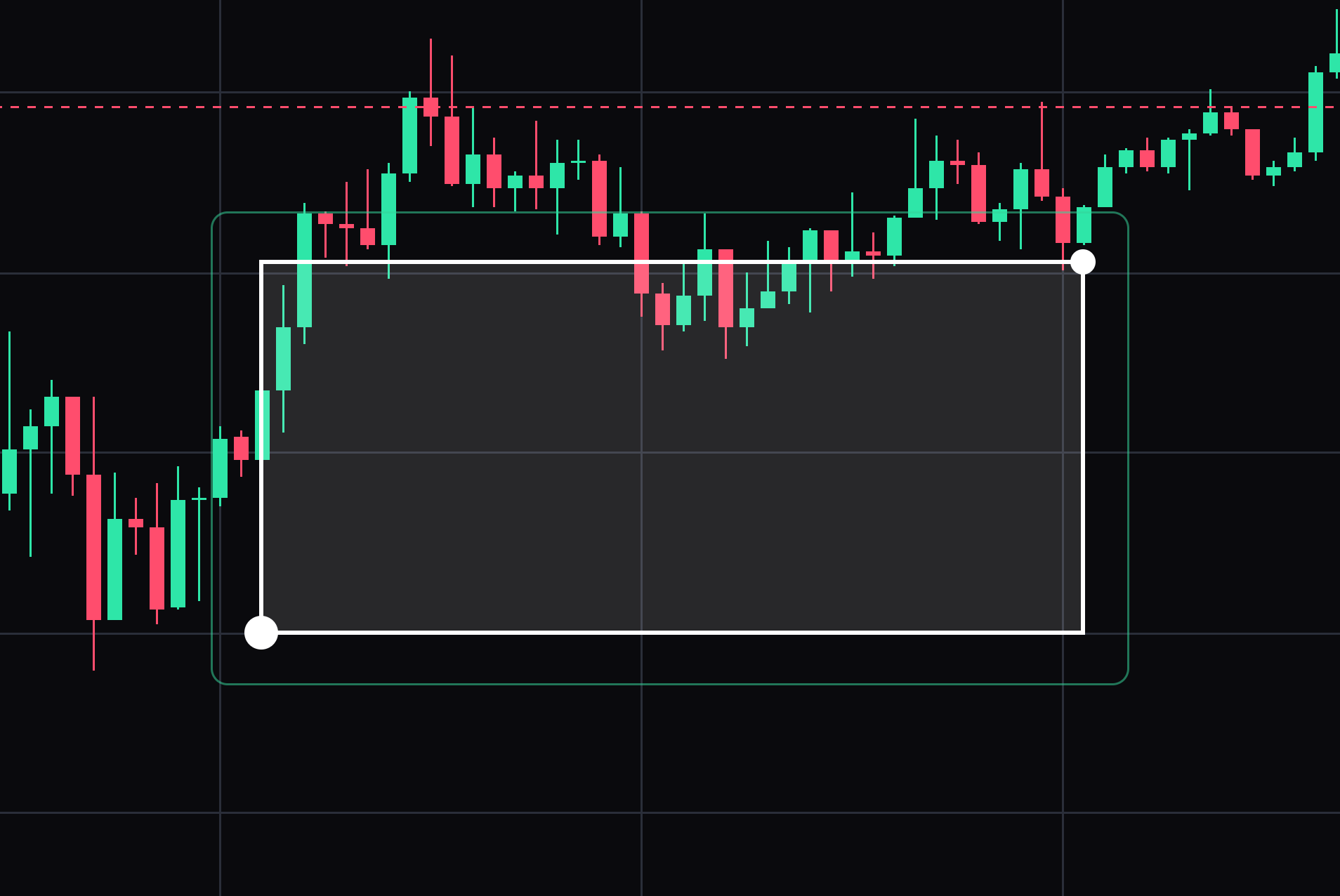
- 10
Rectangle
A box over a price and time range, for a consolidation or a gap.
Click one corner, then click the opposite corner. Select the drawing to move it or drag its points. Press Delete to remove the selected drawing.
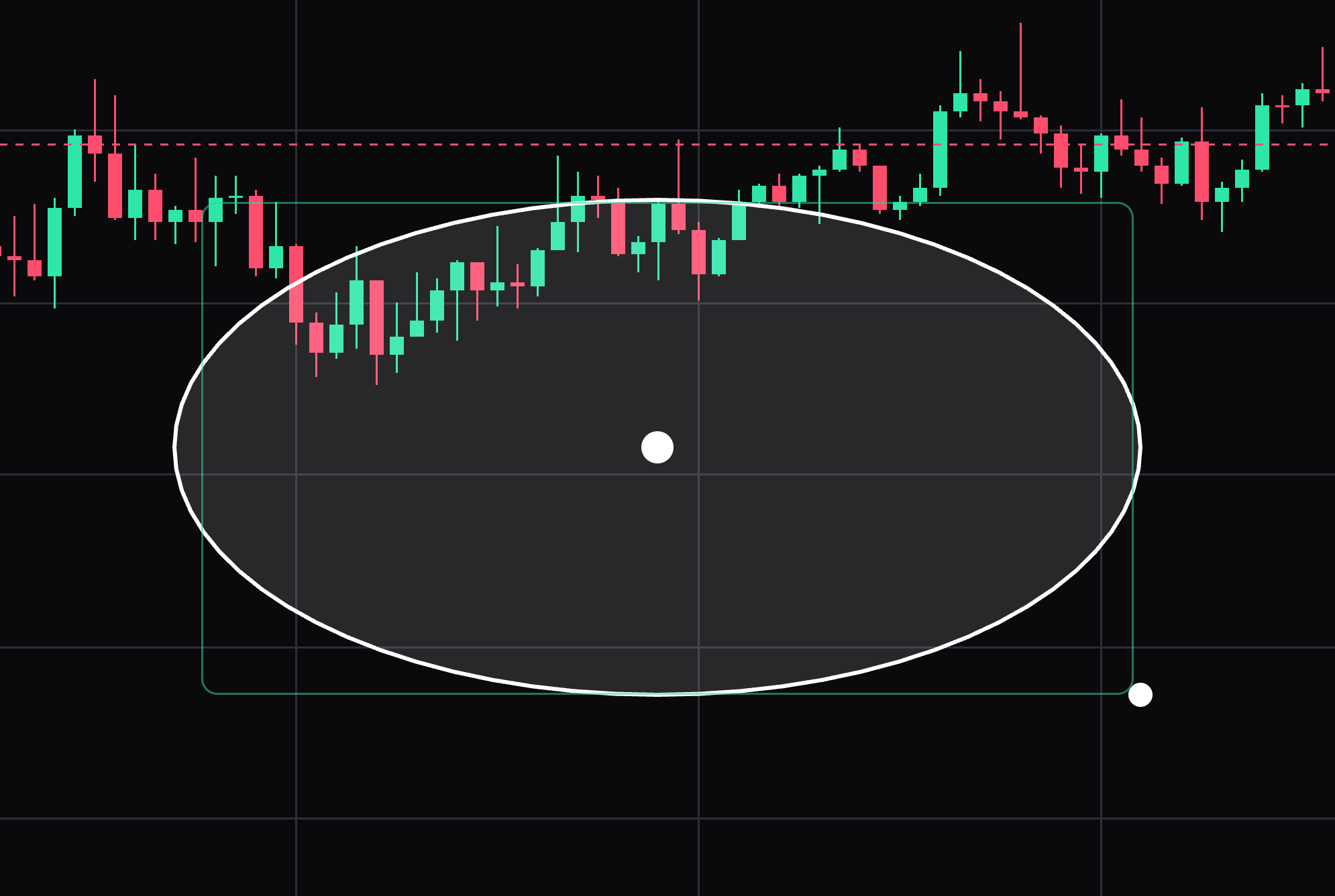
- 11
Ellipse
An oval over an area of the chart, for a rounding top or bottom.
Click the centre, then click to set the width and height. Select the drawing to move it or drag its points. Press Delete to remove the selected drawing.
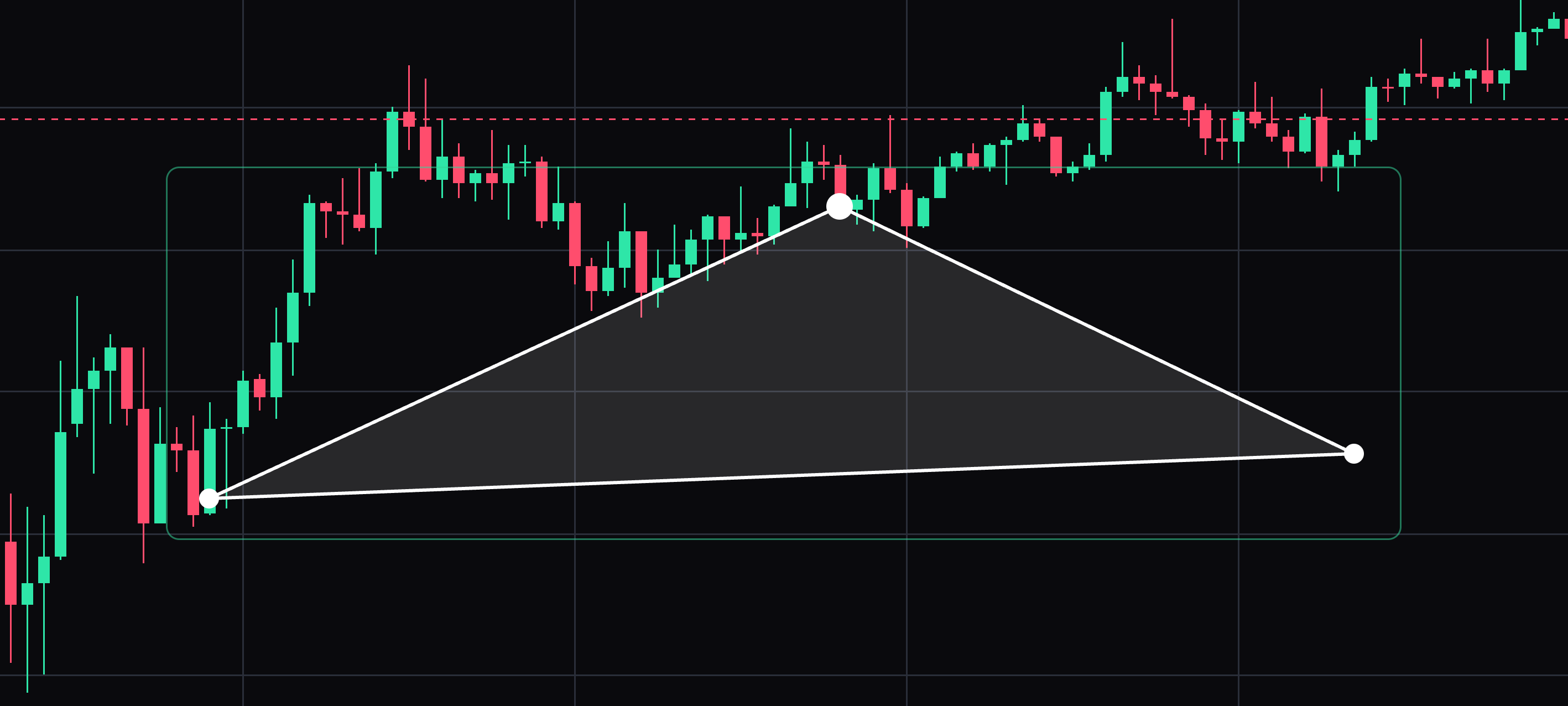
- 12
Triangle
A three-point shape, for wedges and converging ranges.
Click each of the three corners in turn. Select the drawing to move it or drag its points. Press Delete to remove the selected drawing.


Keep learning
Was this helpful?