- 01
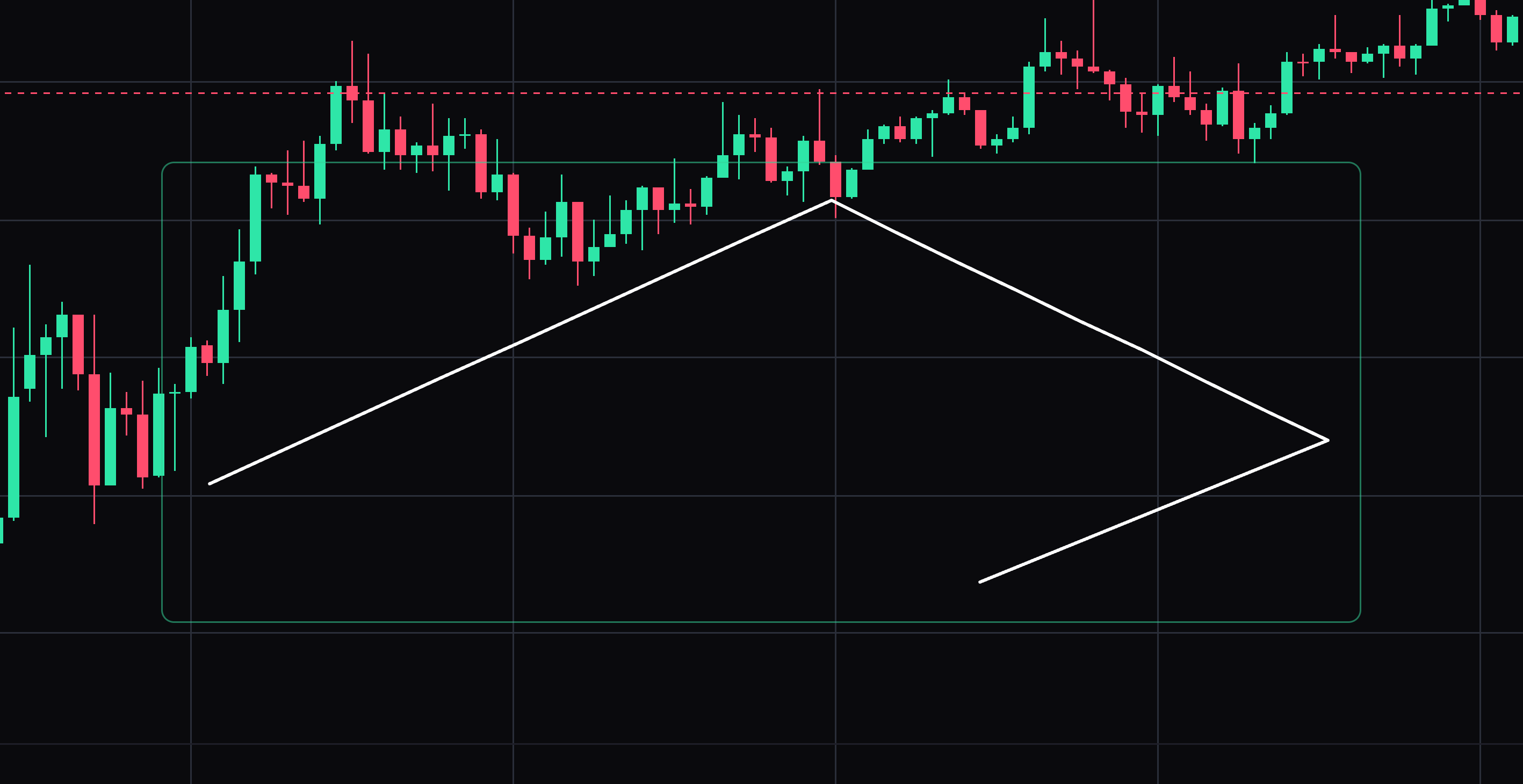
Freehand drawing
Draw a freeform path with your pointer or finger.
Hold the pointer or finger down, draw, then release. Select the drawing to move it or drag its points. Press Delete to remove the selected drawing.
- 02
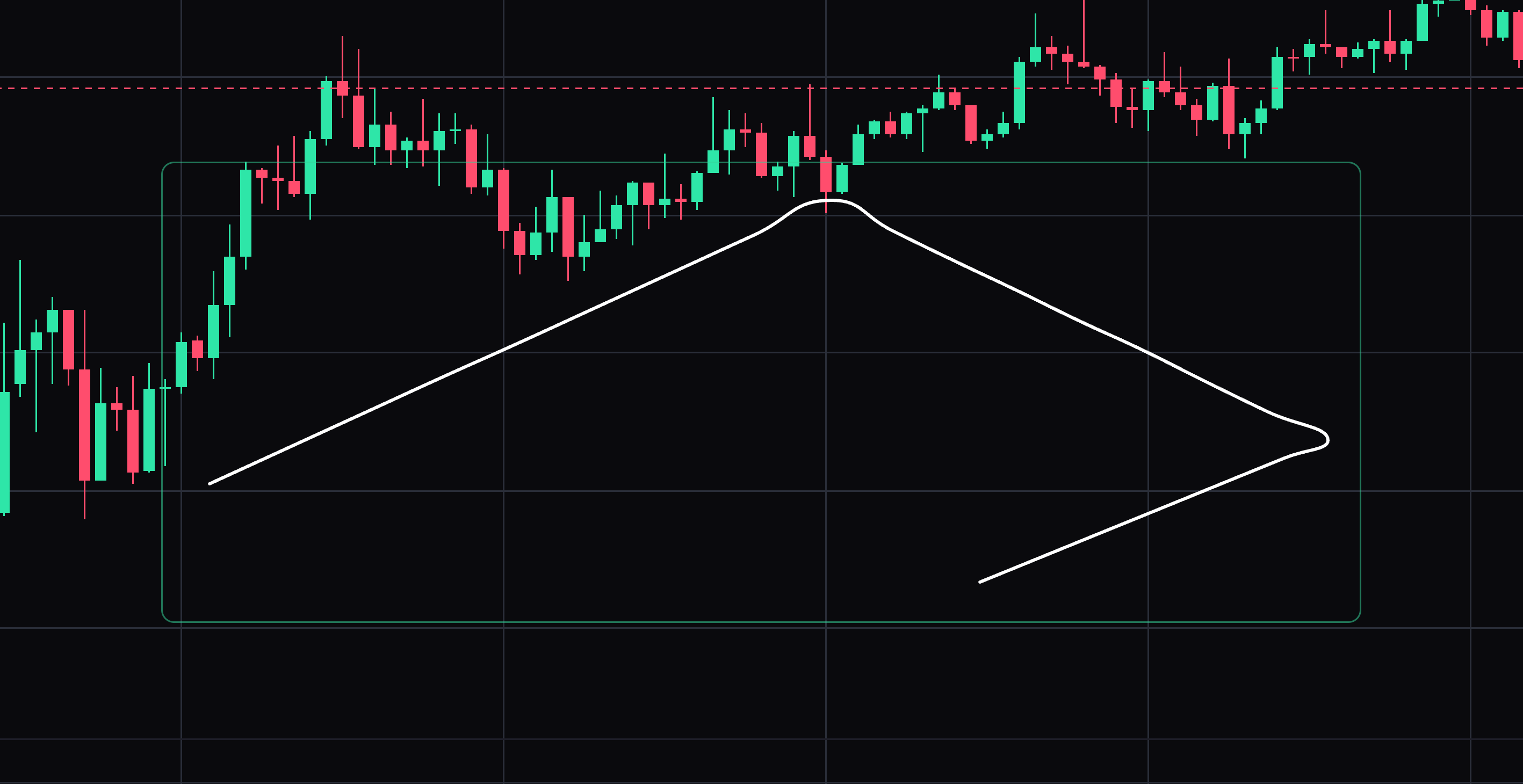
Smooth brush
Draw a smoothed freehand path for clearer handwritten marks.
Hold the pointer or finger down to paint a smooth path. Select the drawing to move it or drag its points. Press Delete to remove the selected drawing.
- 03
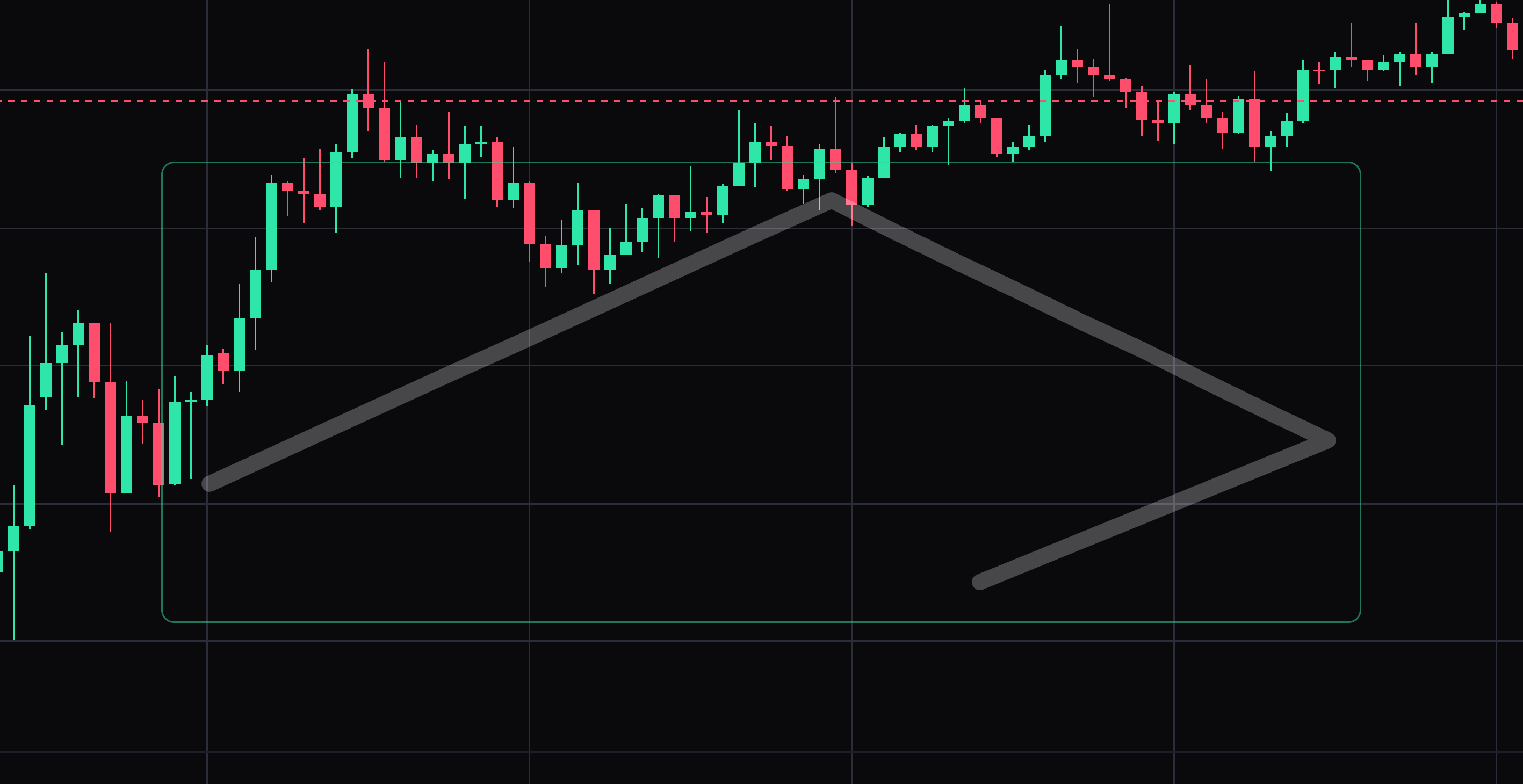
Freehand highlight
Paint a translucent highlight over an area of interest.
Hold down and paint a translucent highlight. Select the drawing to move it or drag its points. Press Delete to remove the selected drawing.
- 04
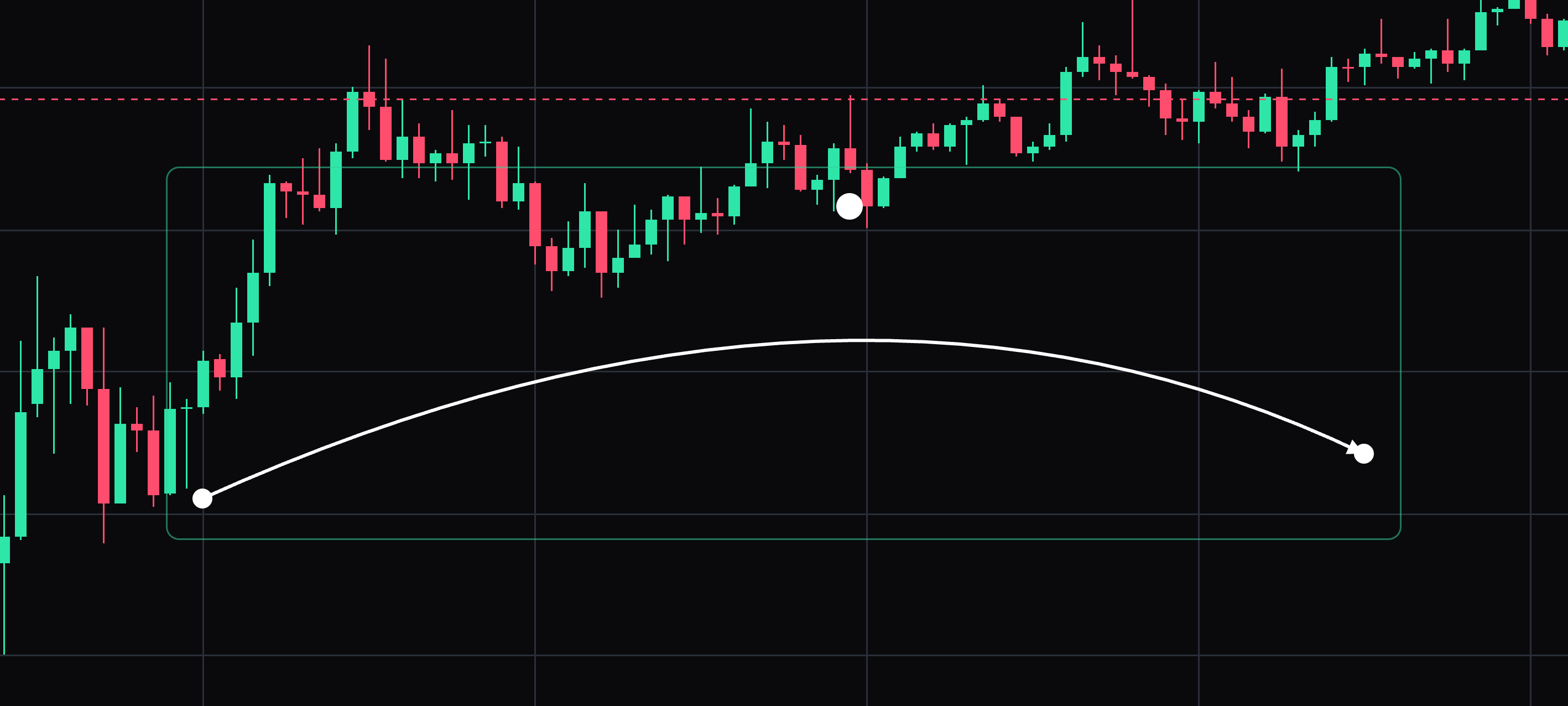
Curved arrow
Point to a target using an arrow with an adjustable curved path.
Click the start, curve control point and arrow tip. Select the drawing to move it or drag its points. Press Delete to remove the selected drawing.
- 05
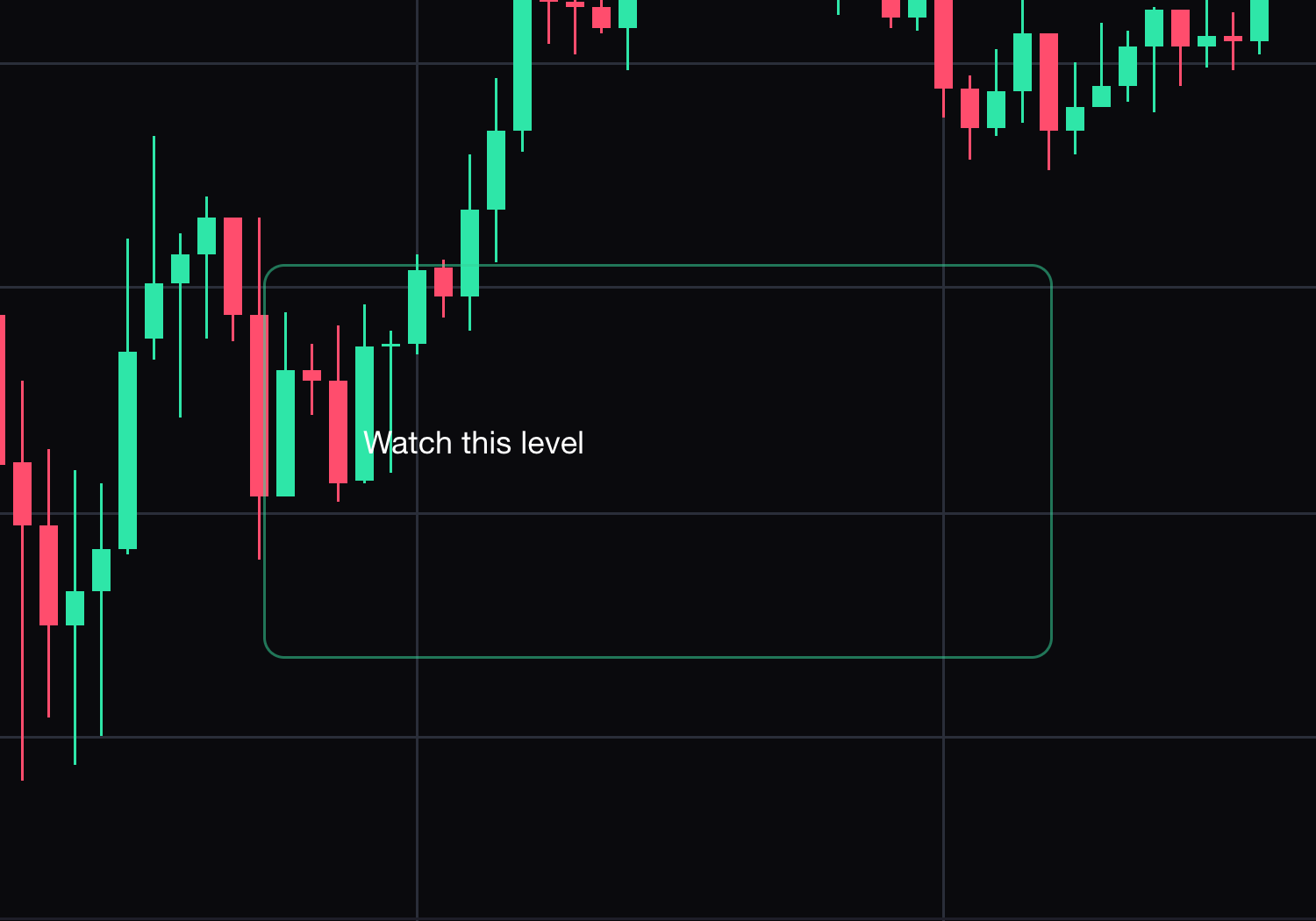
Anchored text
Place editable text at a specific chart anchor.
Click the anchor, then type a label. Select the drawing to move it or drag its points. Press Delete to remove the selected drawing. Choose Save text when the text editor opens.
- 06
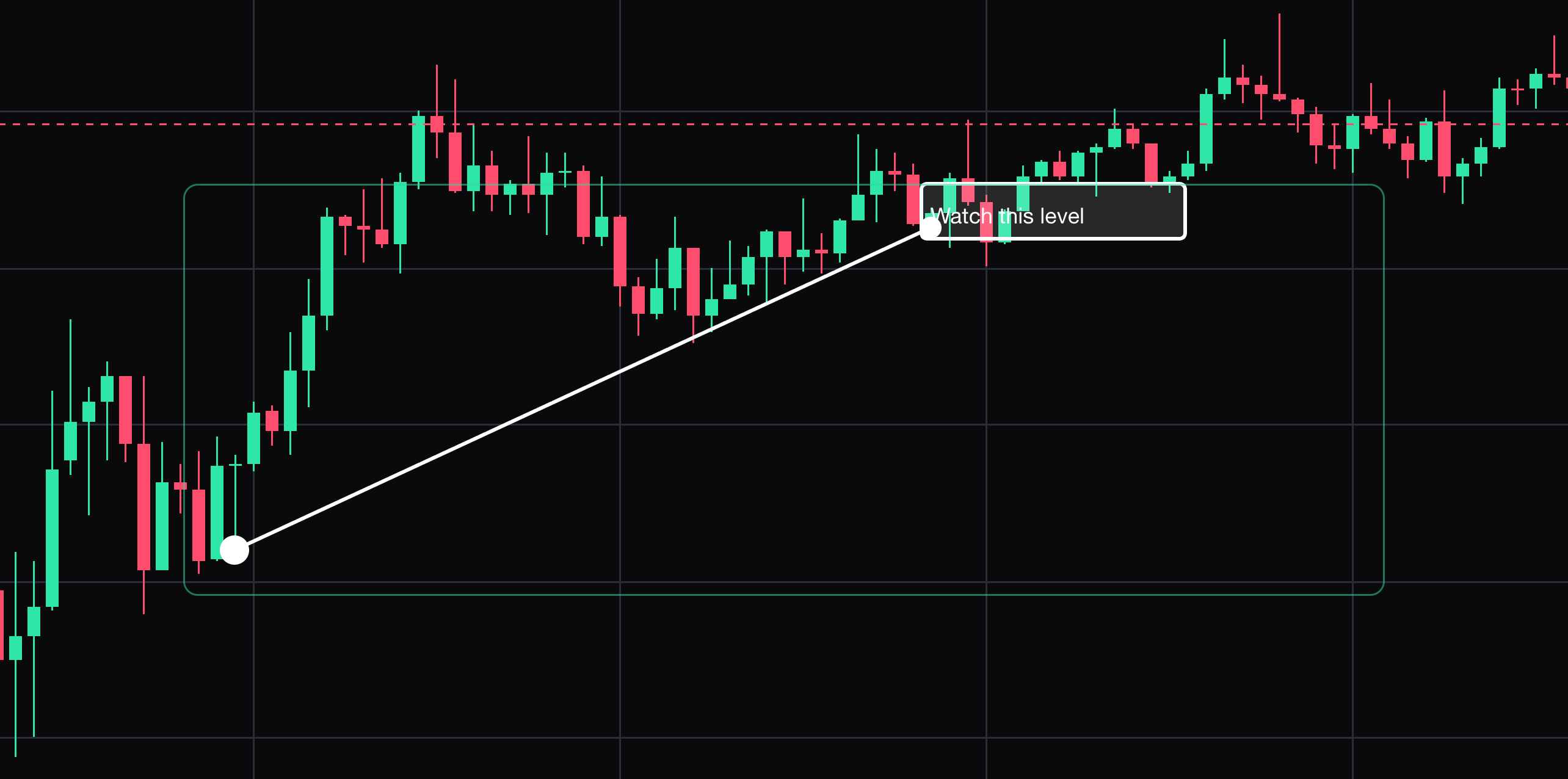
Callout box
Attach a text box to a chart point with a separate label location.
Click the anchor and label location, then type. Select the drawing to move it or drag its points. Press Delete to remove the selected drawing. Choose Save text when the text editor opens.
- 07
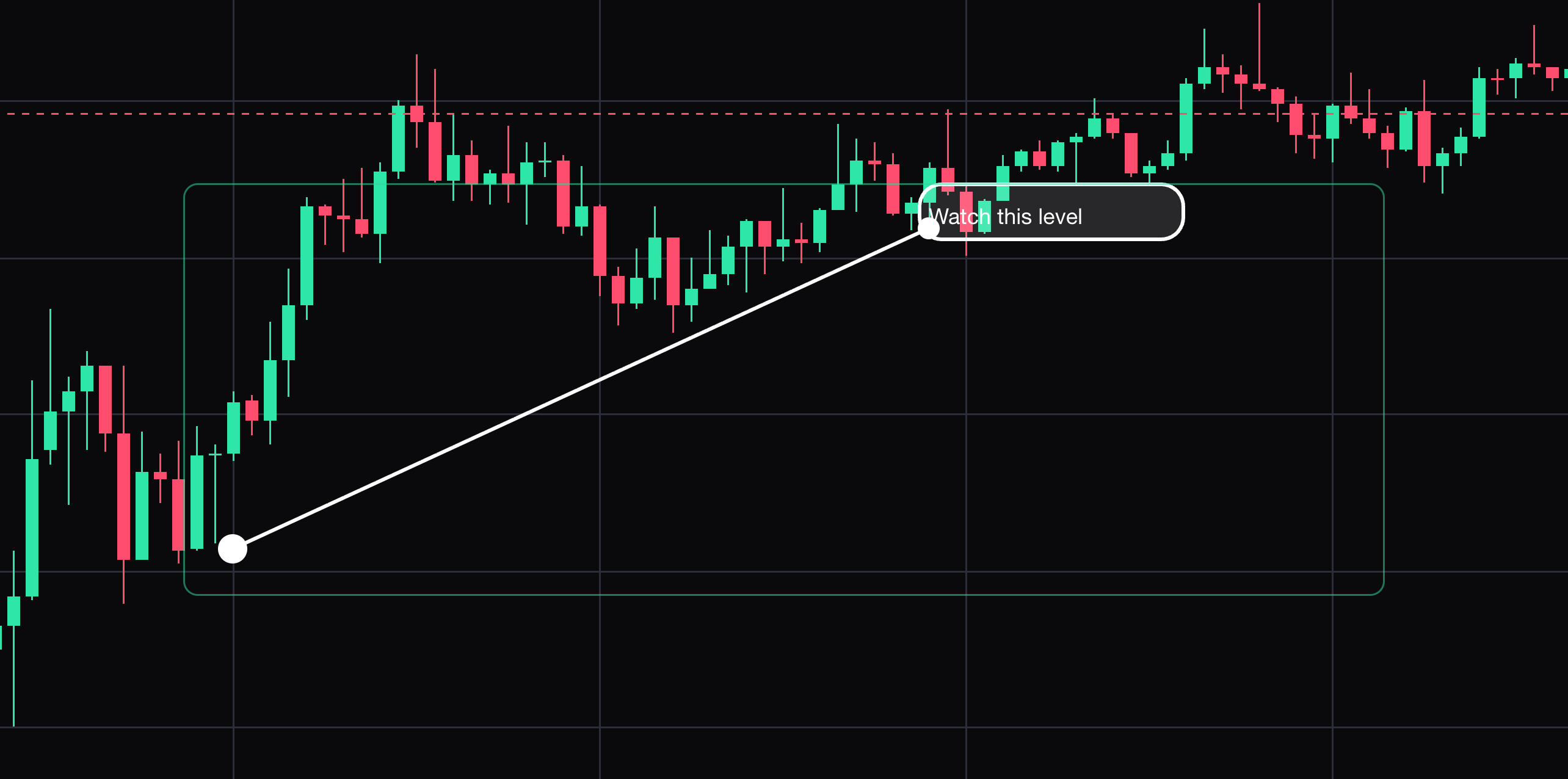
Speech bubble
Attach a speech-style text bubble to the point you choose.
Click the anchor and bubble location, then type. Select the drawing to move it or drag its points. Press Delete to remove the selected drawing. Choose Save text when the text editor opens.
- 08
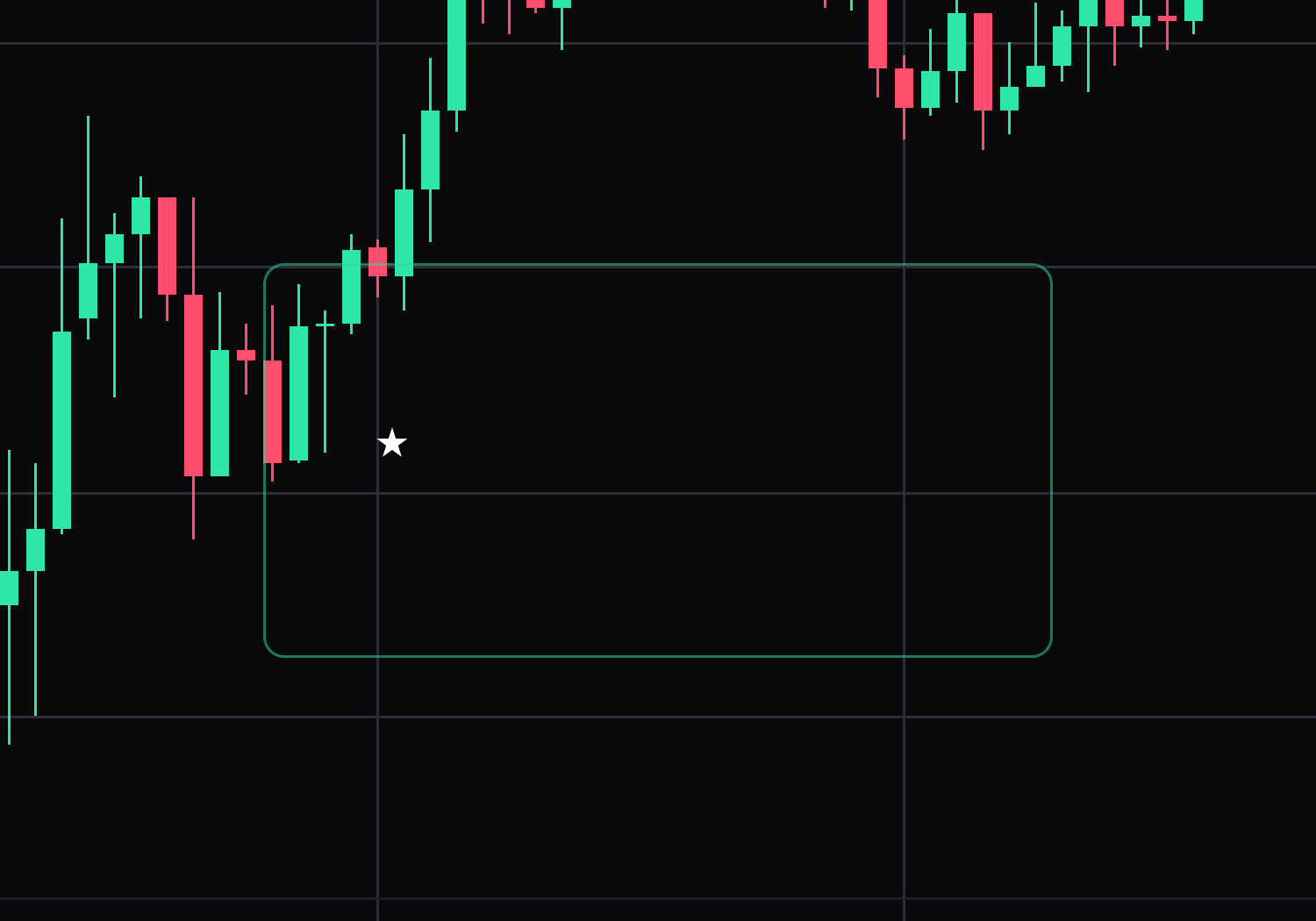
Custom icon marker
Place your own symbol or emoji at a bar.
Click the anchor, then enter a symbol or emoji. Select the drawing to move it or drag its points. Press Delete to remove the selected drawing. Choose Save text when the text editor opens.
- 09
Break of structure
Label the span you identify as a break of structure.
Click the start and end of the broken level. Select the drawing to move it or drag its points. Press Delete to remove the selected drawing.
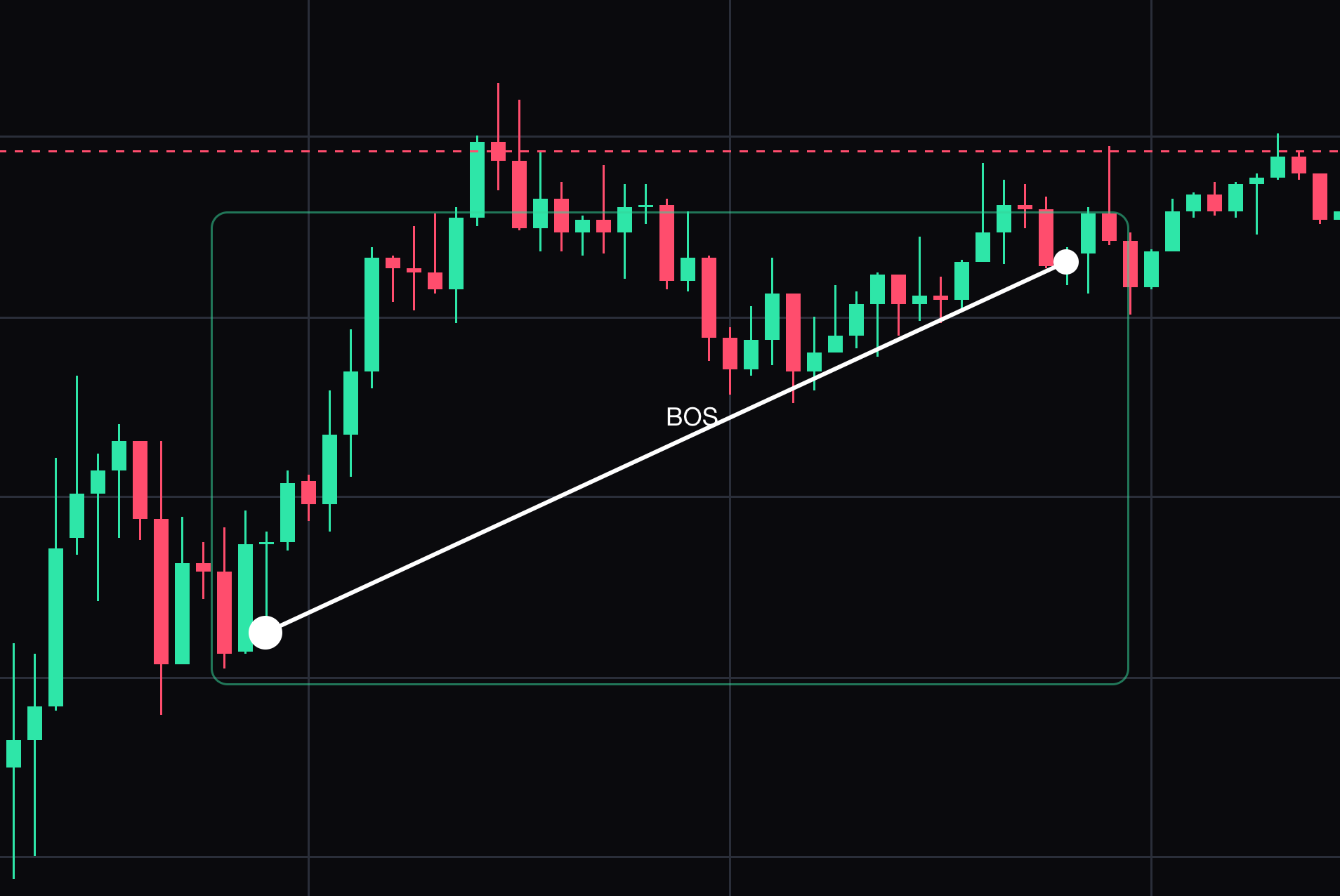
- 10
Change of character
Label the span you identify as a change of character.
Click the start and end of the structure level. Select the drawing to move it or drag its points. Press Delete to remove the selected drawing.
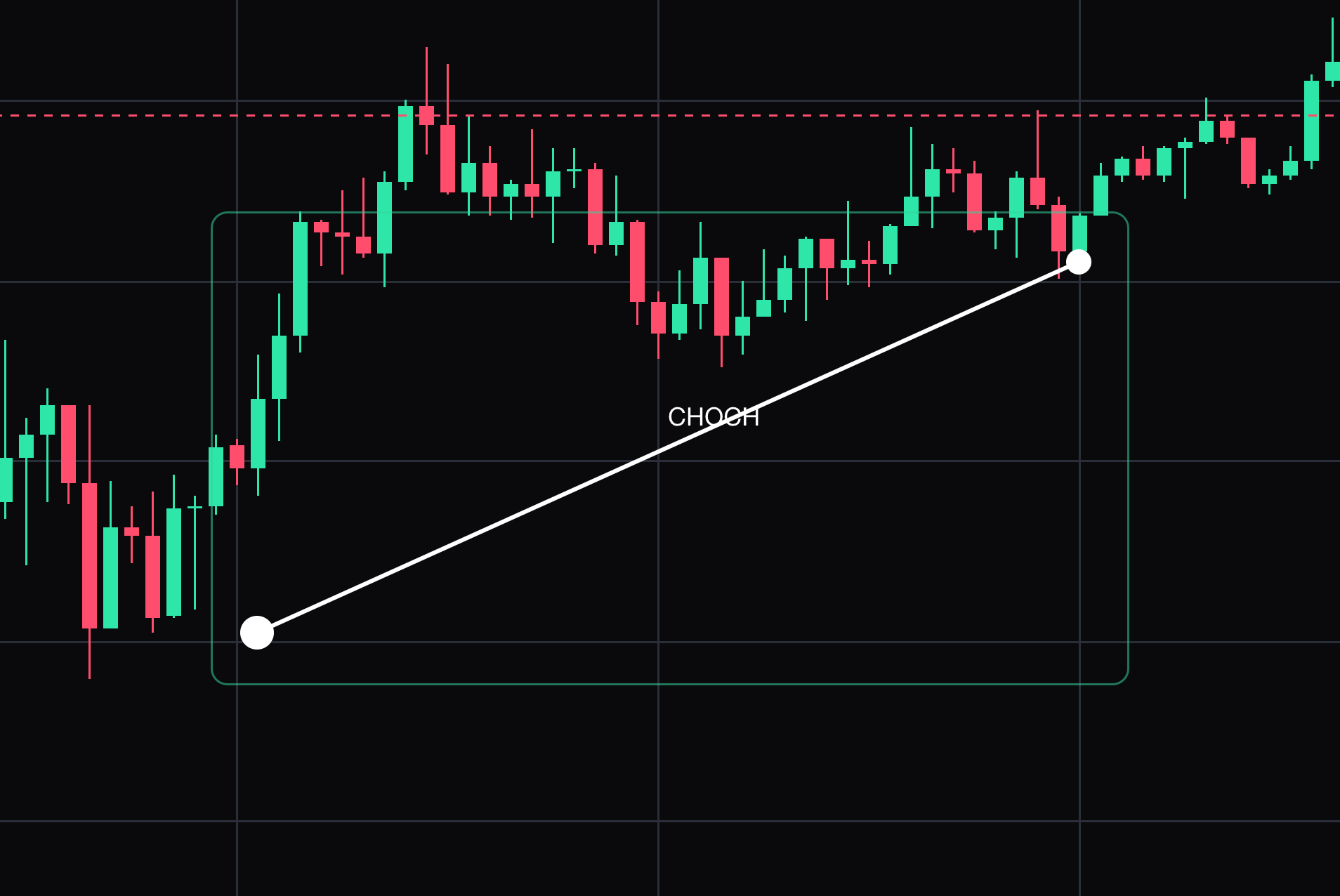
- 11
Checkmark
Place a checkmark at a chosen bar.
Click the bar to mark. Select the drawing to move it or drag its points. Press Delete to remove the selected drawing.
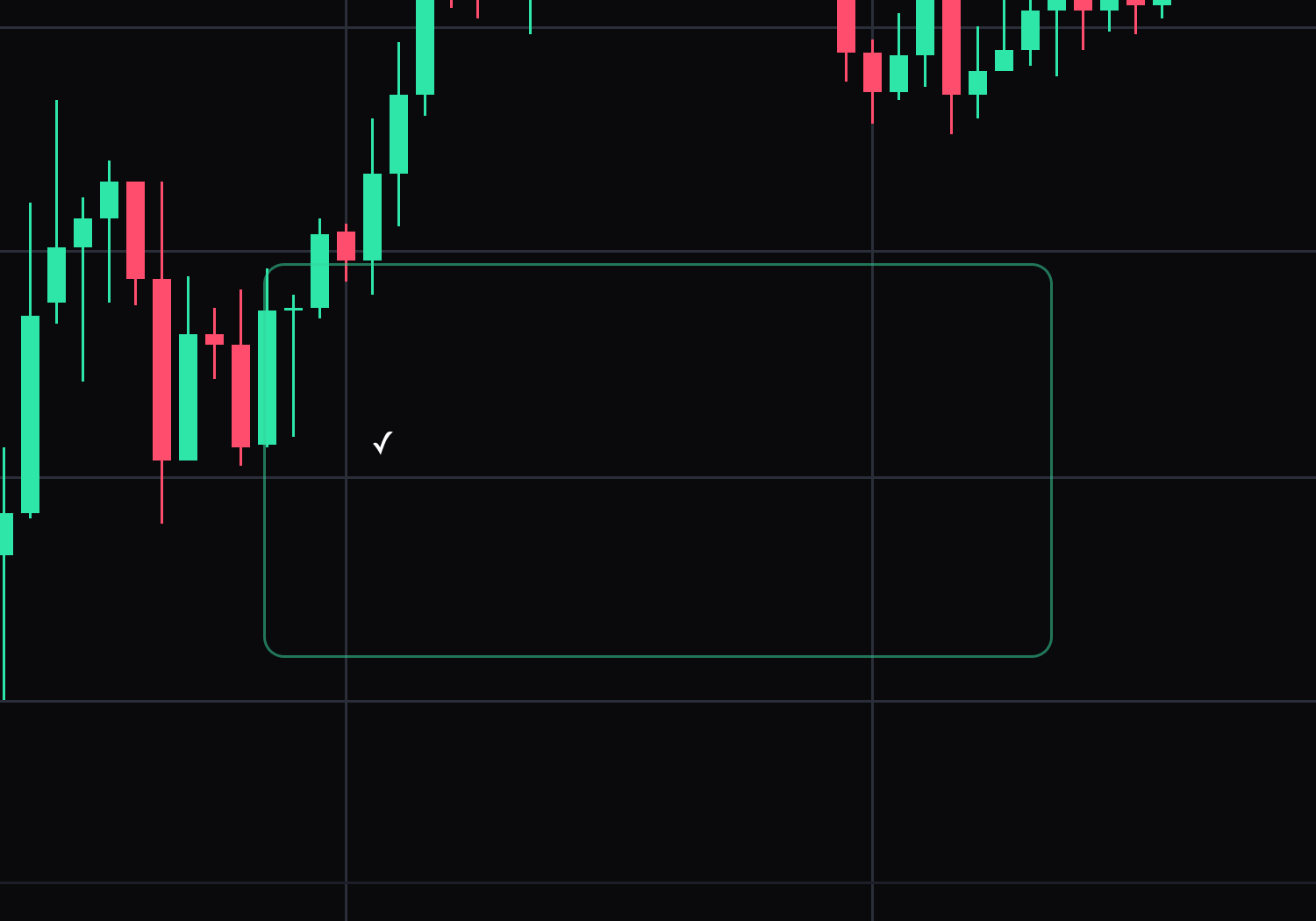
- 12
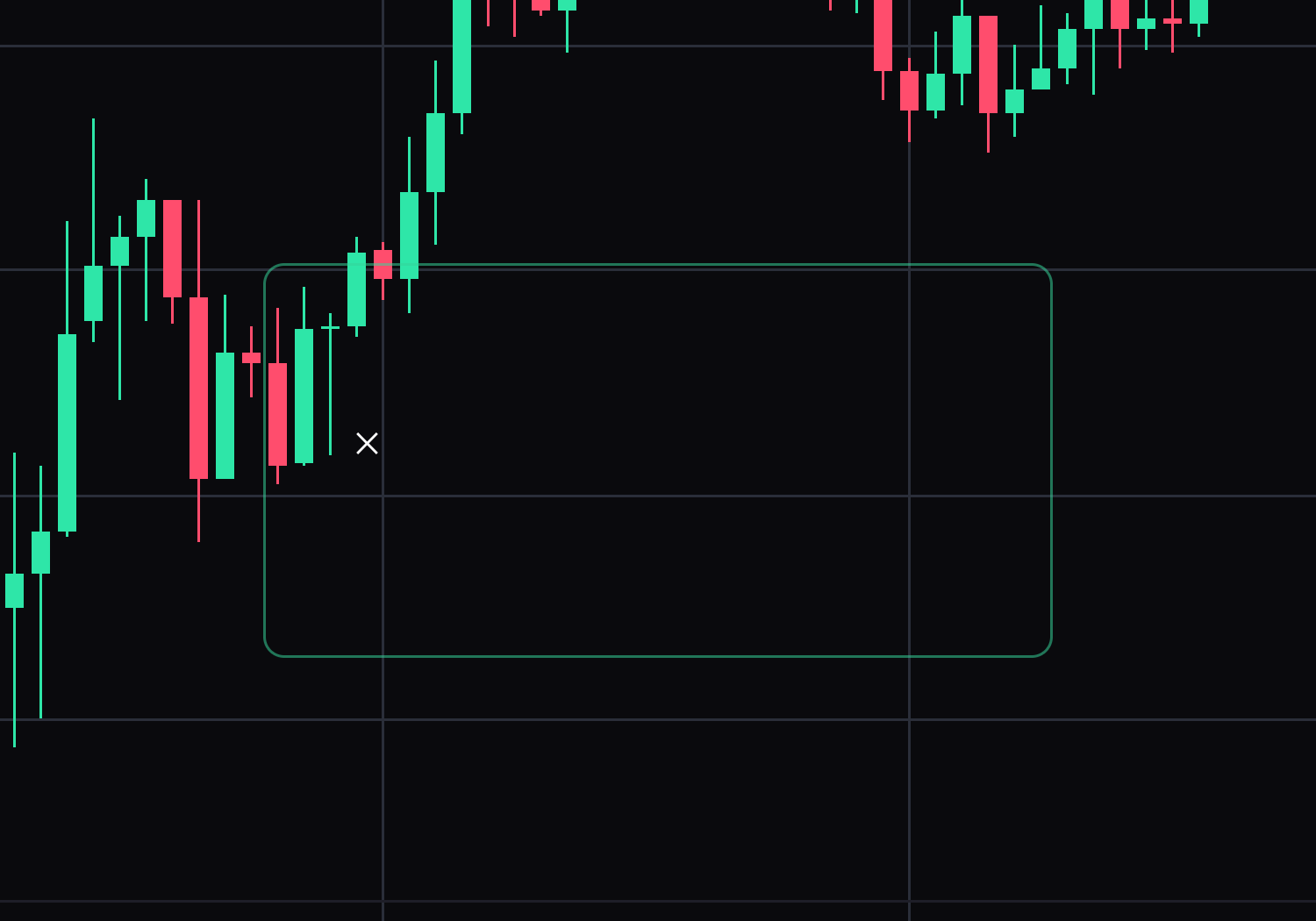
Cross marker
Place a cross marker at a chosen bar.
Click the bar to mark. Select the drawing to move it or drag its points. Press Delete to remove the selected drawing.
- 13
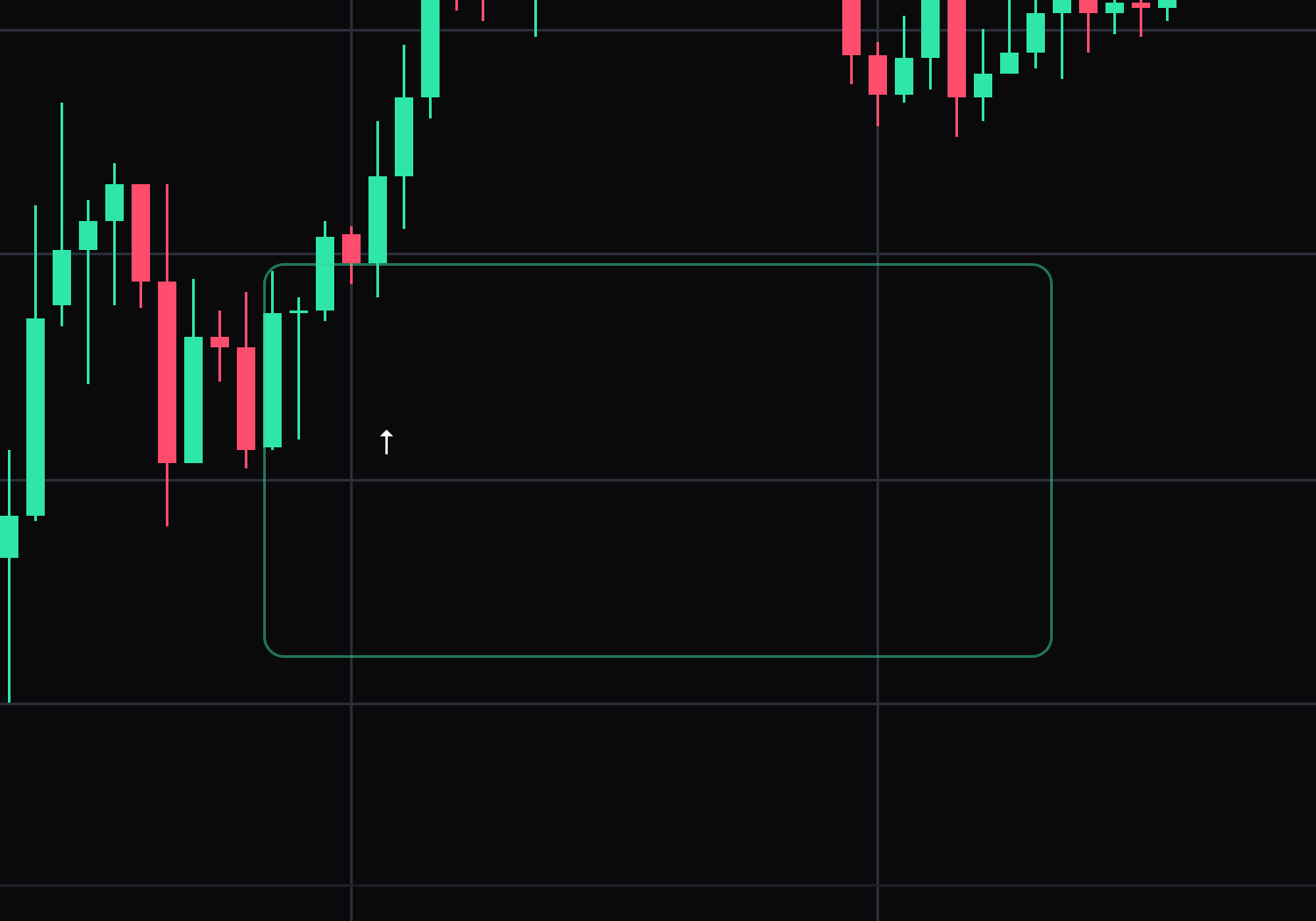
Up arrow
Place an upward arrow at a chosen bar.
Click the bar to mark. Select the drawing to move it or drag its points. Press Delete to remove the selected drawing.
- 14
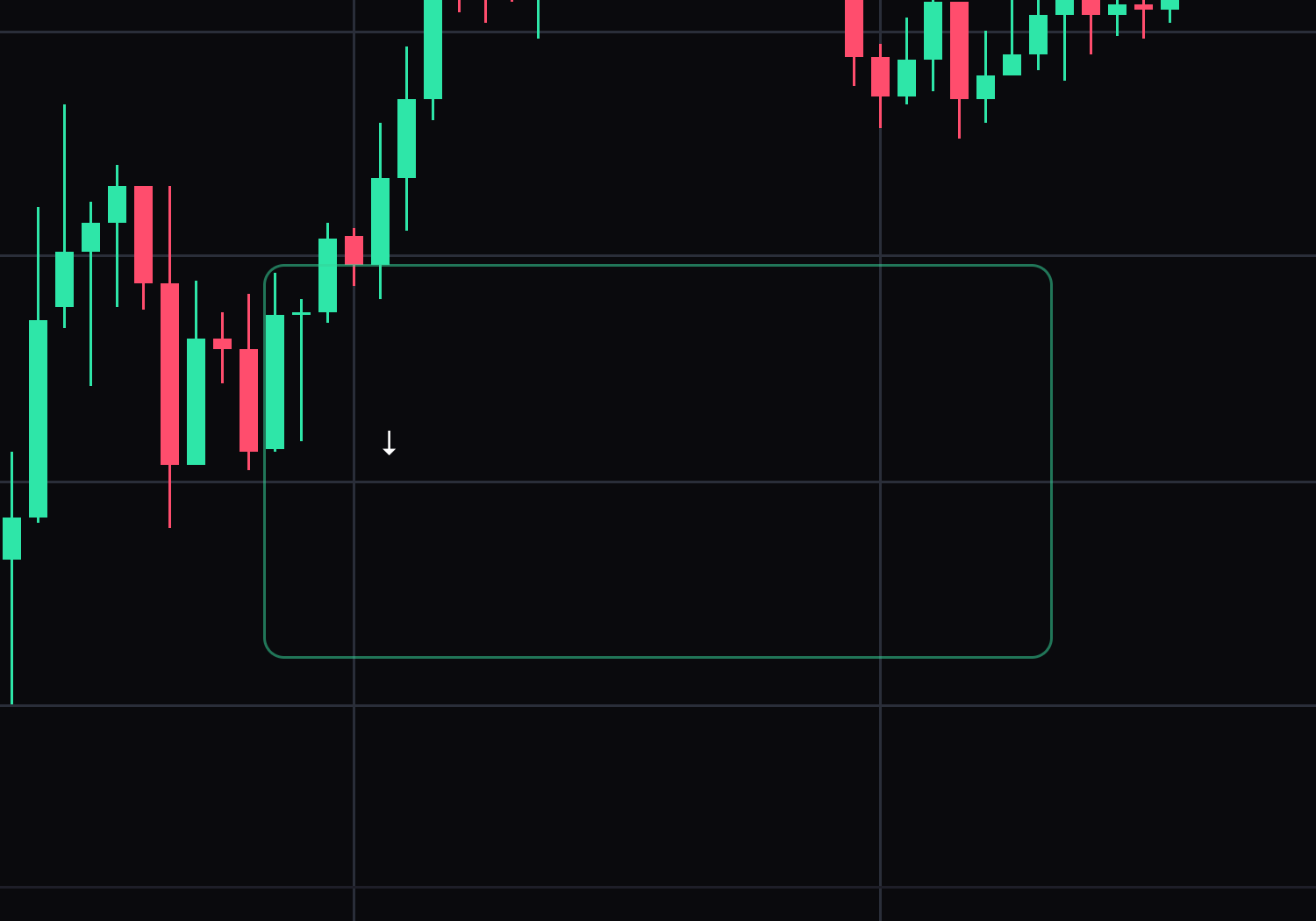
Down arrow
Place a downward arrow at a chosen bar.
Click the bar to mark. Select the drawing to move it or drag its points. Press Delete to remove the selected drawing.
- 15
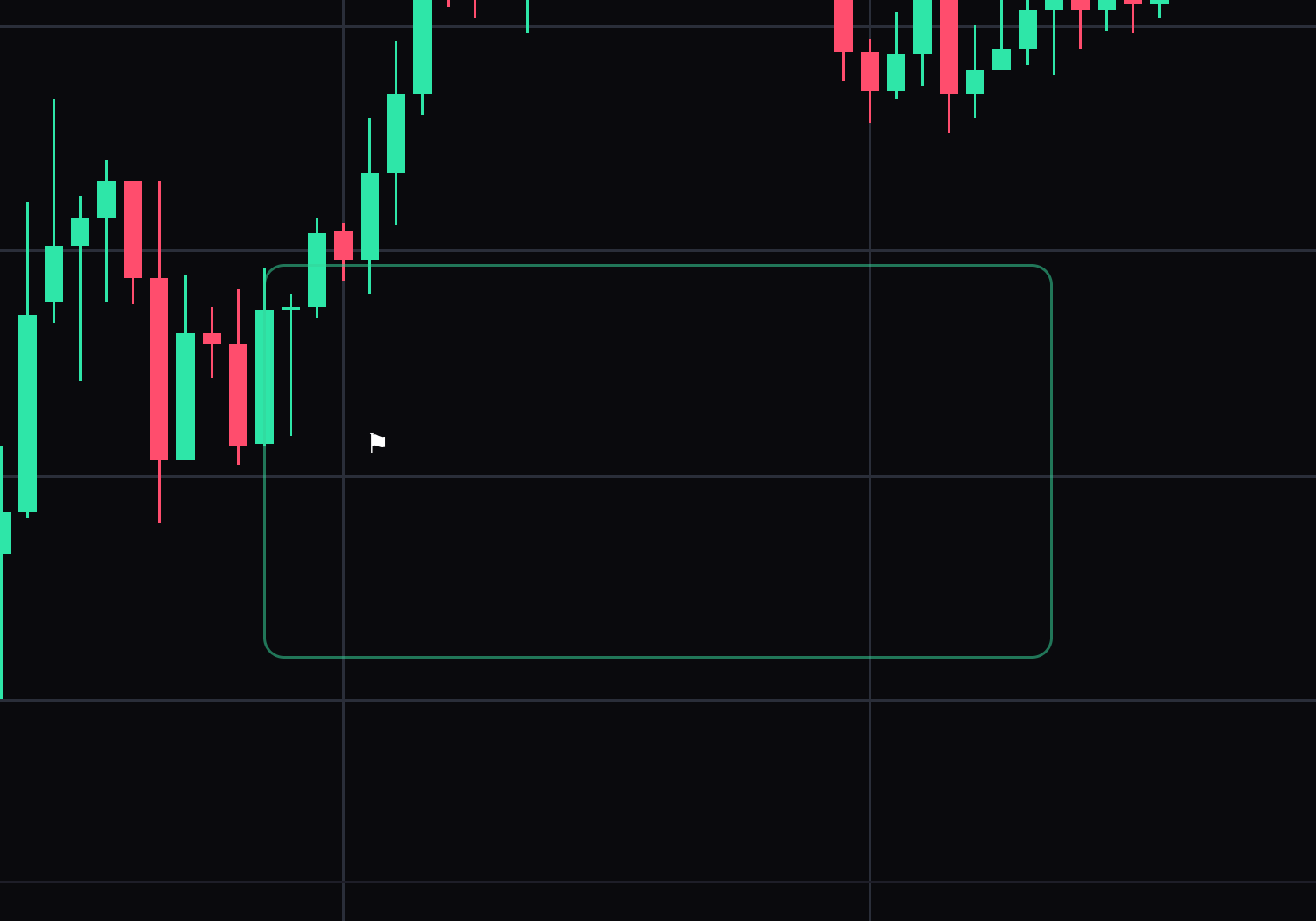
Flag marker
Place a flag marker at a chosen bar.
Click the bar to mark. Select the drawing to move it or drag its points. Press Delete to remove the selected drawing.
- 16
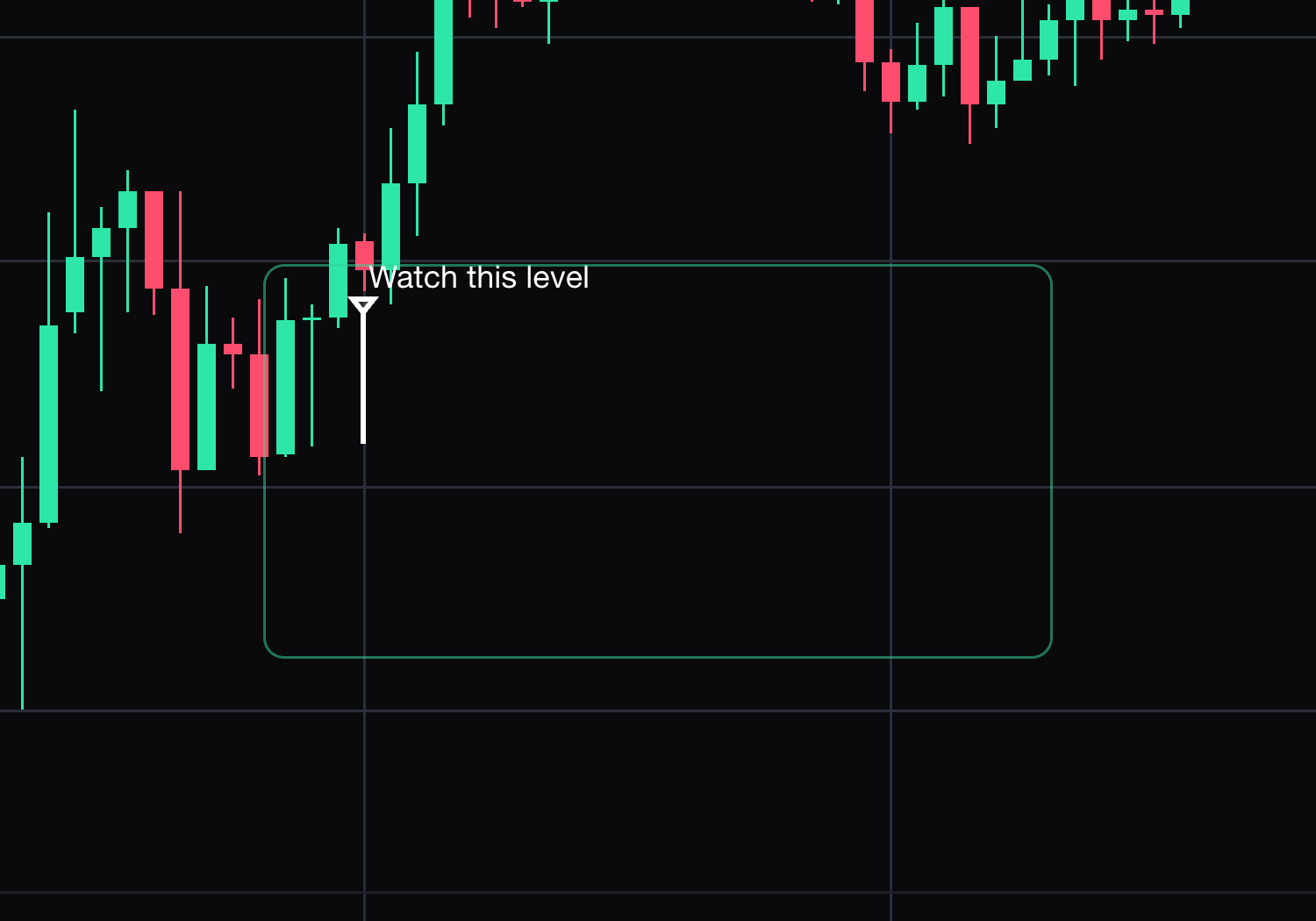
Text
A free text note anchored to a bar.
Click the bar you want to annotate, type a short note, then choose Save text. Select the drawing to move it. Press Delete to remove the selected drawing.
- 17
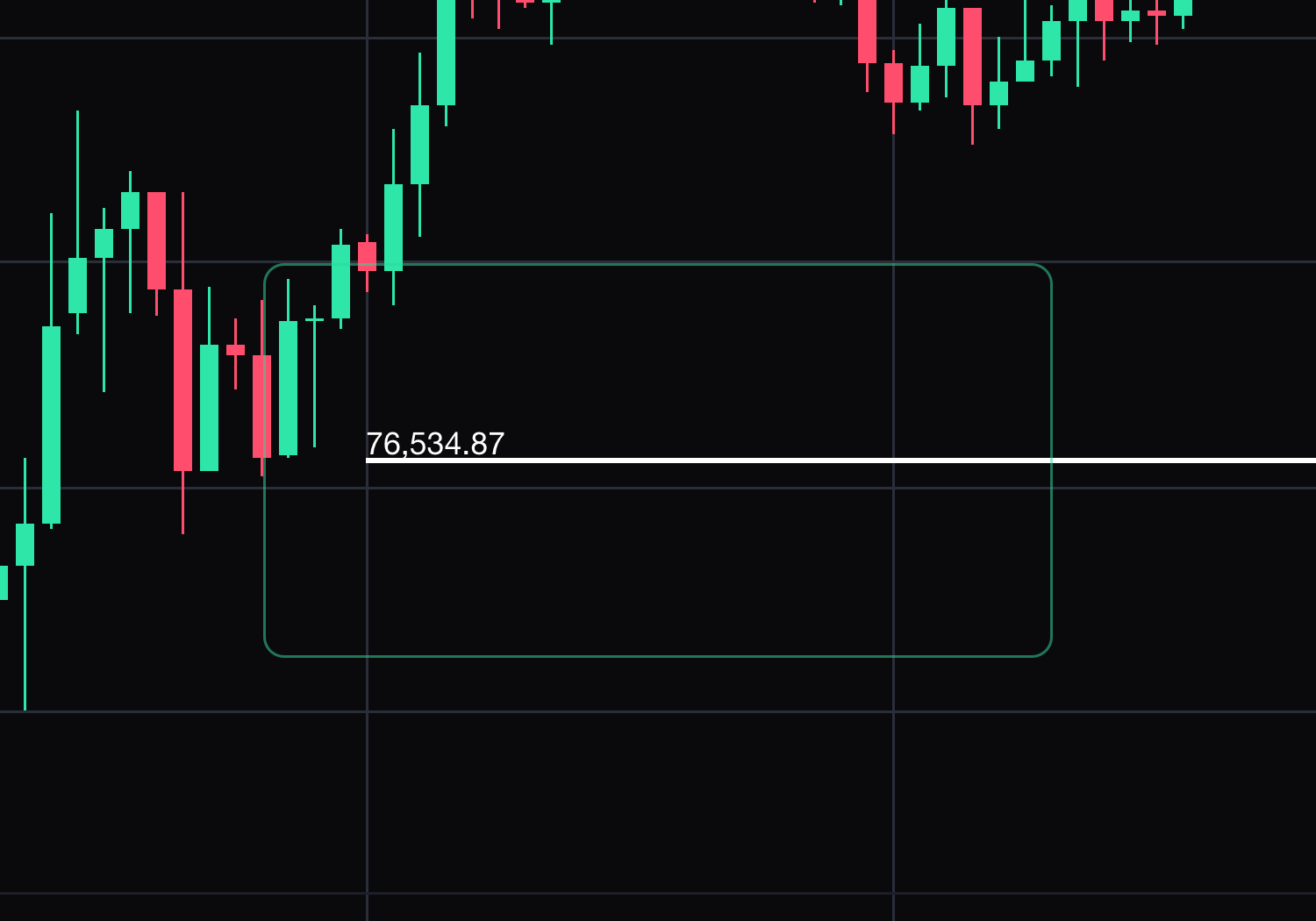
Price label
A level with its own price printed on it, for a target or a stop.
Click once at the price you want labelled. Select the drawing to move it or drag its points. Press Delete to remove the selected drawing.
- 18
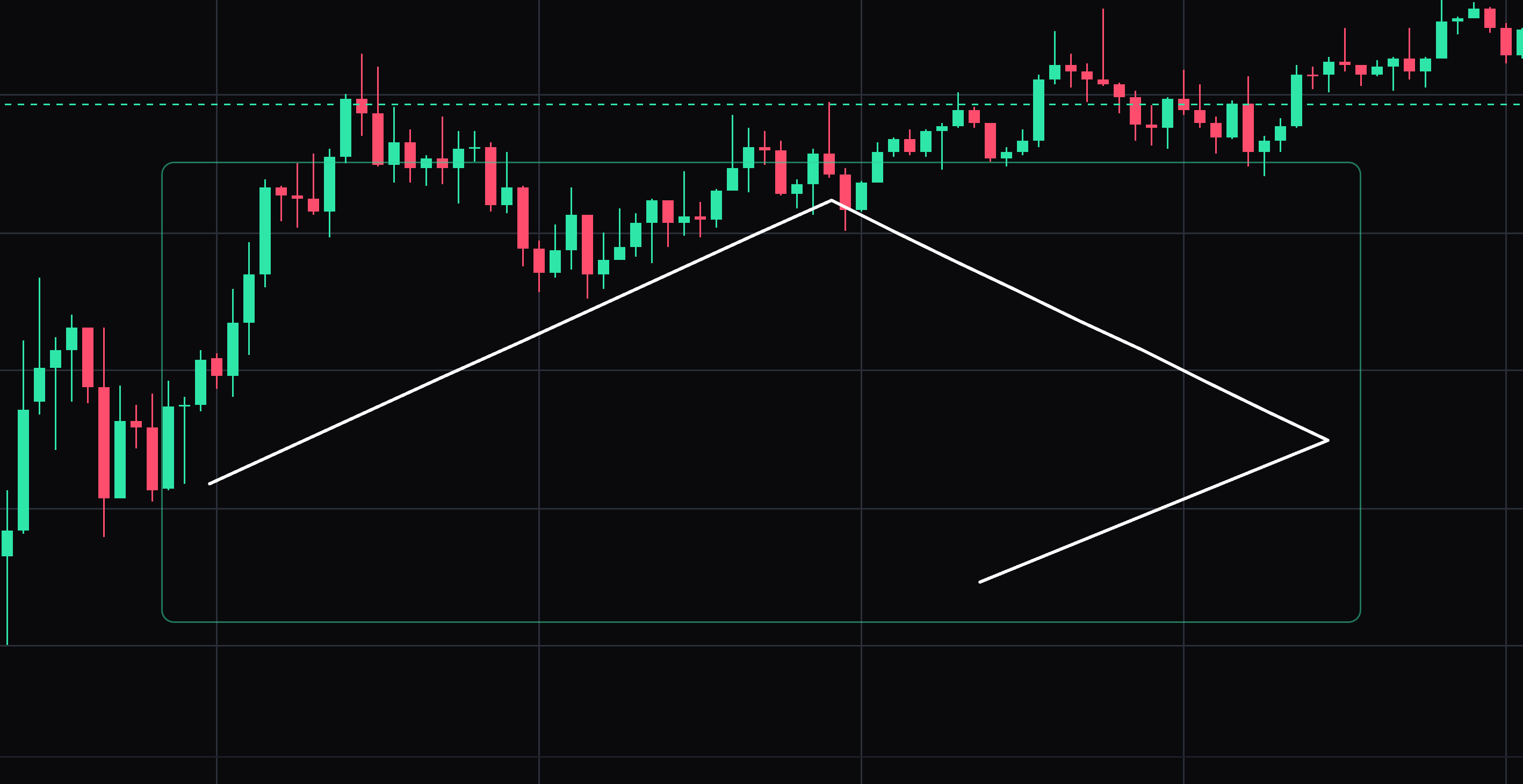
Brush
Freehand drawing, for circling something quickly.
Hold the pointer down and draw; release to finish. Select the drawing to move it or drag its points. Press Delete to remove the selected drawing.


Keep learning
Was this helpful?