- 01
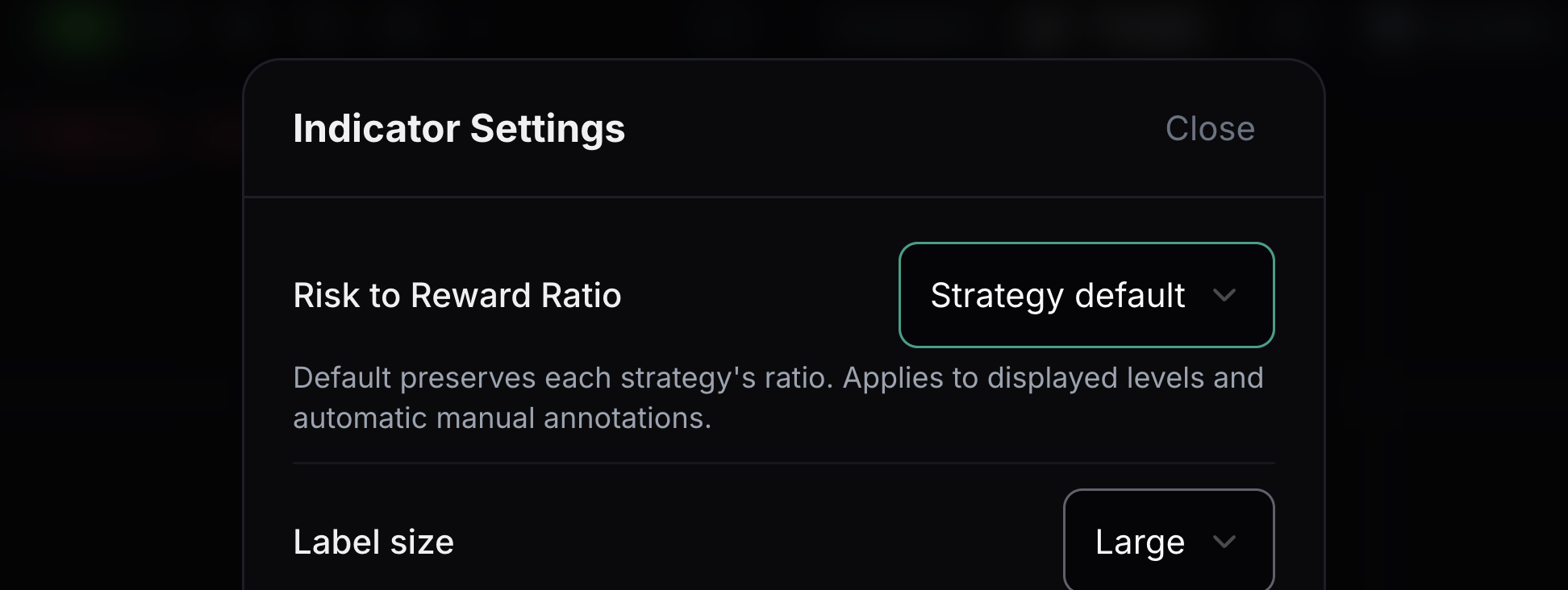
Risk to Reward Ratio
This compares the distance to the stop with the distance to the target.
Choose Strategy default or a ratio such as 1:2. The displayed target changes to match the selected ratio. Open Indicator Settings to find this control.
- 02
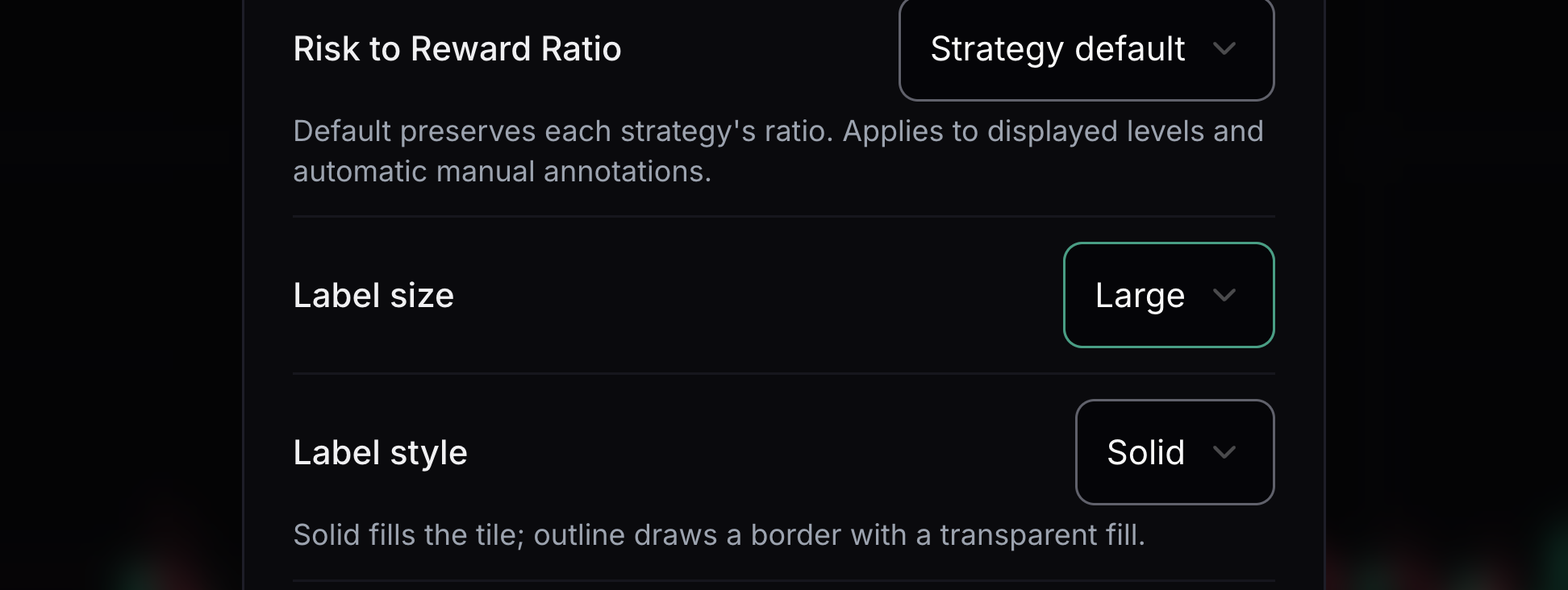
Label size
This changes the size of signal labels.
Choose Small, Normal or Large. Larger labels are easier to read but cover more chart space. Open Indicator Settings to find this control.
- 03
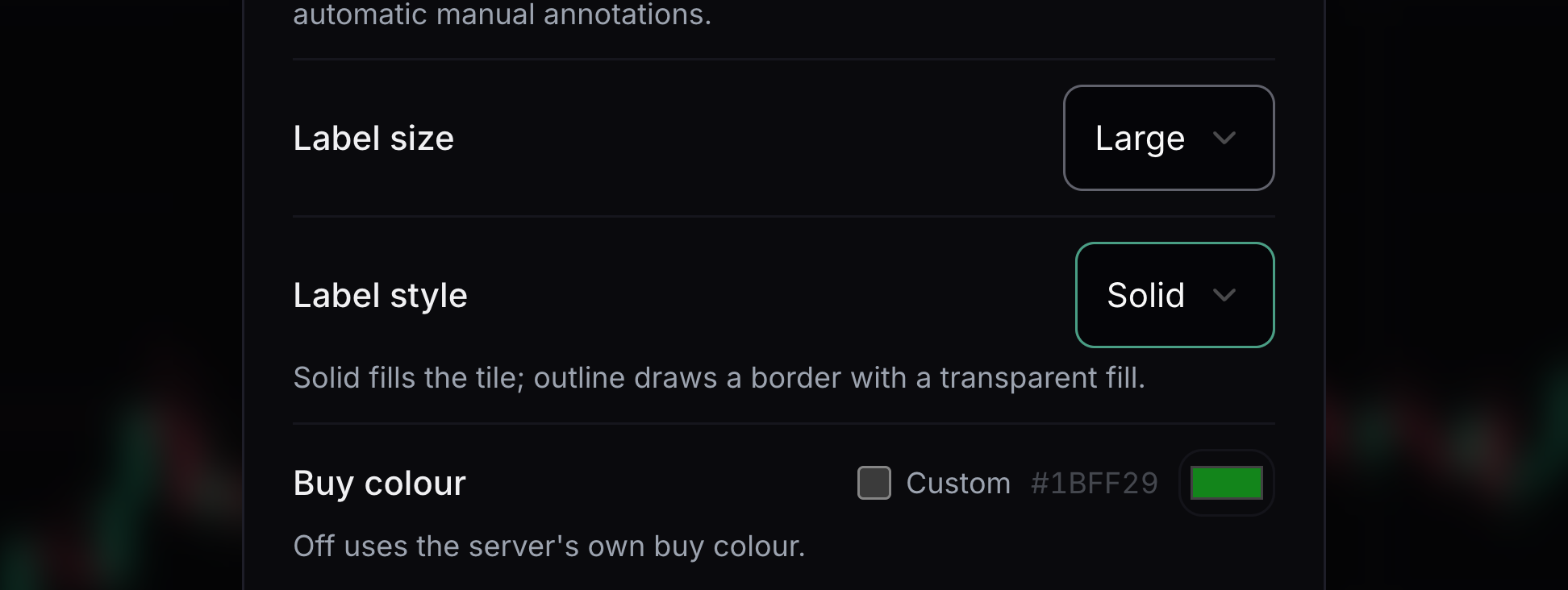
Label style
This changes how the label body looks.
Choose Solid for a filled label or Outline for a border and transparent centre. Open Indicator Settings to find this control.
- 04
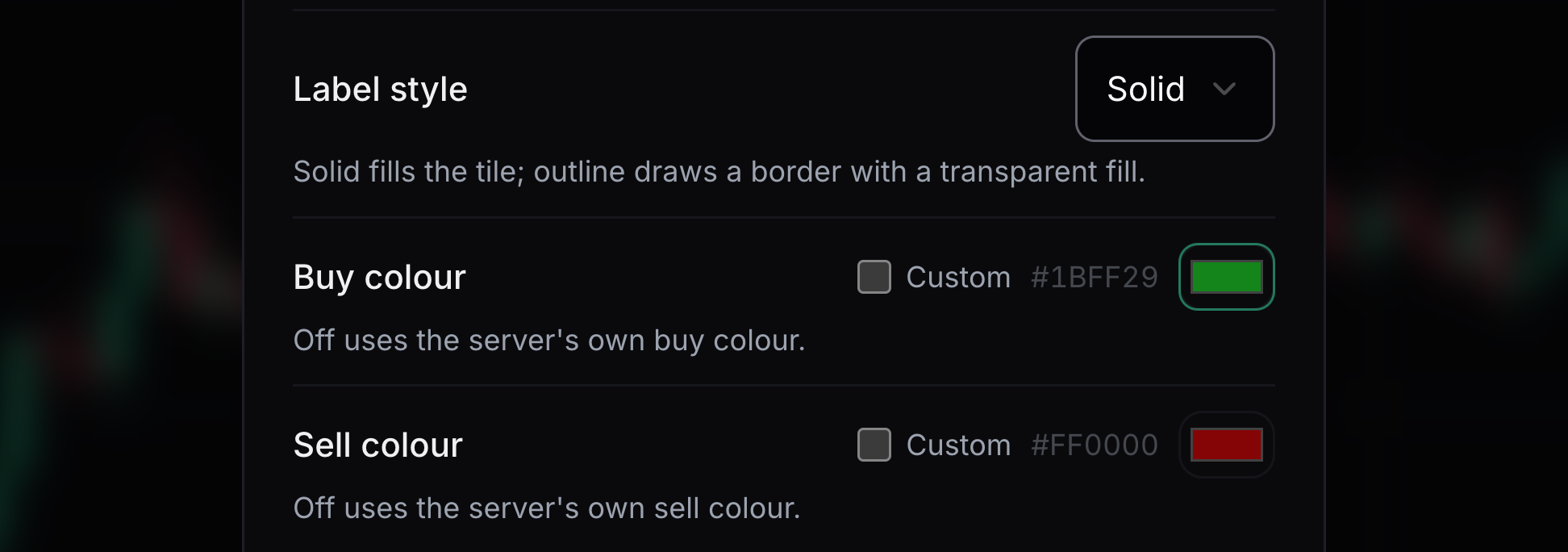
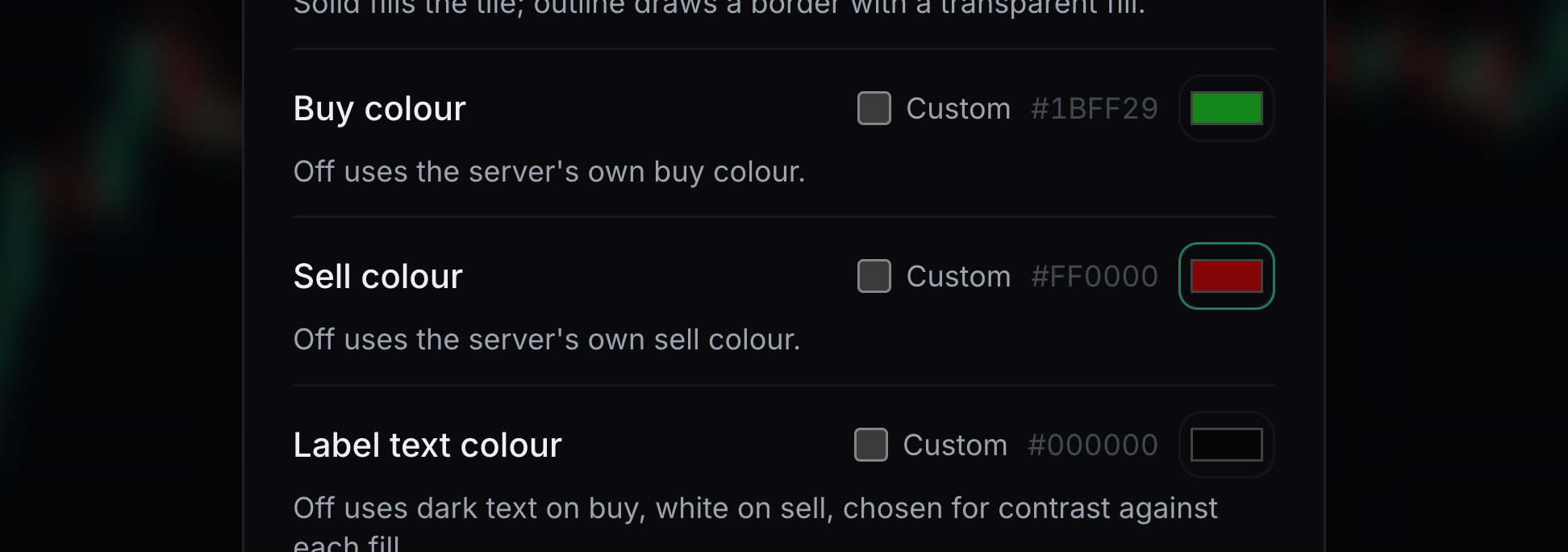
Buy colour
This is the colour used for BUY labels.
Enable Custom, then choose a colour with good contrast. Turn Custom off to use the default. Open Indicator Settings to find this control.
- 05
Sell colour
This is the colour used for SELL labels.
Enable Custom, then choose a colour with good contrast. Turn Custom off to use the default. Open Indicator Settings to find this control.
- 06
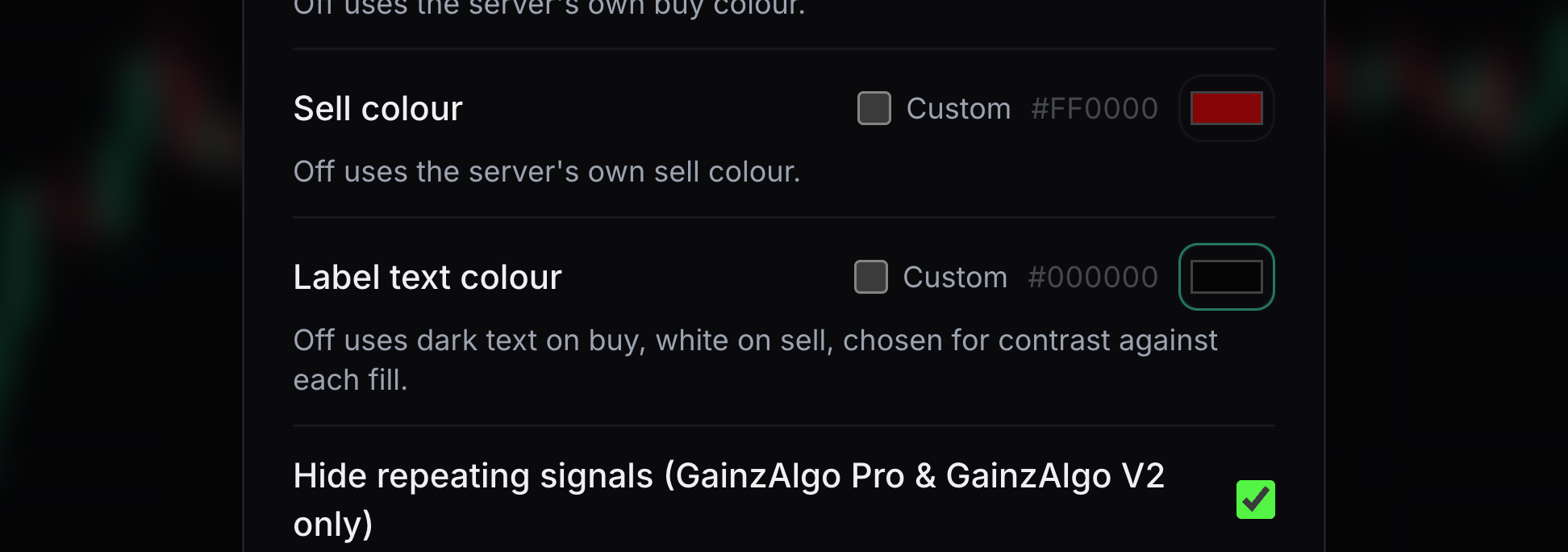
Label text colour
This controls the words and numbers inside a signal label.
Enable Custom, then choose a colour with good contrast. Turn Custom off to use the default. Open Indicator Settings to find this control.
- 07
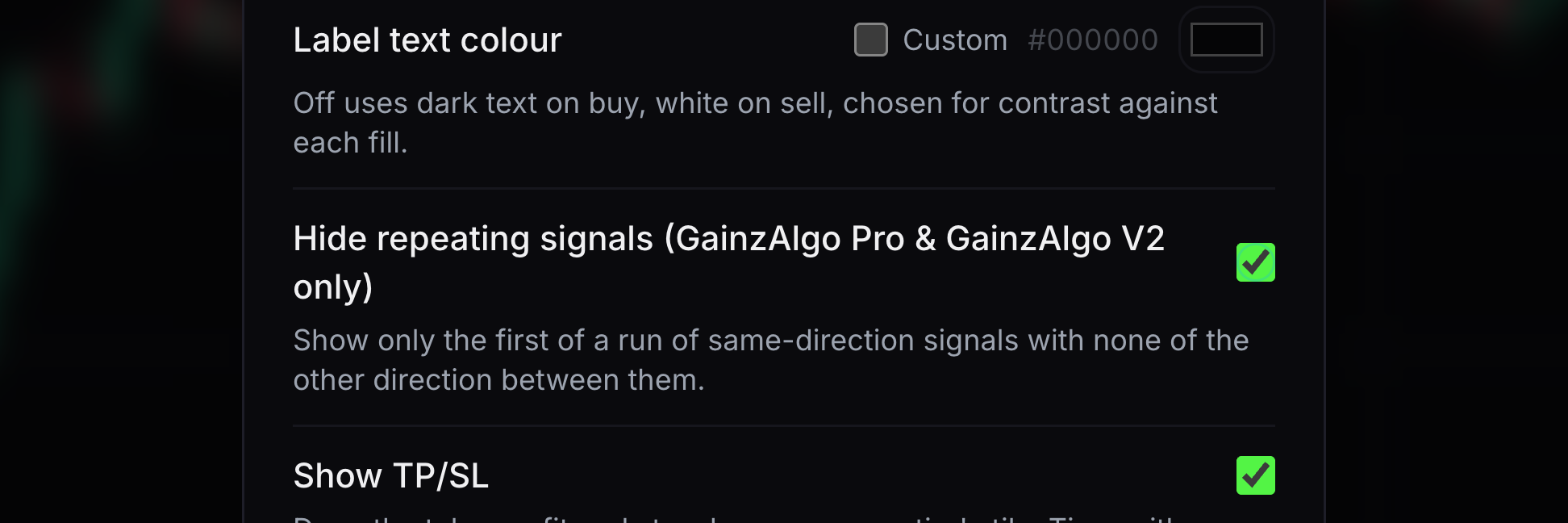
Hide repeating signals
This filters repeated same-direction signals for supported Pro and V2 indicators.
Turn it on to show fewer repeated labels, or off to see them again. Open Indicator Settings to find this control.
- 08
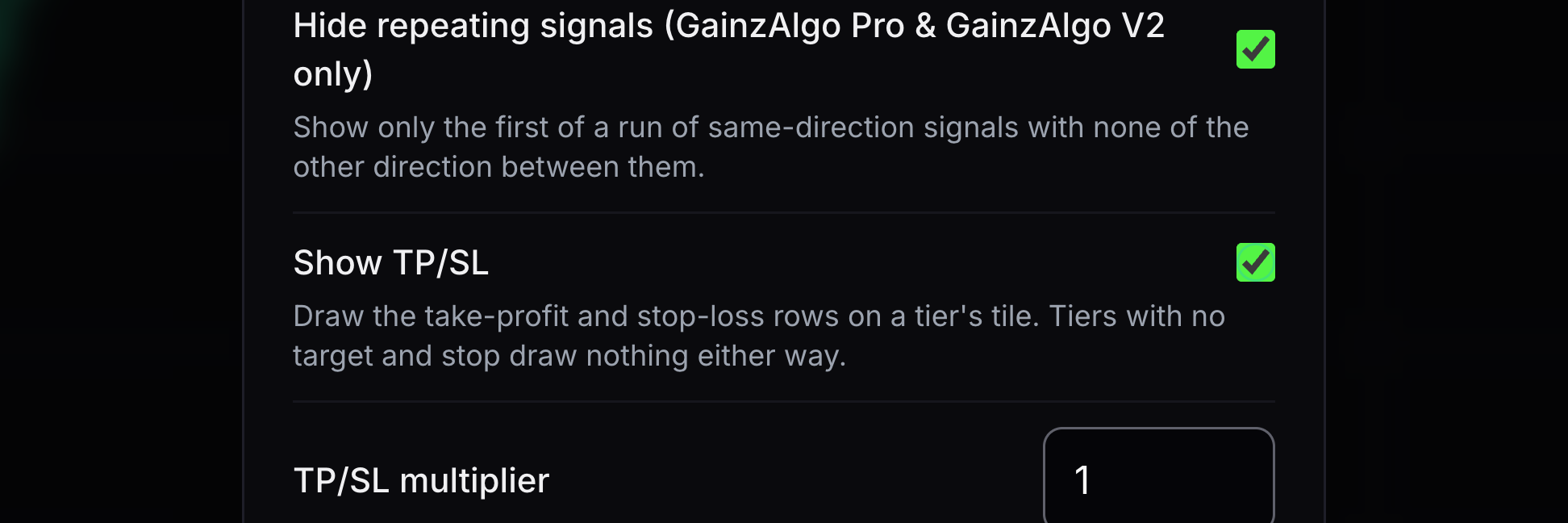
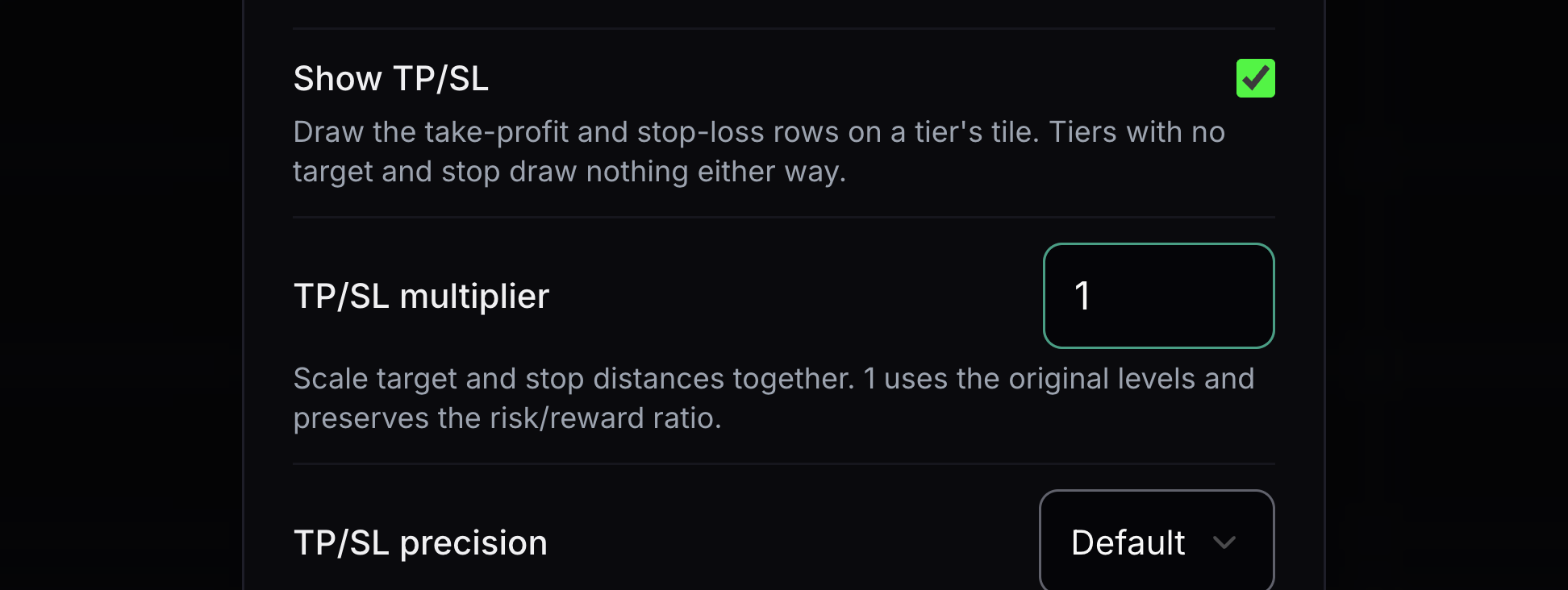
Show TP/SL
This shows or hides take-profit and stop-loss prices on signal labels.
Turn it on to read the supplied target and stop. Open Indicator Settings to find this control.
- 09
TP/SL multiplier
This scales the distance from entry to both target and stop together.
Enter 1 for the original distances, or a larger number to spread both levels farther apart. Open Indicator Settings to find this control.
- 10
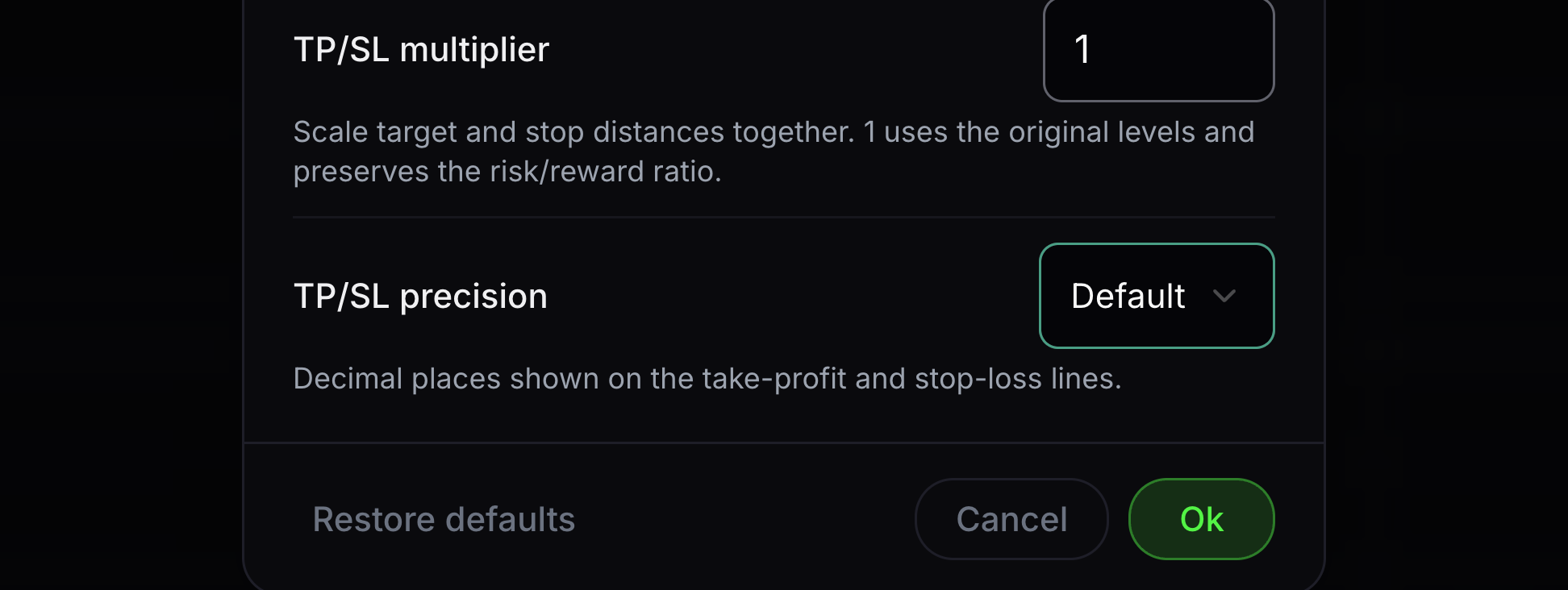
TP/SL precision
This controls decimal places in target and stop labels.
Choose how many digits appear after the decimal point. Open Indicator Settings to find this control.
- 11
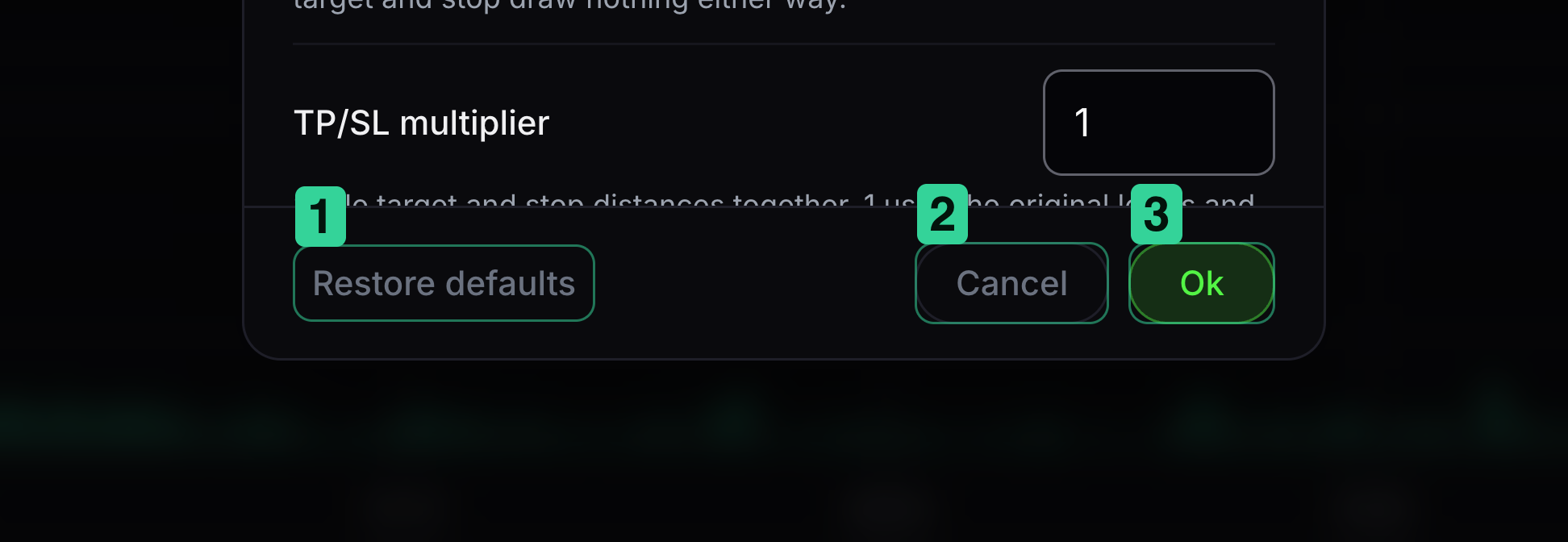
Keep or cancel your changes
Ok saves your changes; Cancel leaves the previous settings in place.
1 Restore defaults resets the choices in the dialog. 2 Cancel leaves without saving. 3 Ok keeps your choices.


Keep learning
Was this helpful?