- 01
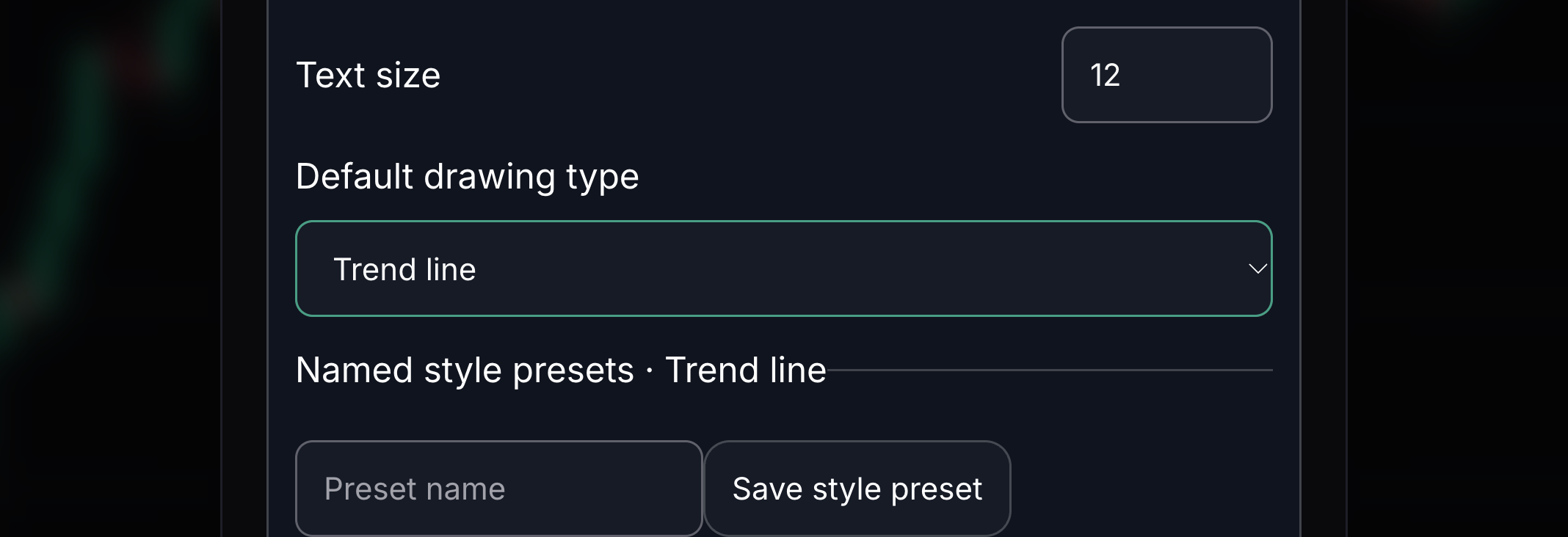
Default drawing type
This chooses which tool your new style applies to.
Choose the drawing tool before adjusting its default look.
- 02
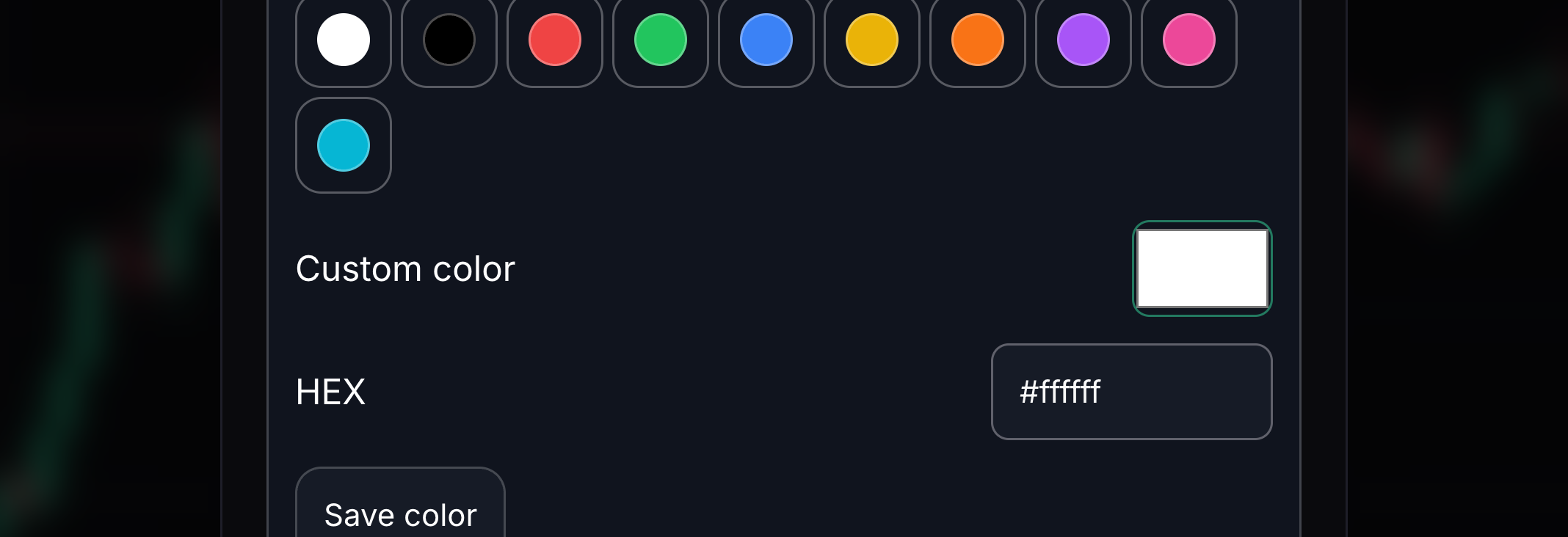
Line colour
This colours the edge or stroke of a drawing.
Choose a swatch or open the colour picker.
- 03
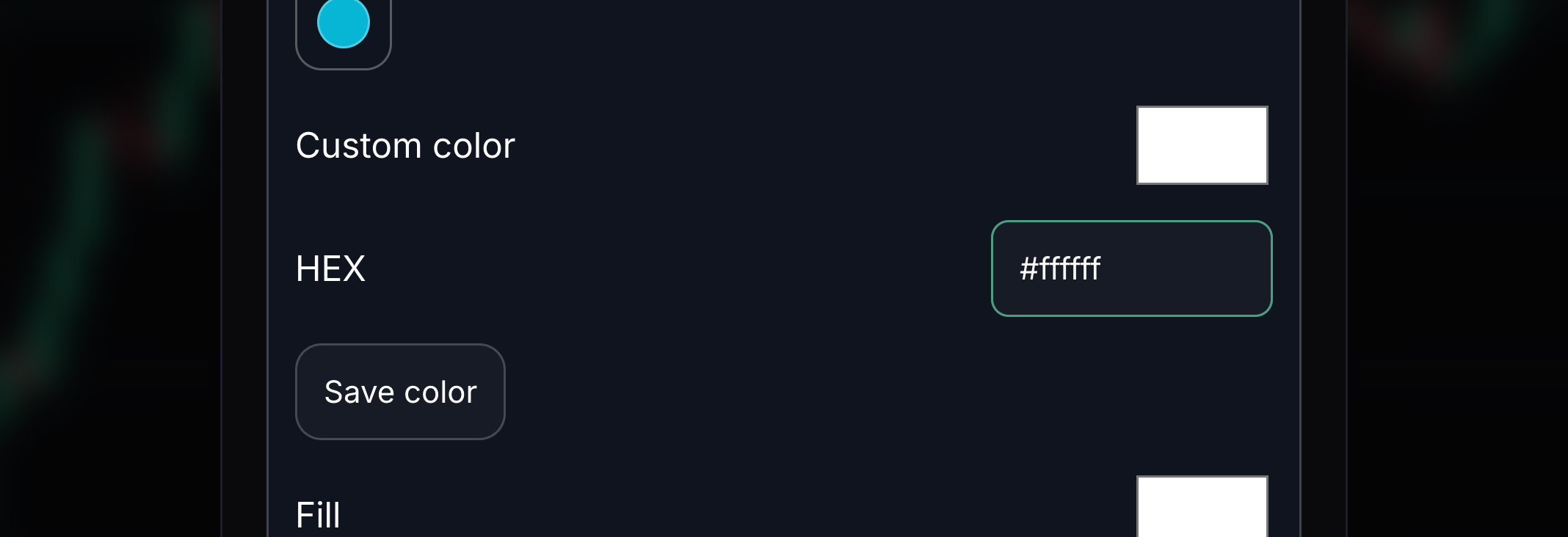
HEX colour
A HEX value is a six-digit colour code, such as #22c55e.
Enter the six-digit colour value you want to use. Choose Save color if you want to keep that colour as a swatch.
- 04
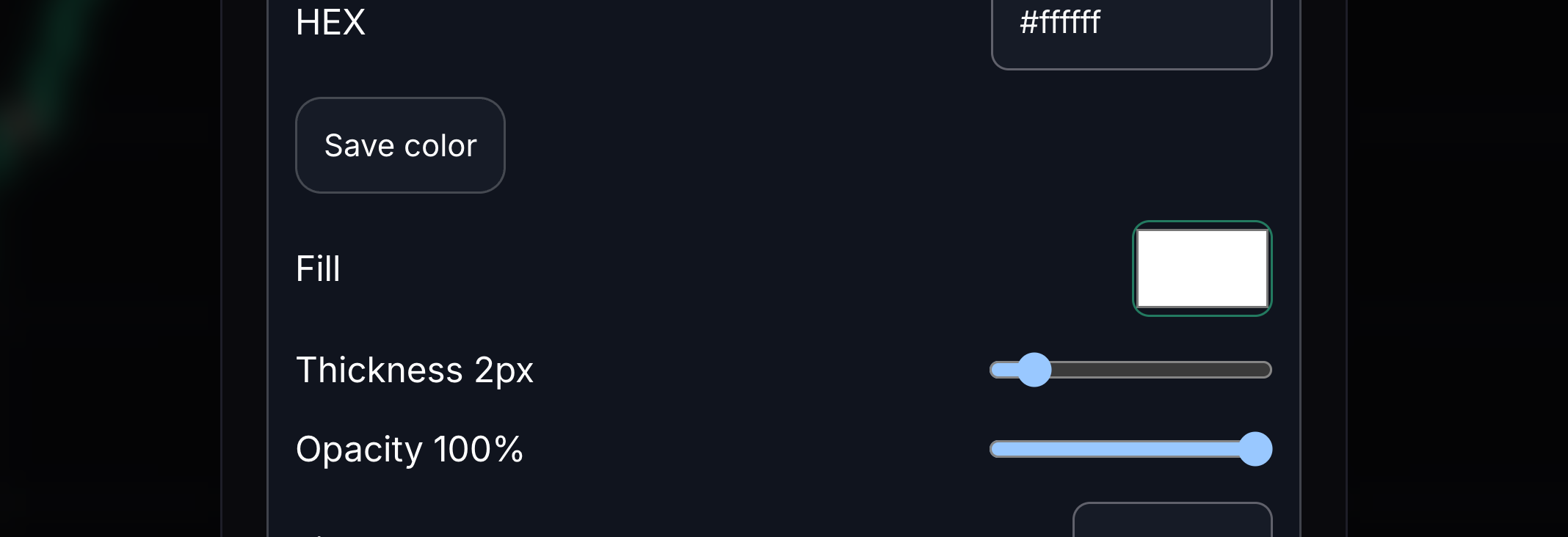
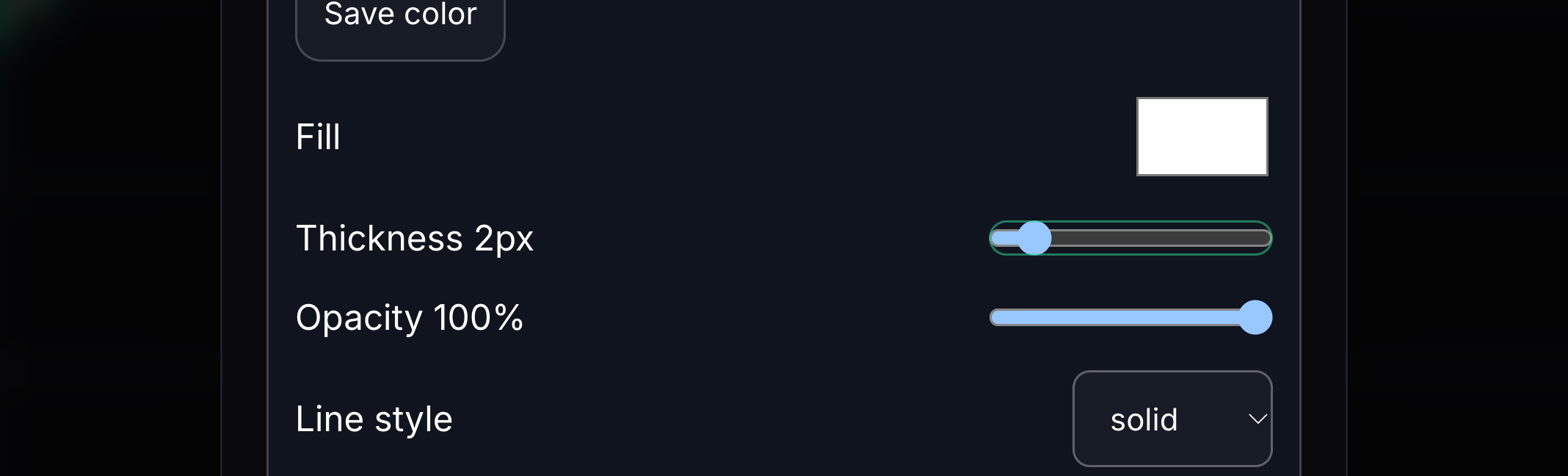
Fill
This colours the inside of a shape.
Choose the fill colour for a supported shape.
- 05
Thickness
This changes the width of a drawing’s line.
Move the thickness slider.
- 06
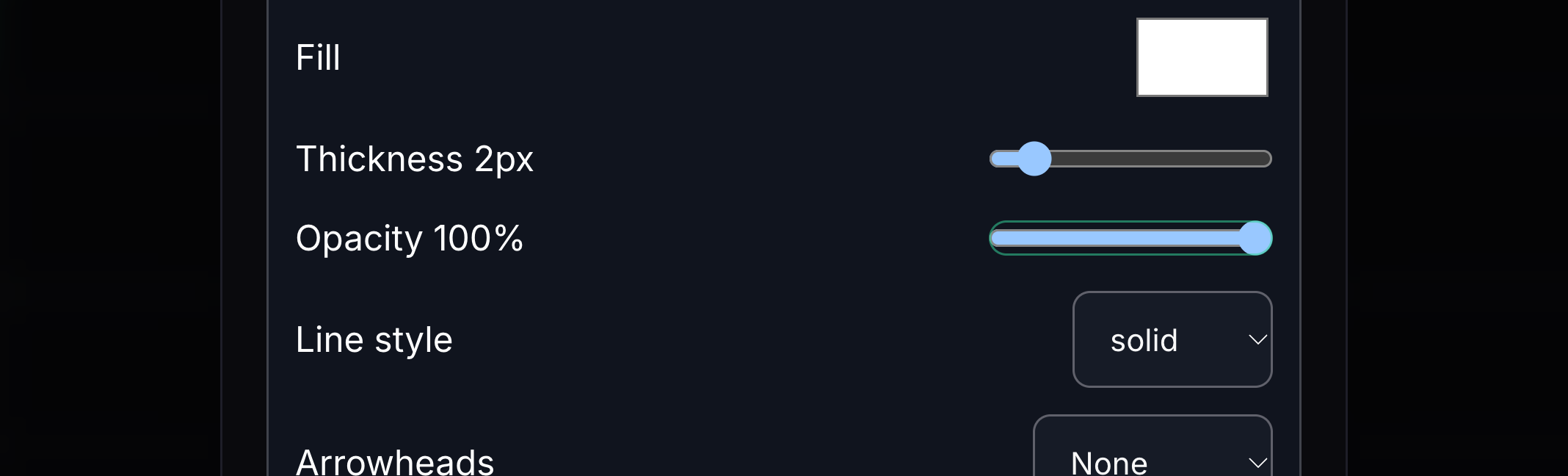
Opacity
This controls how see-through a drawing is.
Lower opacity for a softer drawing or increase it for a stronger mark.
- 07
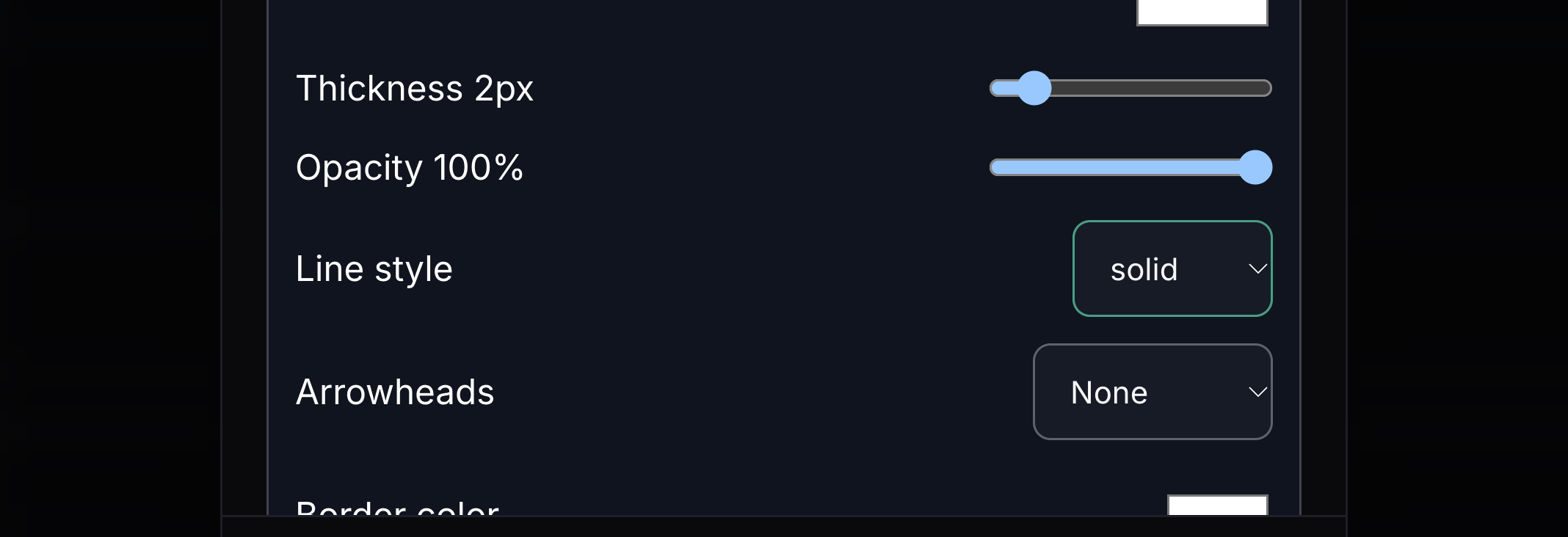
Line style
This changes a line to solid, dashed or dotted.
Choose the pattern you want.
- 08
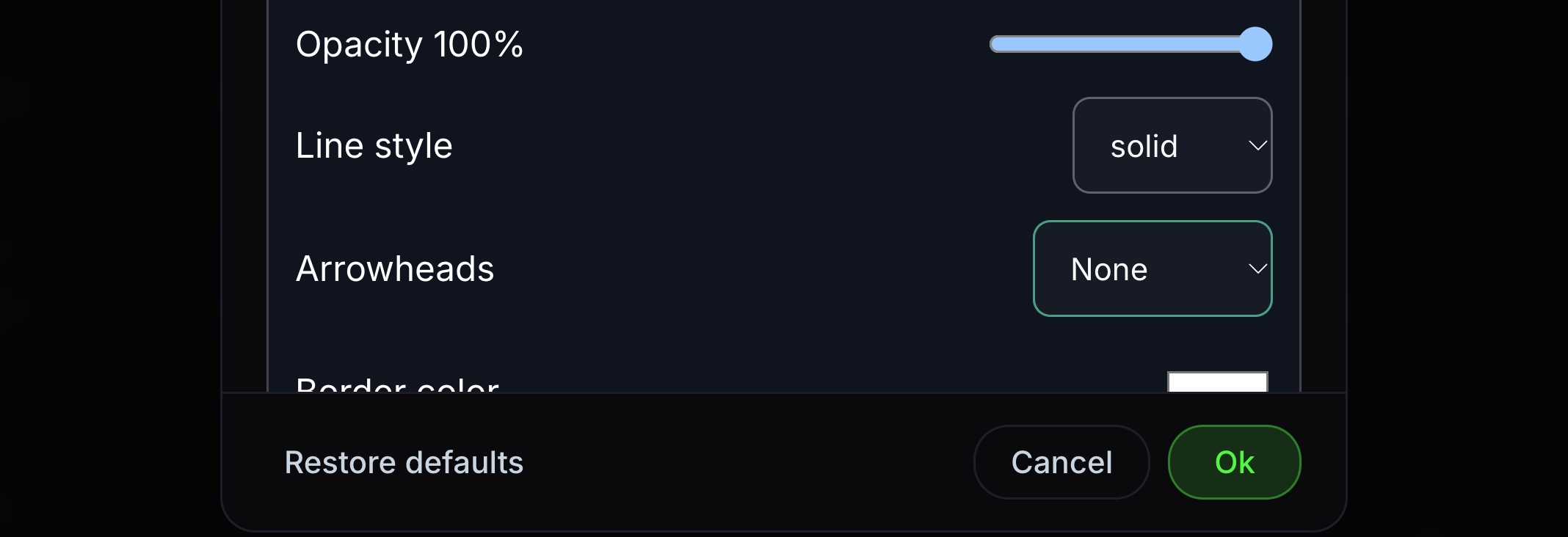
Arrowheads
This adds arrow tips to supported lines.
Choose none, one end or both ends.
- 09
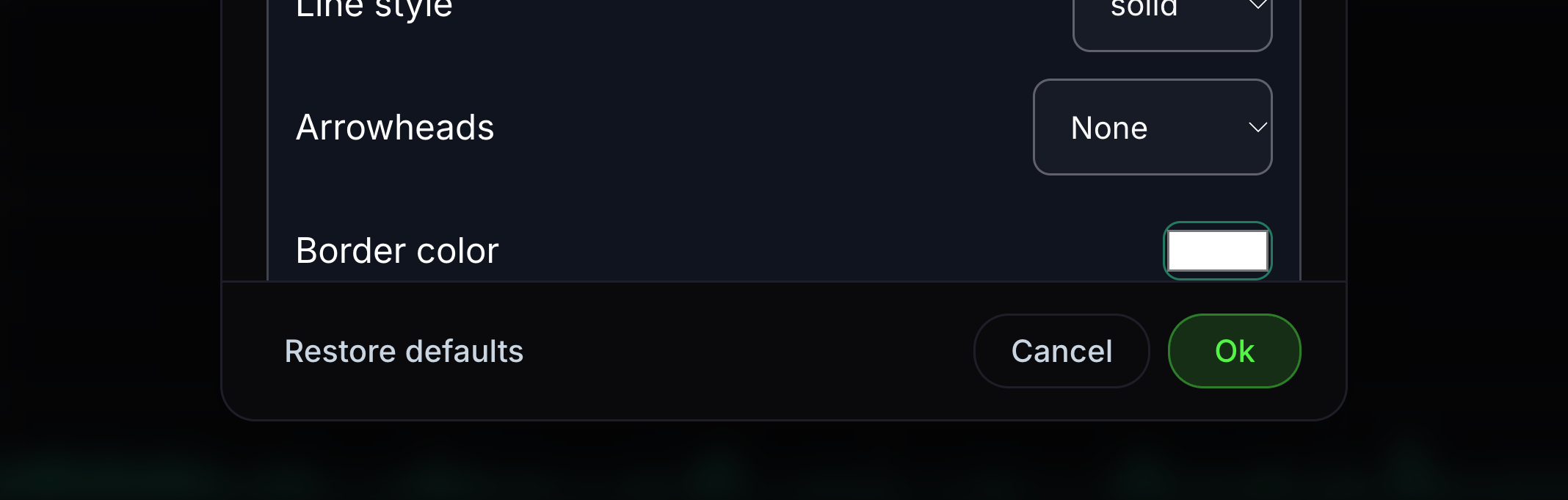
Border colour
This colours the border of supported annotations.
Choose a border colour that separates the label from the chart.
- 10
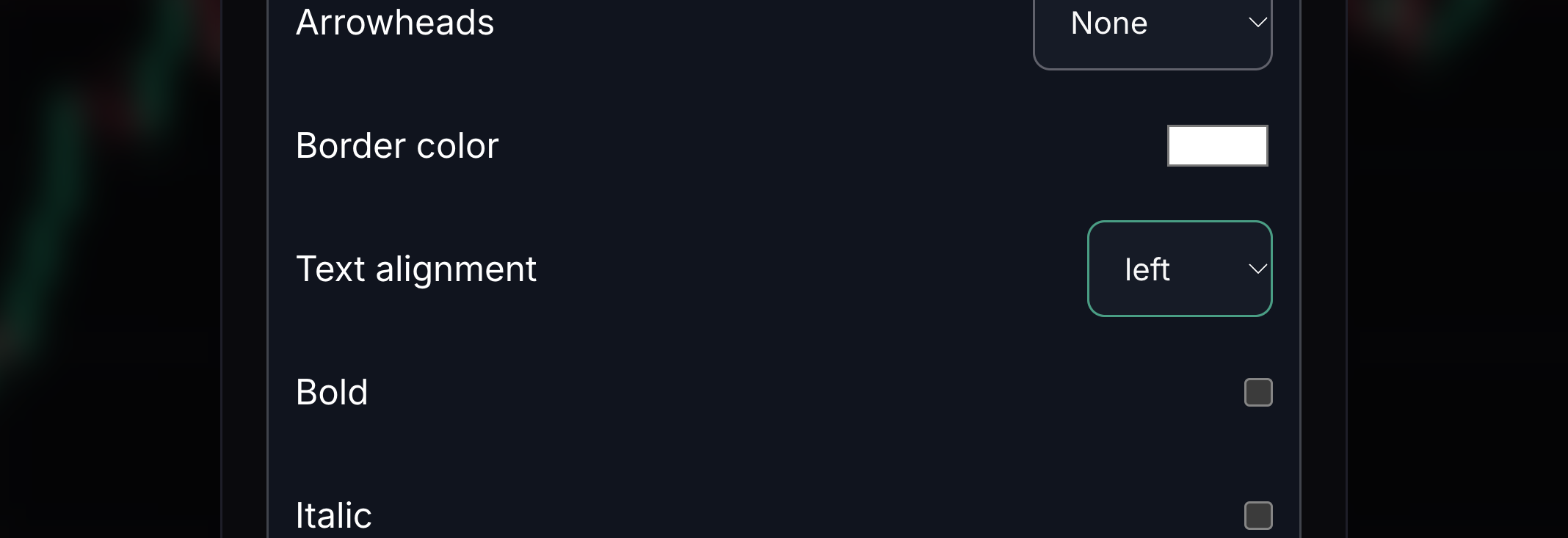
Text alignment
This aligns drawing text left, centre or right.
Choose the alignment for the selected annotation.
- 11
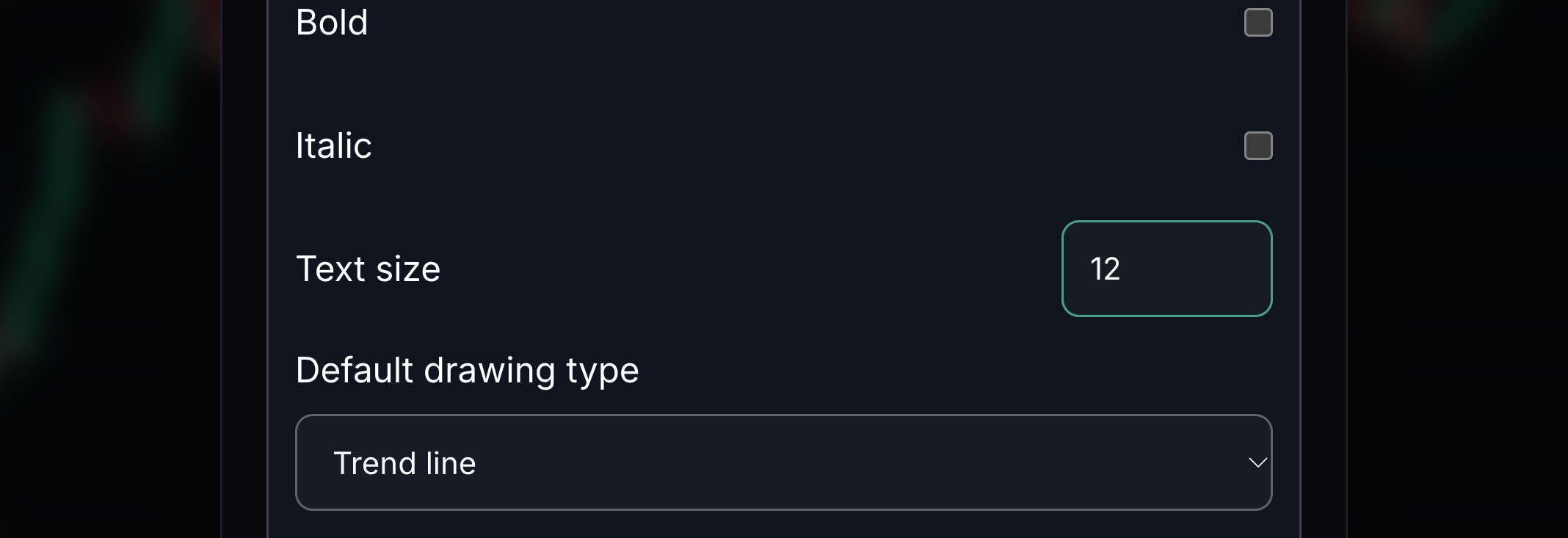
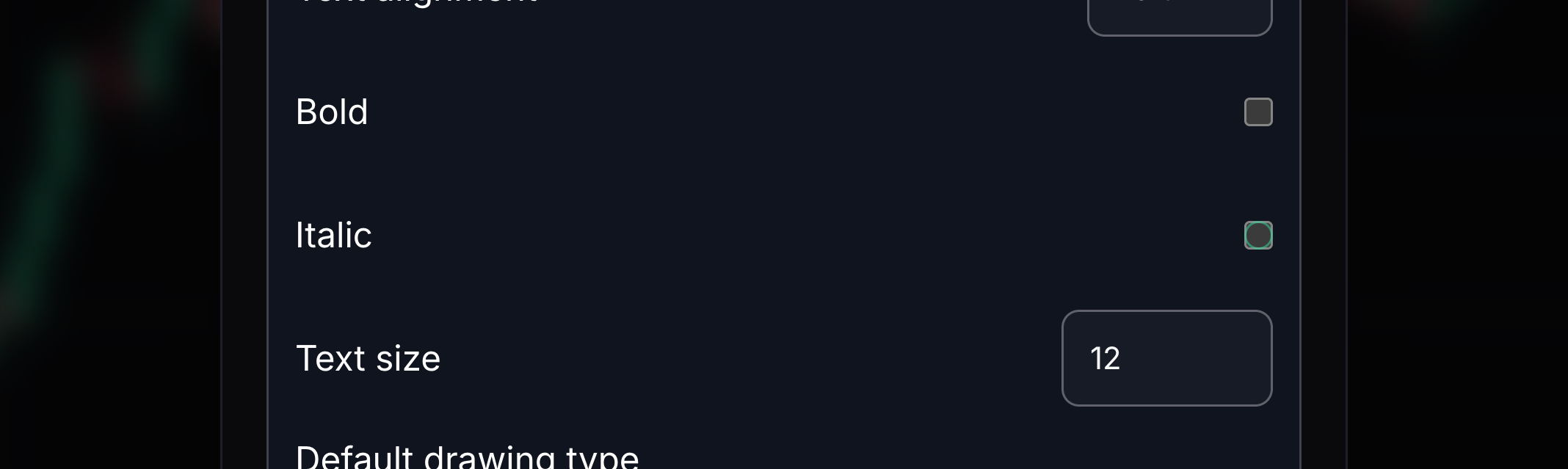
Text size
This changes how large annotation text appears.
Choose a larger or smaller text size.
- 12
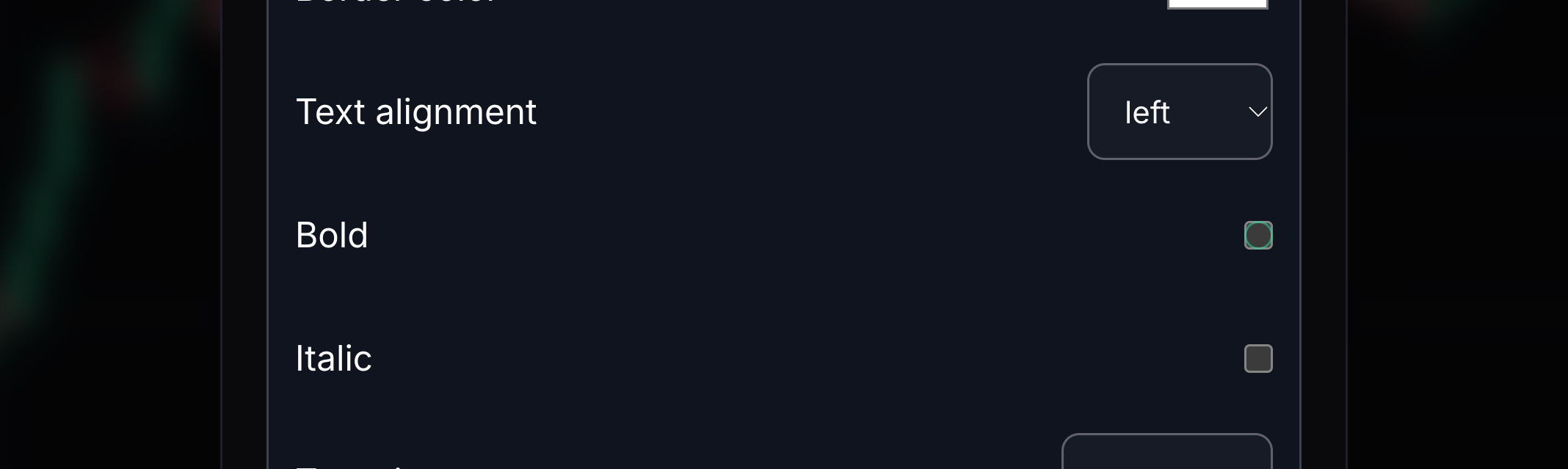
Bold
Bold makes drawing text heavier.
Tick Bold to give the text a heavier weight.
- 13
Italic
Italic slants drawing text.
Tick Italic to show text in a slanted style.
- 14
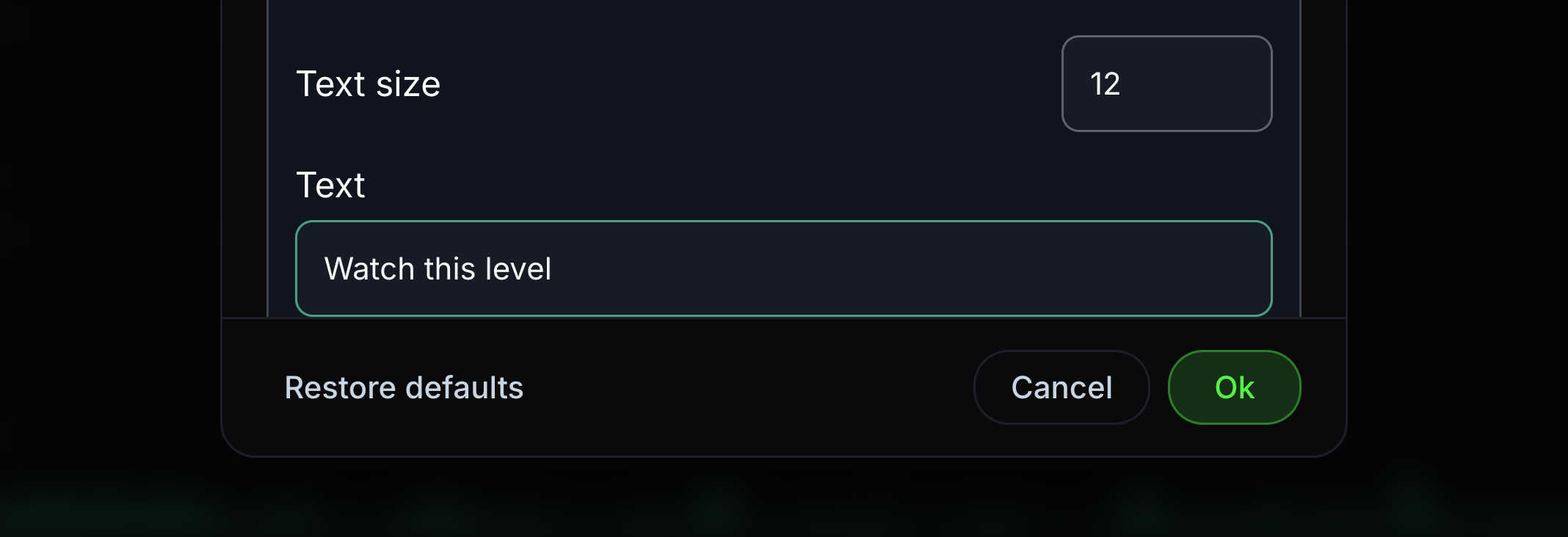
Annotation text
This is the wording shown by a text drawing.
Select the annotation and edit its text.
- 15
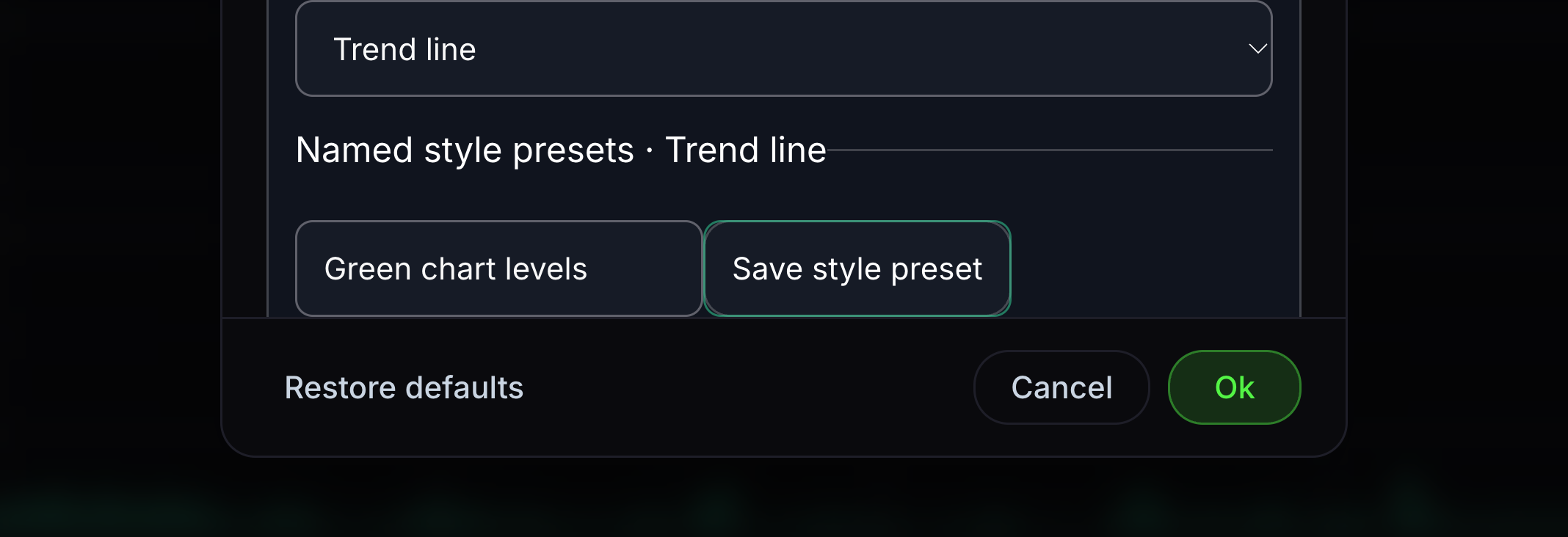
Save a style preset
A preset remembers a named style for a tool.
Enter a name and choose Save style preset.
- 16
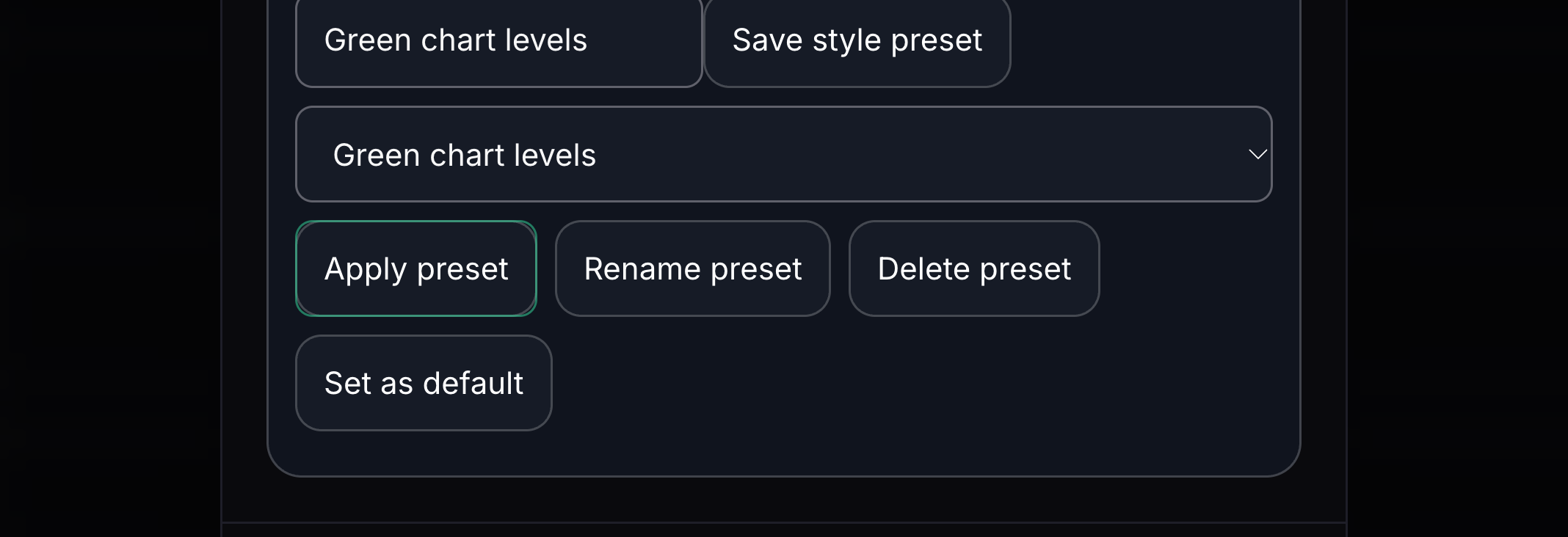
Apply a preset
This uses a saved style on the current tool or drawing.
Choose a saved style and select Apply preset.
- 17
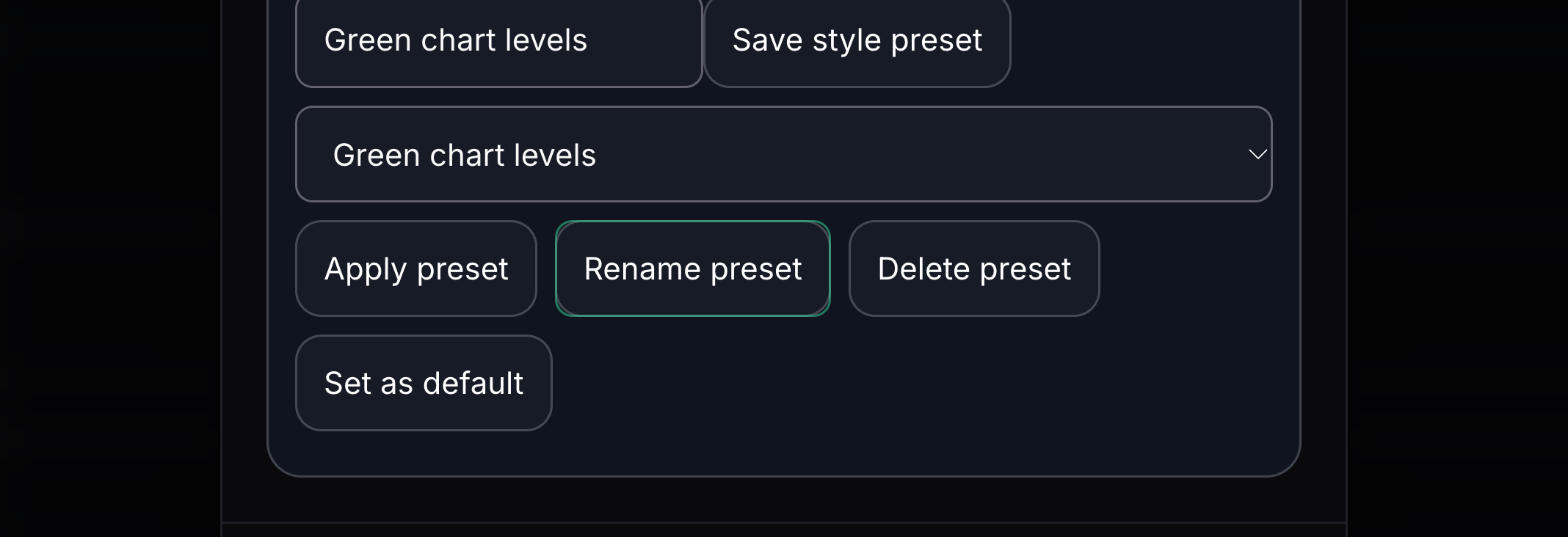
Rename a preset
This changes the name of a saved style.
Choose the preset, enter a new name and select Rename preset.
- 18
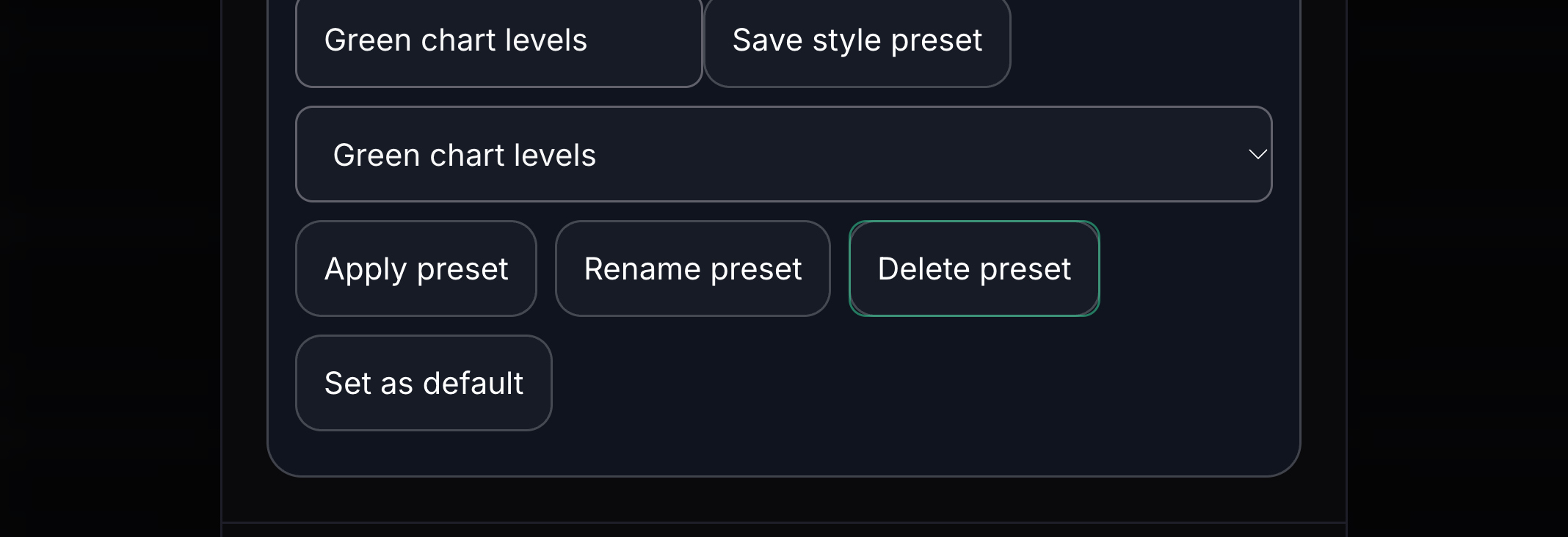
Delete a preset
This removes a saved style from the list.
Choose a preset you no longer need and select Delete preset.
- 19
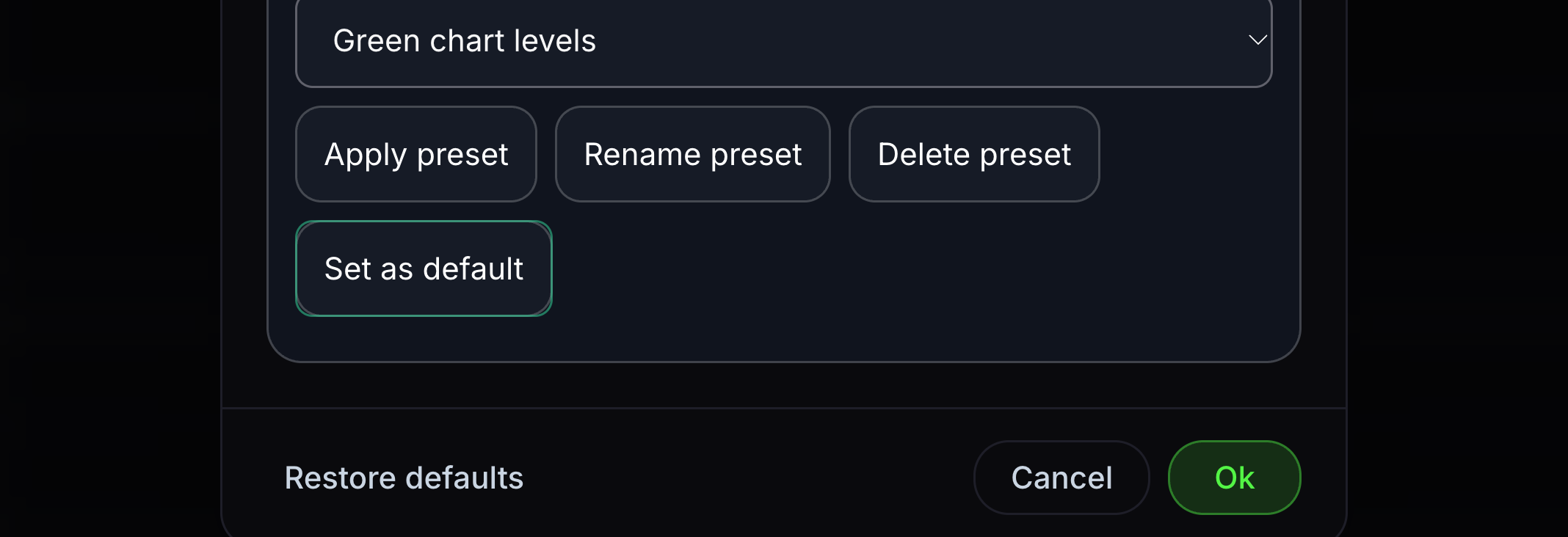
Set a default preset
This chooses the starting style for that drawing tool.
Choose a saved preset and select Set as default.
- 20
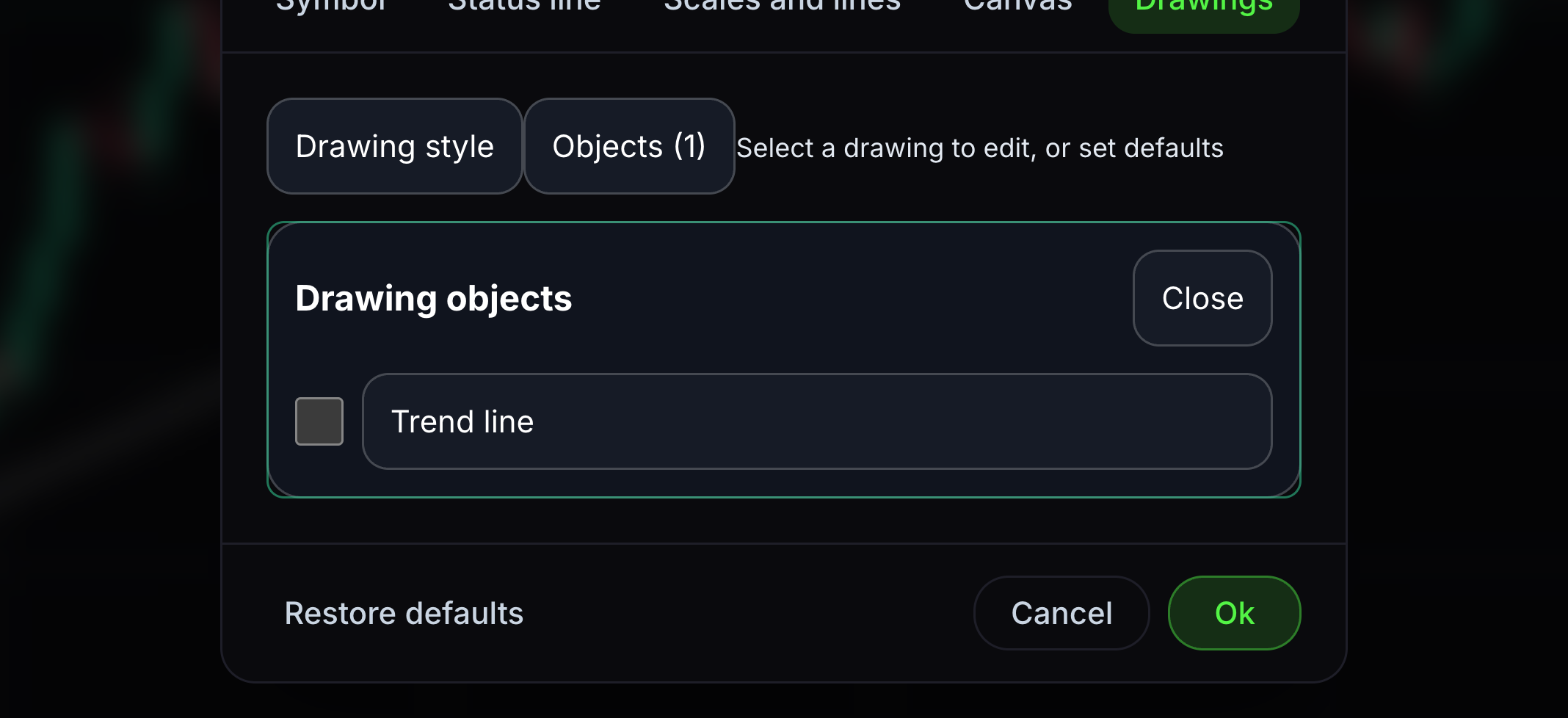
Objects list
Objects lists the drawings on the chart.
Open Objects and select the drawings you want to manage.
- 21
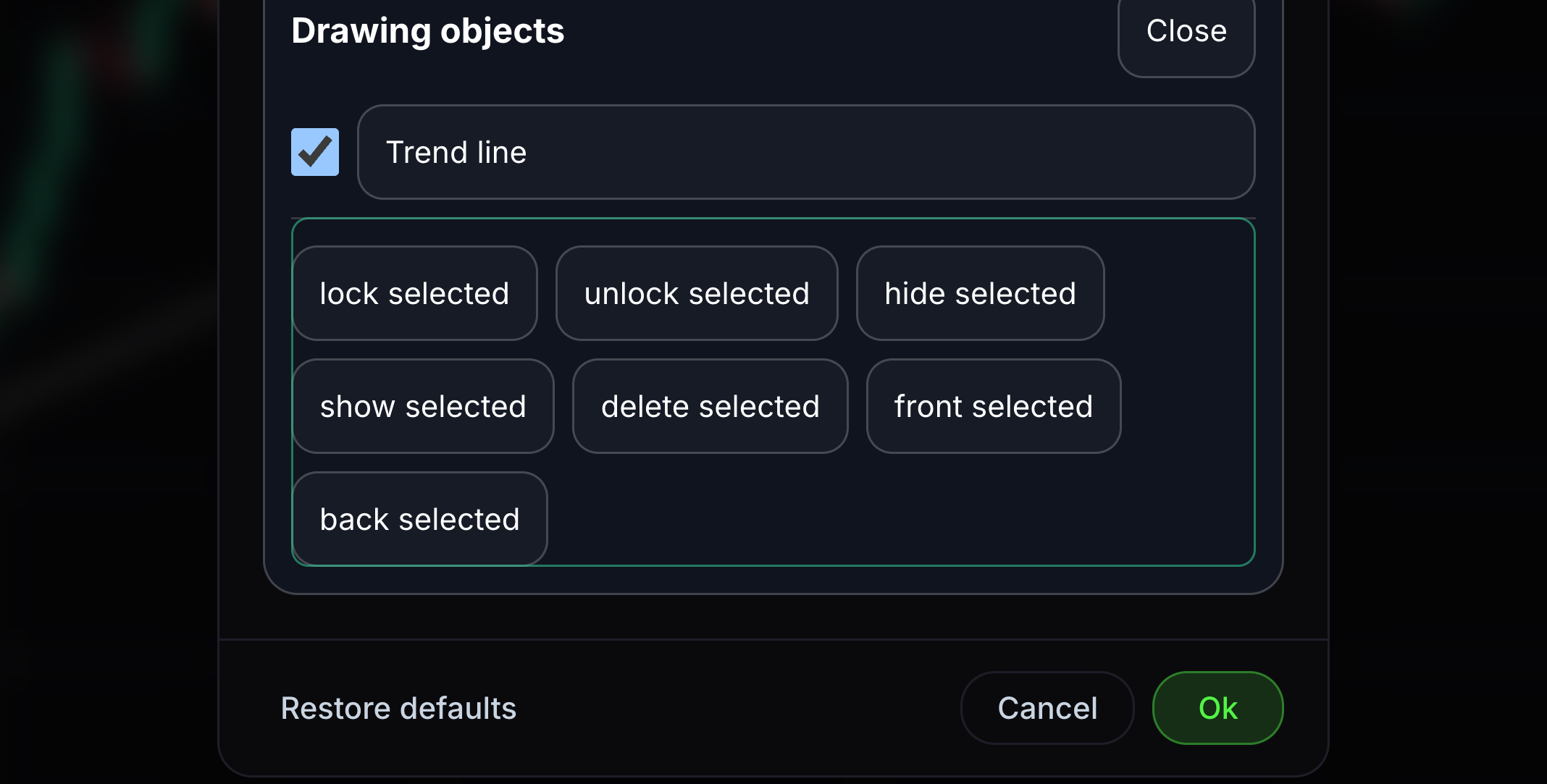
Manage selected objects
Bulk actions change all selected objects together.
Use lock, unlock, hide, show, delete, front or back for the selected drawings.
- 22
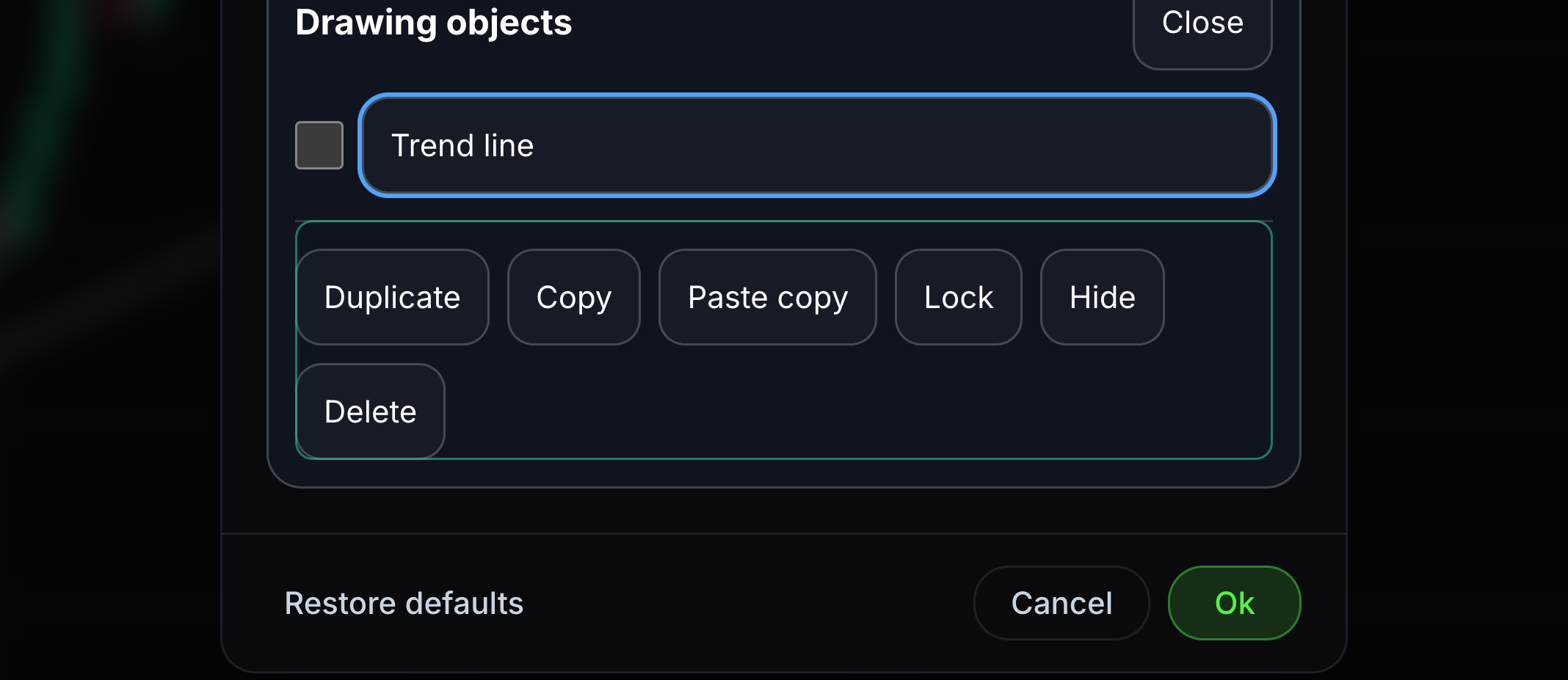
Duplicate, copy and paste
These actions make another copy of a selected drawing.
Select a drawing, then choose Duplicate or Copy followed by Paste copy.


Keep learning
Was this helpful?